Database
Introduction
The proposed greetings email is going to look similar to this:
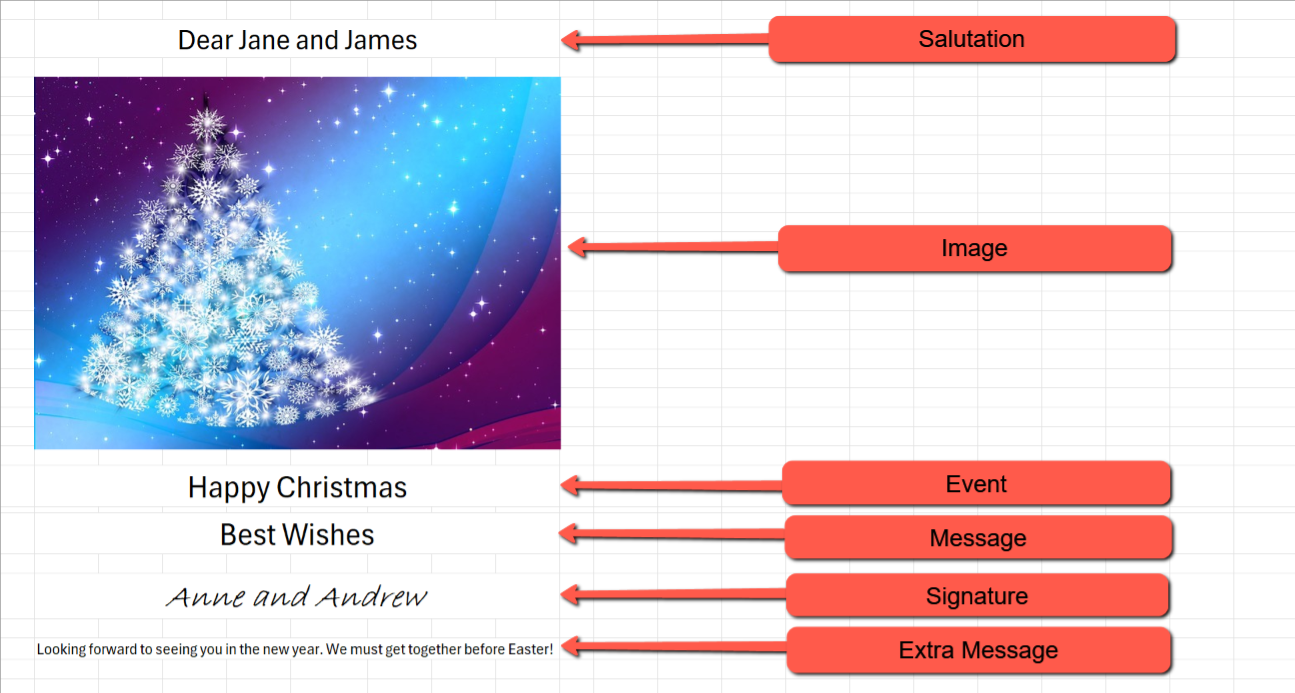
This suggests we have a database with the following tables and columns:
Contact table
- ContactID
- Contact Name
- Contact Email Address
- Salutation
- EventID
- Foreign key to a record in an 'Event' table
- MesageID
- Foreign key to a record in an 'Message' table
- SignatureID
- Foreign key to a record in a 'Signature' table
- SenderID
- Foreign key to a record in a 'Sender' table
- Extra Message
- Typed individually for each contact for each mailing.
- IsSelected
- Check box to include/exclude from email run
To support this the other tables needed will be
Event table
- EventID
- Unique ID for the event
- Event Name
- Event name and message, e.g. 'Happy Christmas'. This will also act as the email subject
Message table
- MessageID
- Unique ID for the sign-off message
- Message Description
- Short description for display on the Contact form
- Message Text
- Message - possibly multi-line
Signature table
- SignatureID
- Unique ID for the signature
- Signature
- Text to say who the message is from
Sender table
- SenderID
- Unique ID for the sender
- SmtpFriendlyName
- e.g. John Smith
- SmtpEmailAddress
- SmtpPassword
- SmtpHost
- SmtpPort
Image
I haven't decided how to handle images. My initial thoughts were that I will have one image per event, e.g. a blanket image for Christmas greetings, but I'm not sure this will work for birthday greetings. On the other hand birthday greetings are one-off events, so maybe a way of selecting an image at the time of sending might work. I'm undecided...
Database
I intend to use SQLite for the database, the main reason for this is that I plan to host the app in Azure Web Apps and don't want the expense of an Azure SQL database.
I will be using Dapper as the mapping interface.
Prerequisites
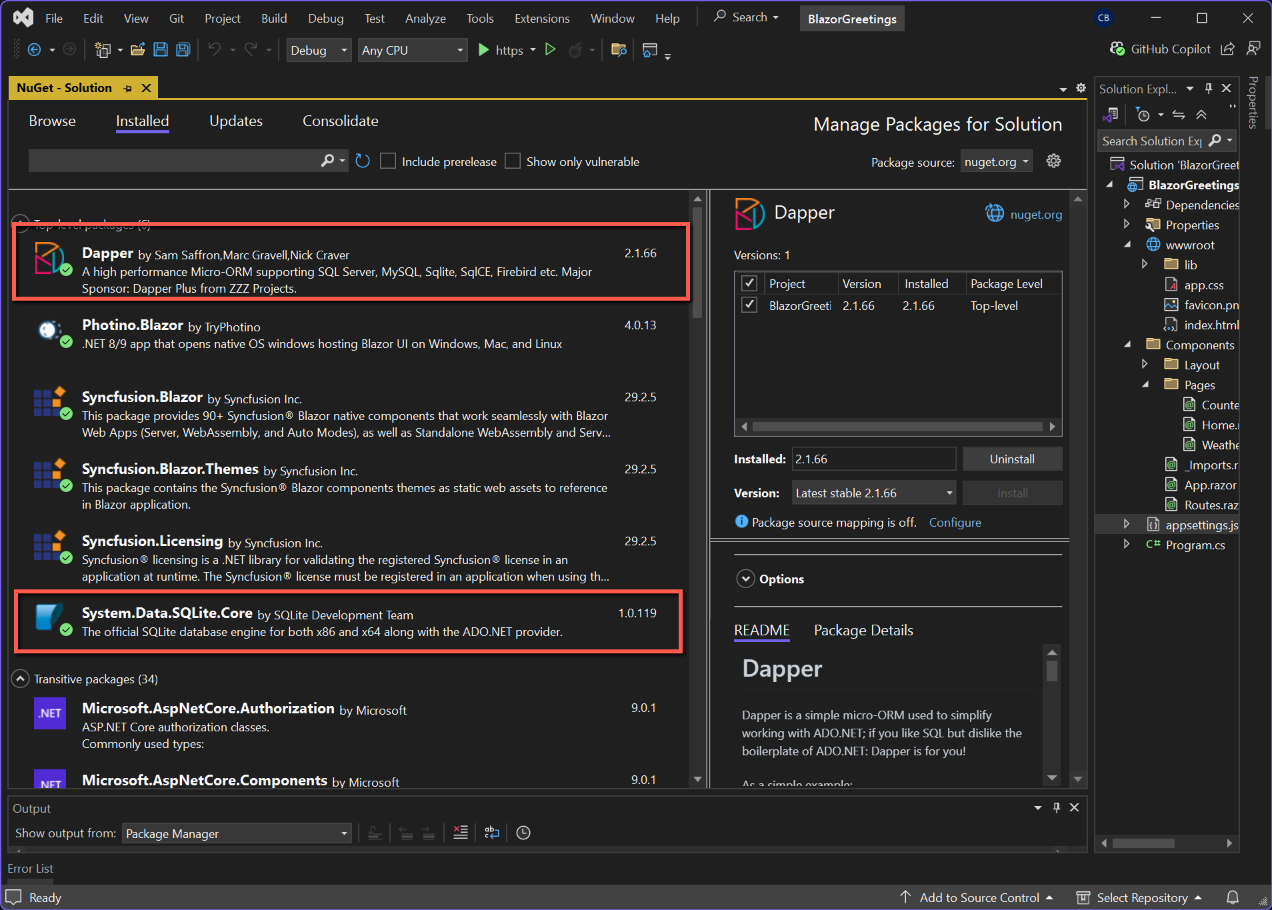
In Visual Studio we need to install two NuGet packages to support SQLite and Dapper.
Open the project in Visual Studio and install the following NuGet packages:
- System.Data.Sqlite.Core
- Dapper
To manage the database we are going to use DB Browser for SQLite. If necessary download and install from: https://sqlitebrowser.org
Create Database
We will be taking a 'database first' approach in this project. This means that we will create the database outside Visual Studio and C# code. The tool I have selected to do this is DB Browser for SQLite, but before we add the database we must determine the folder location within our Visual Studio project to add the database.
Once we have added the database and added the tables we need, we return to Visual Studio to include the database within the project.
The tasks to be undertaken are therefore:
- In Visual Studio add a Data folder and record the path to it
- Using DB Browser for SQLite
- add the XmasGreetings database
- add the following tables
- Contact
- Event
- Message
- Signature
- Sender
Get the Data folder path
Open Visual Studio and the project if not already open.
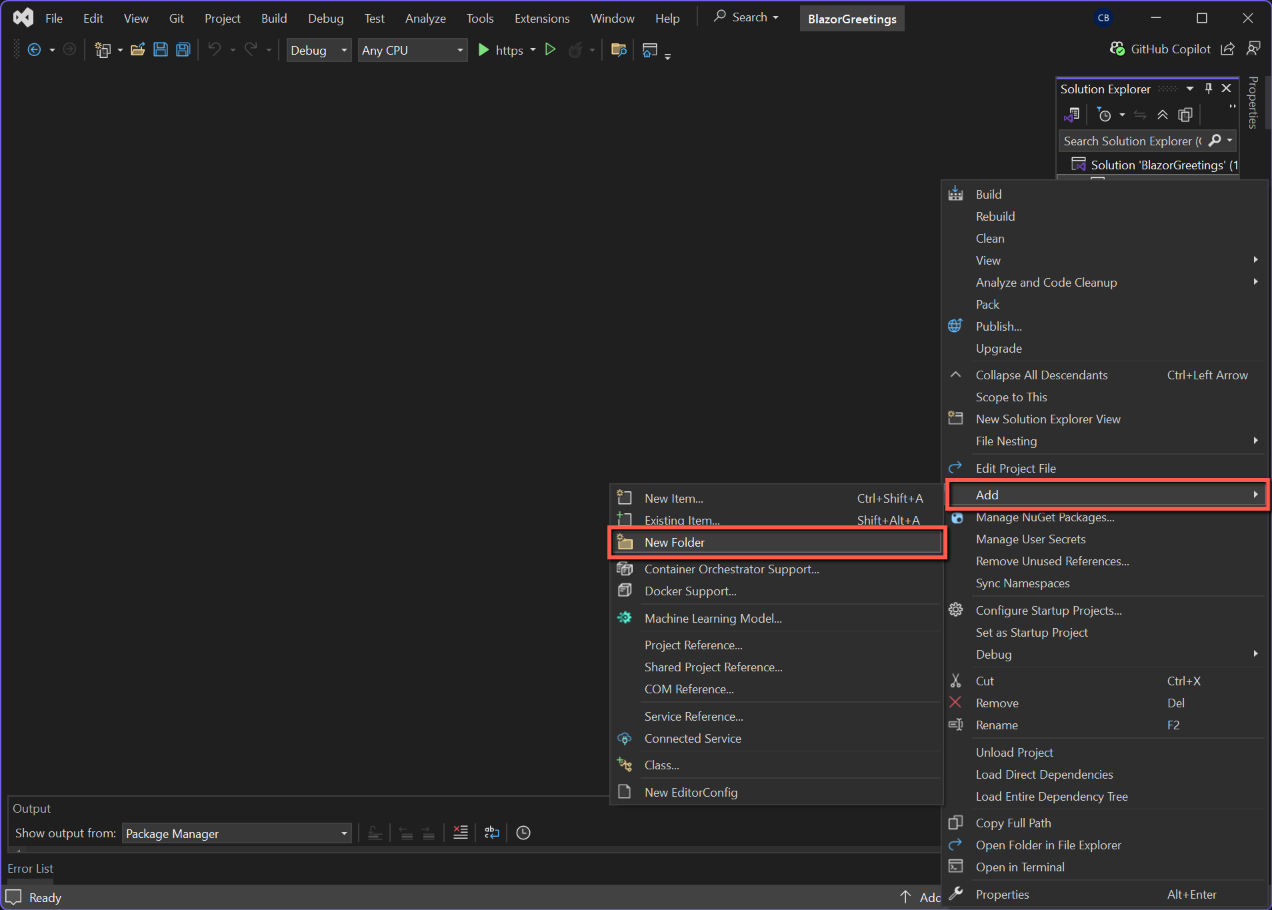
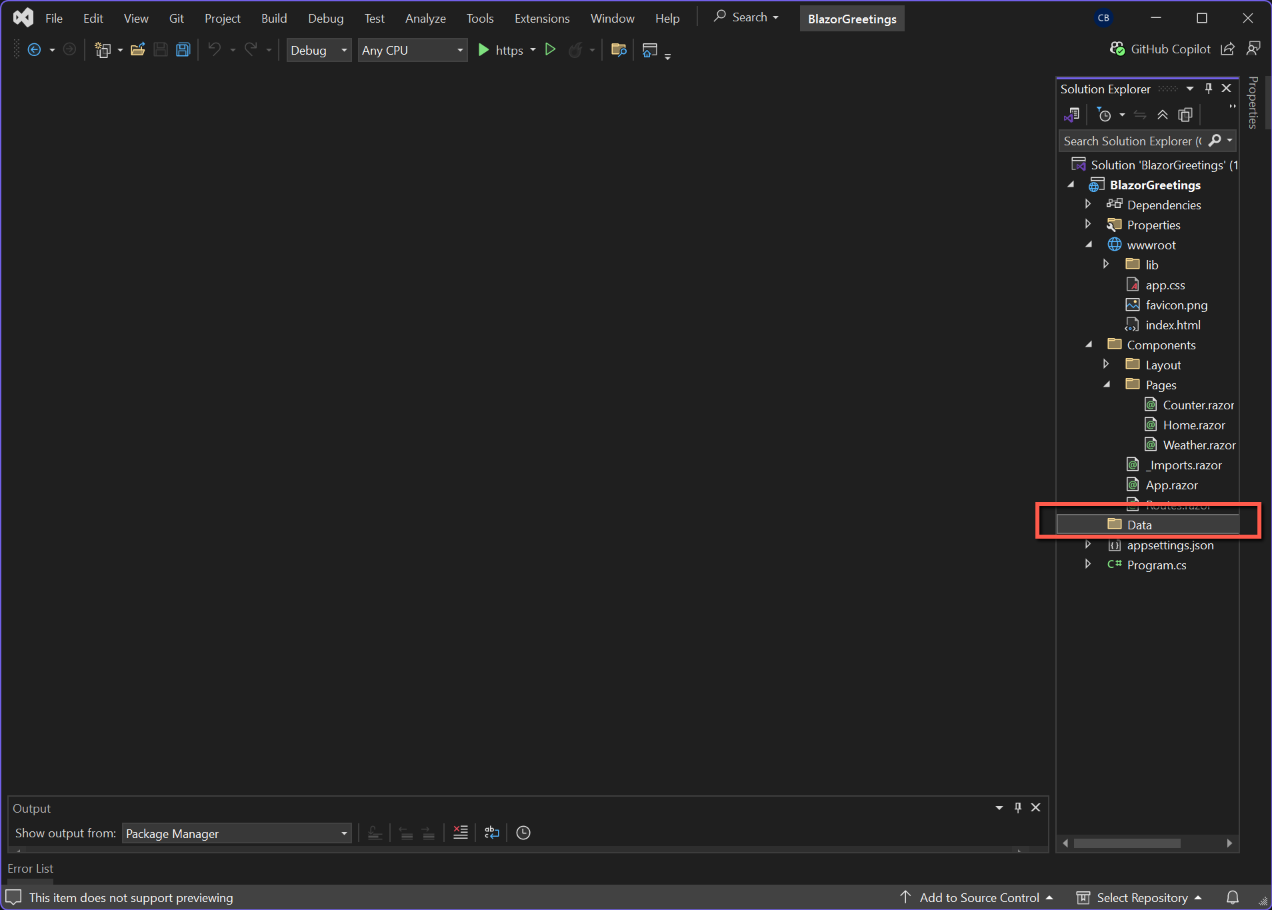
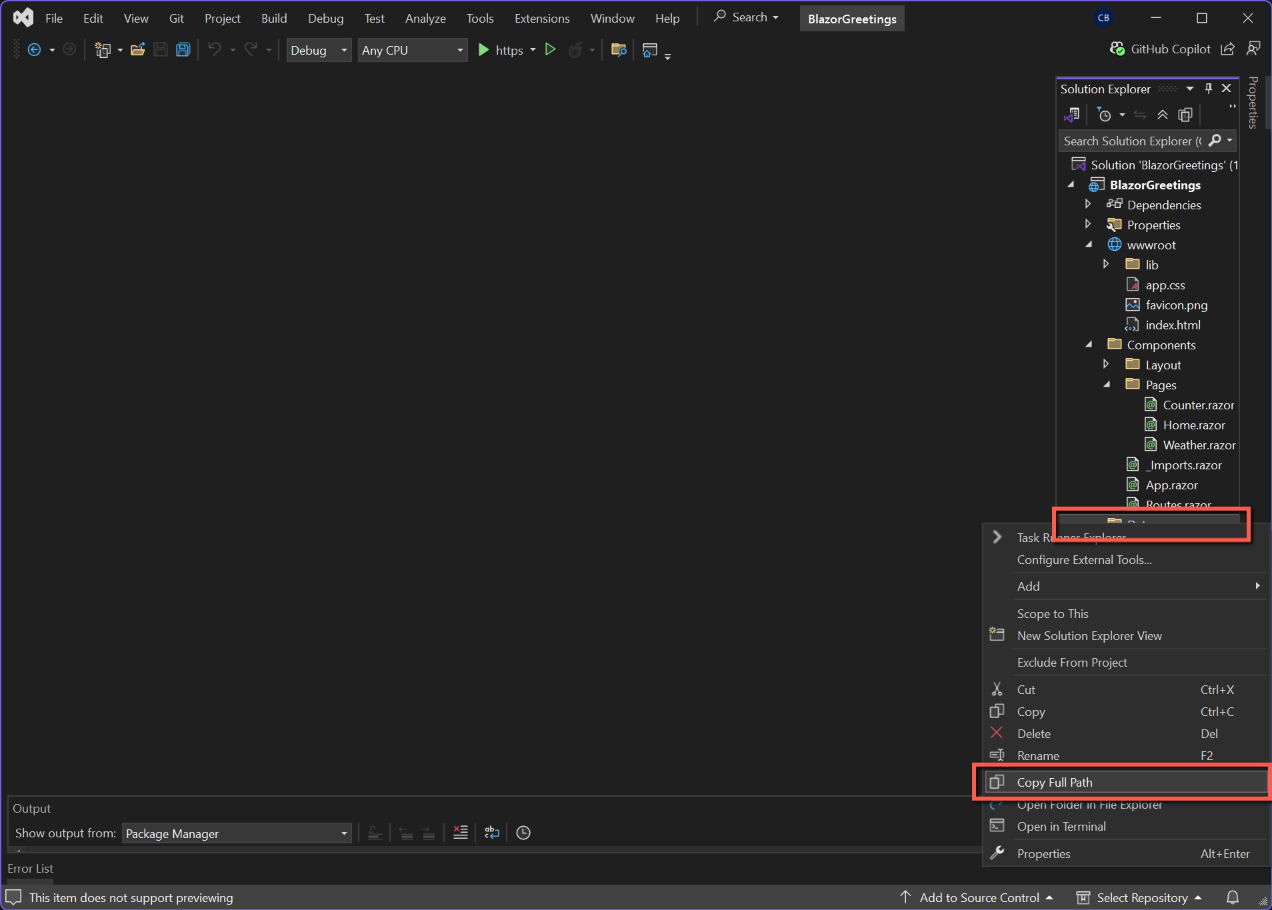
- In Solution Explorer, right-click the project name and select 'Add' followed by 'New Folder'. Call the folder 'Data'.
- Right-click on the new Data folder and select 'Copy full path'. (I suggest pasting into Notepad temporarily.)
Add the Database
Open DB Browser for SQLite
- Click 'New Database' button on the toolbar
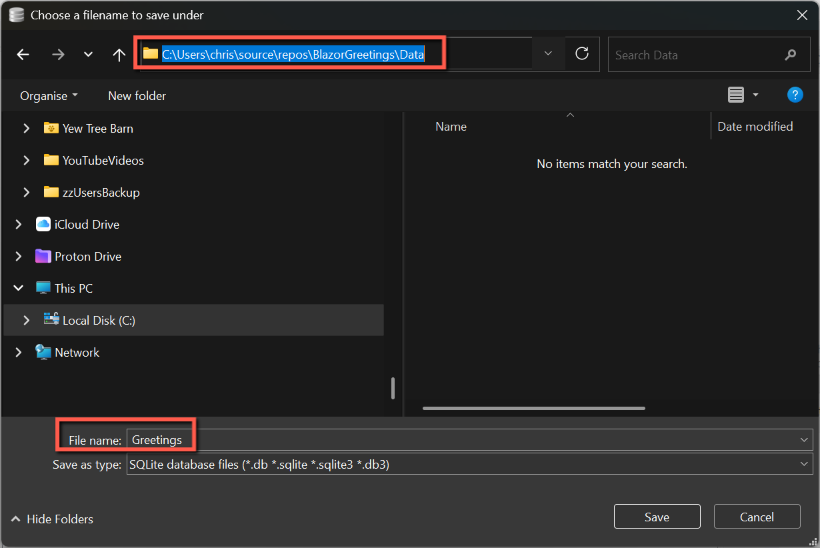
- Paste the path copied from Visual Studio into the 'address bar' of the form that opens and press carriage return.
- Enter a name for the database, e.g. 'Greetings', in the File name box and click 'Save'
Add tables
I found the simplest way to add tables was from scripts. These are shown below. In DB Browser close the dialog to add tables - this will have automatically opened when the database was created, Click the 'Execute SQL' tab and paste in the scripts one by one. Click the Execute button for each table.
Contact
CREATE TABLE "Contact" (
	"ContactID"	INTEGER NOT NULL UNIQUE,
	"ContactName" TEXT NOT NULL,
	"ContactEmailAddress" TEXT NOT NULL,
	"Salutation" TEXT NOT NULL,
    "EventID" INTEGER NOT NULL,
	"MessageID"	INTEGER NOT NULL,
	"SignatureID" INTEGER NOT NULL,
	"SenderID" INTEGER NOT NULL,
	"ExtraMessage" TEXT,
	"IsSelected" INTEGER NOT NULL DEFAULT 1,
	PRIMARY KEY("ContactID" AUTOINCREMENT)
 )
Event
CREATE TABLE "Event" (
	"EventID"	INTEGER NOT NULL UNIQUE,
	"EventName"	TEXT NOT NULL COLLATE RTRIM,
	PRIMARY KEY("EventID" AUTOINCREMENT)
)
Message
CREATE TABLE "Message" (
	"MessageID"	INTEGER NOT NULL UNIQUE,
	"MessageDescription"	TEXT NOT NULL,
    "MessageText"	TEXT NOT NULL,
	PRIMARY KEY("MessageID" AUTOINCREMENT)
)
Signature
CREATE TABLE "Signature" (
	"SignatureID"	INTEGER NOT NULL UNIQUE,
	"Signature"	TEXT NOT NULL,
	PRIMARY KEY("SignatureID" AUTOINCREMENT)
)
Sender
CREATE TABLE "Sender" (
	"SenderID"	INTEGER NOT NULL UNIQUE,
	"SmtpFriendlyName"	TEXT NOT NULL,
	"SmtpEmailAddress"	TEXT NOT NULL,
    "SmtpPassword"	TEXT NOT NULL,
	"SmtpHost"	TEXT NOT NULL,
	"SmtpPort"	INTEGER NOT NULL,
	PRIMARY KEY("SenderID" AUTOINCREMENT)
)
Note that all tables have a primary key that's an auto-increasing integer.

Close DB Browser, but make sure you save the database. (No need to save the tabs.)
Add Database to Project
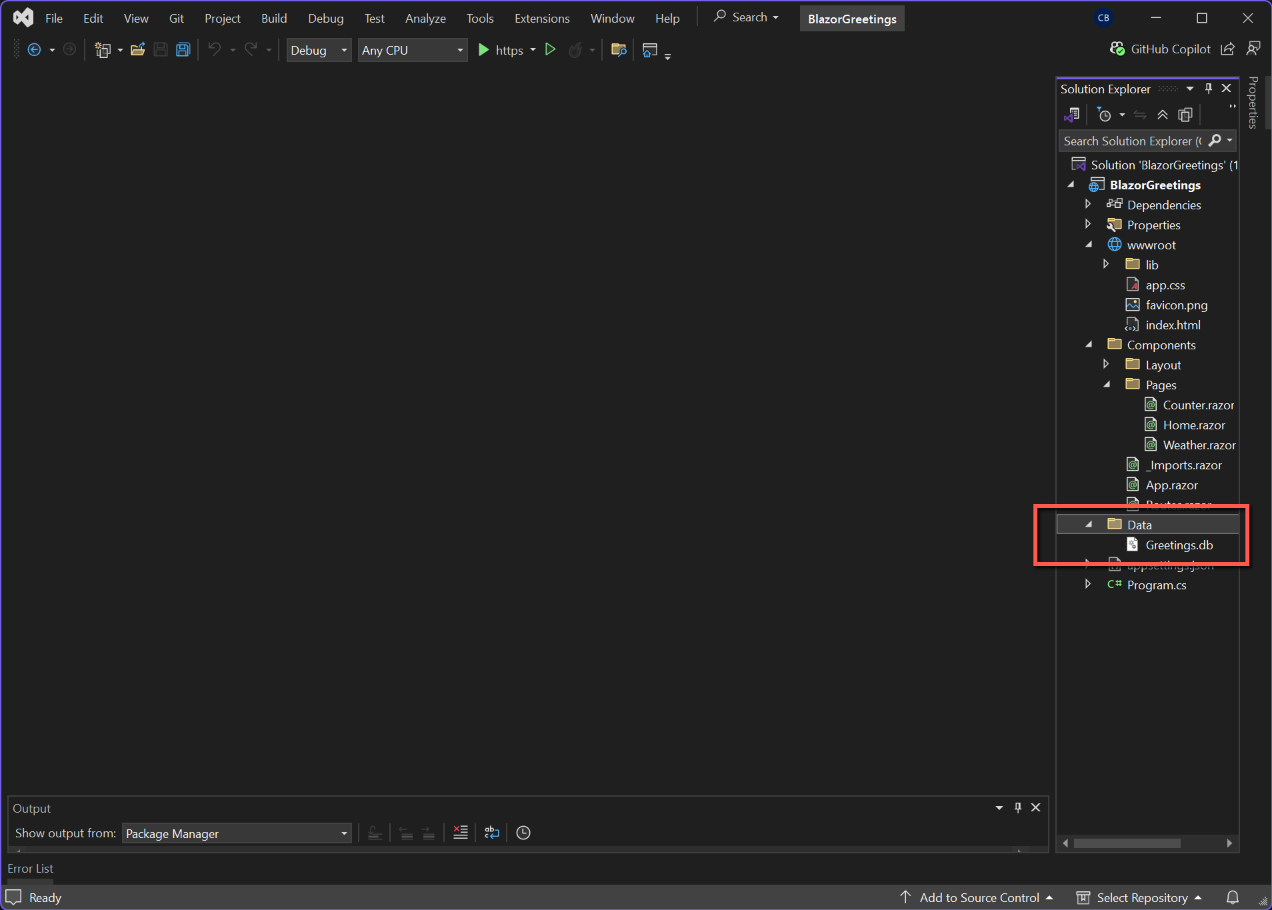
Return to Visual Studio and in the Solution Explorer open the Data folder. Greetings.db is not displayed:
- Highlight the Data folder and right-click
- Select 'Existing Item...'
- Select 'Greetings.db' when the file browser opens and click 'Add'
- Greetings.db will now be shown in the Data folder.
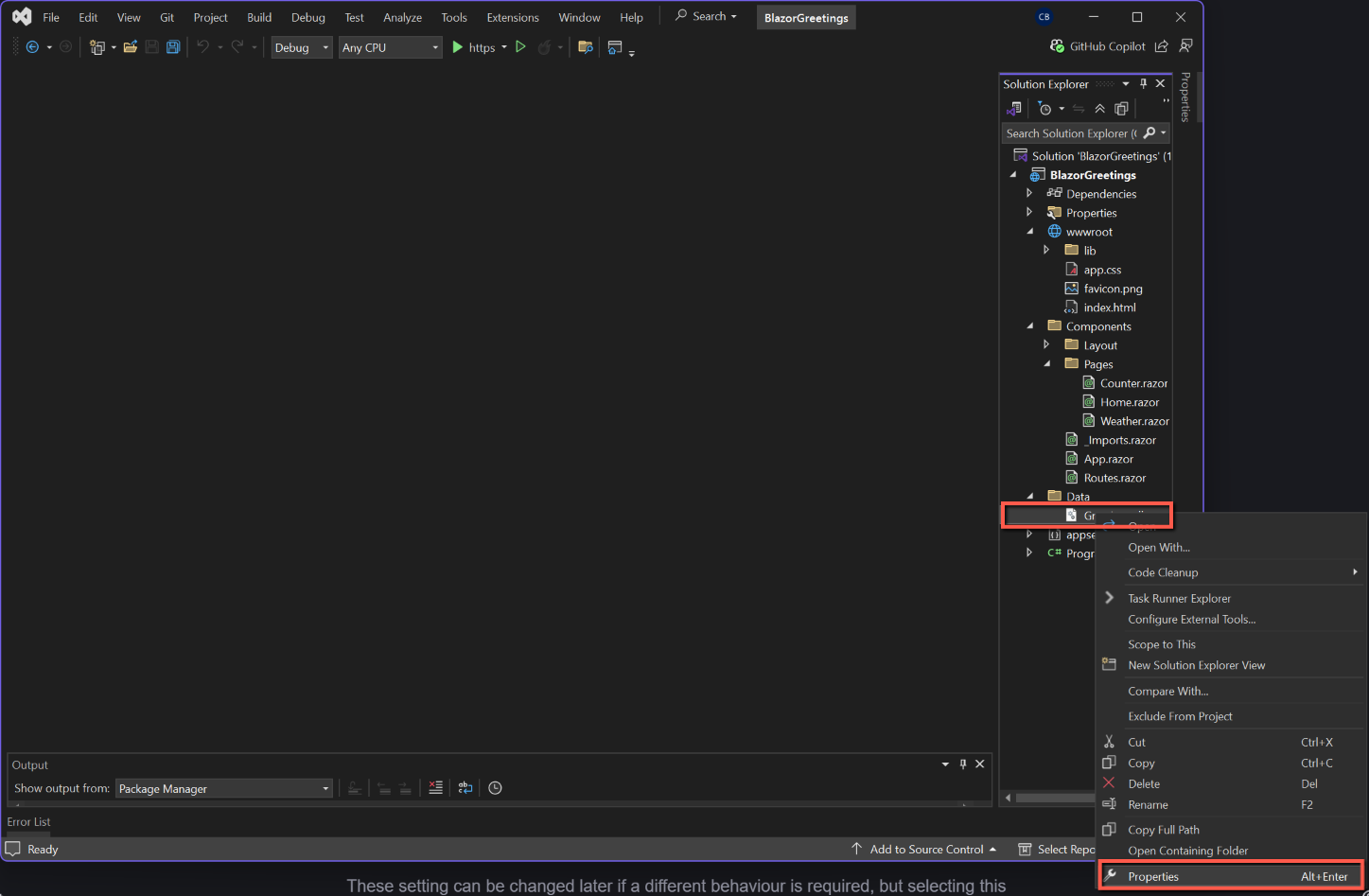
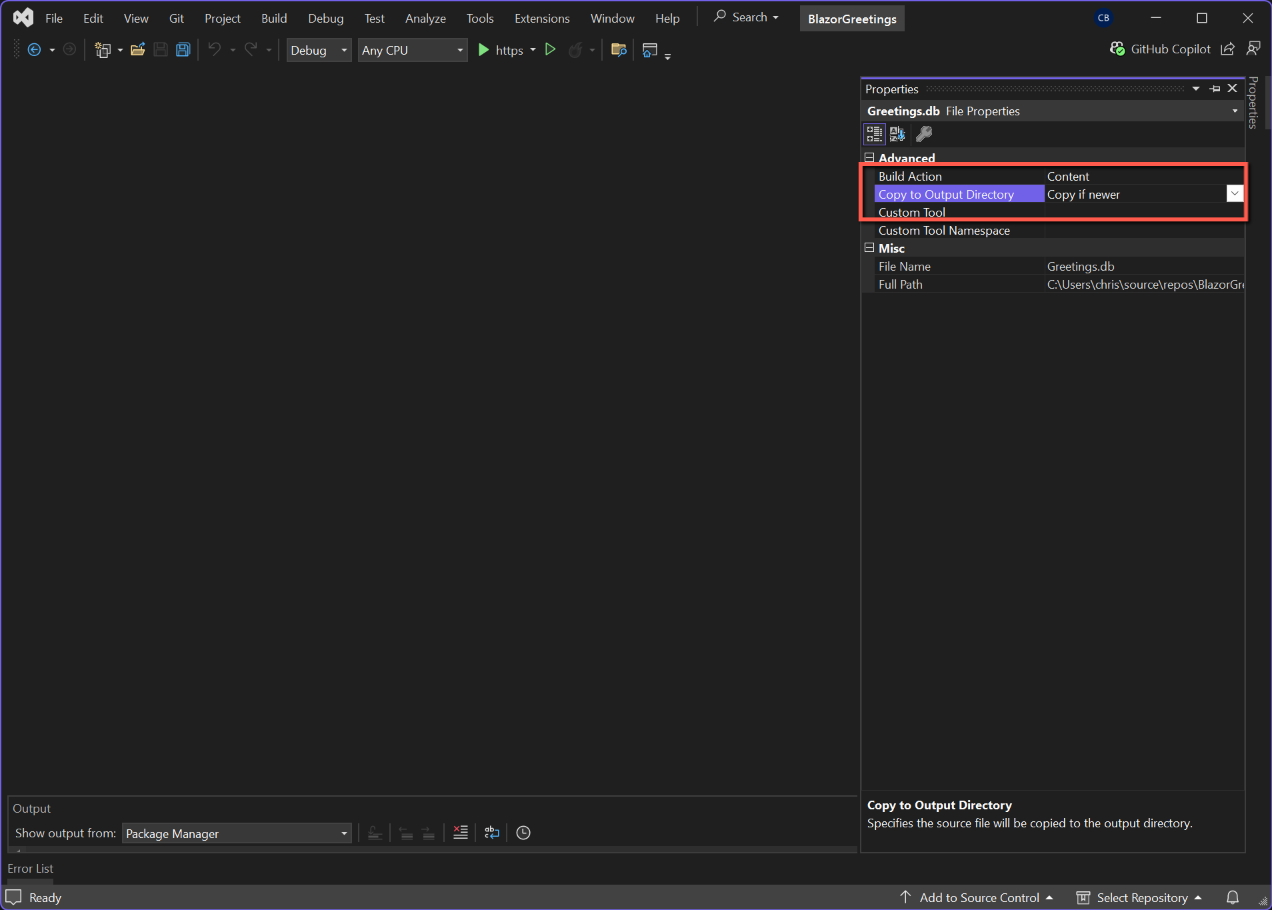
Before we leave Greetings.db in Solution Explorer, we can set one of the properties of the database so that when we publish the application the database is included in the package.
- Right-click it and select 'Properties'
- Select 'Content' for 'Build Action'
- Select 'Copy if newer' for 'Copy to Output Directory'
These setting can be changed later if a different behaviour is required, but selecting this to start with will ensure that the database is published as part of the project.
Connection String
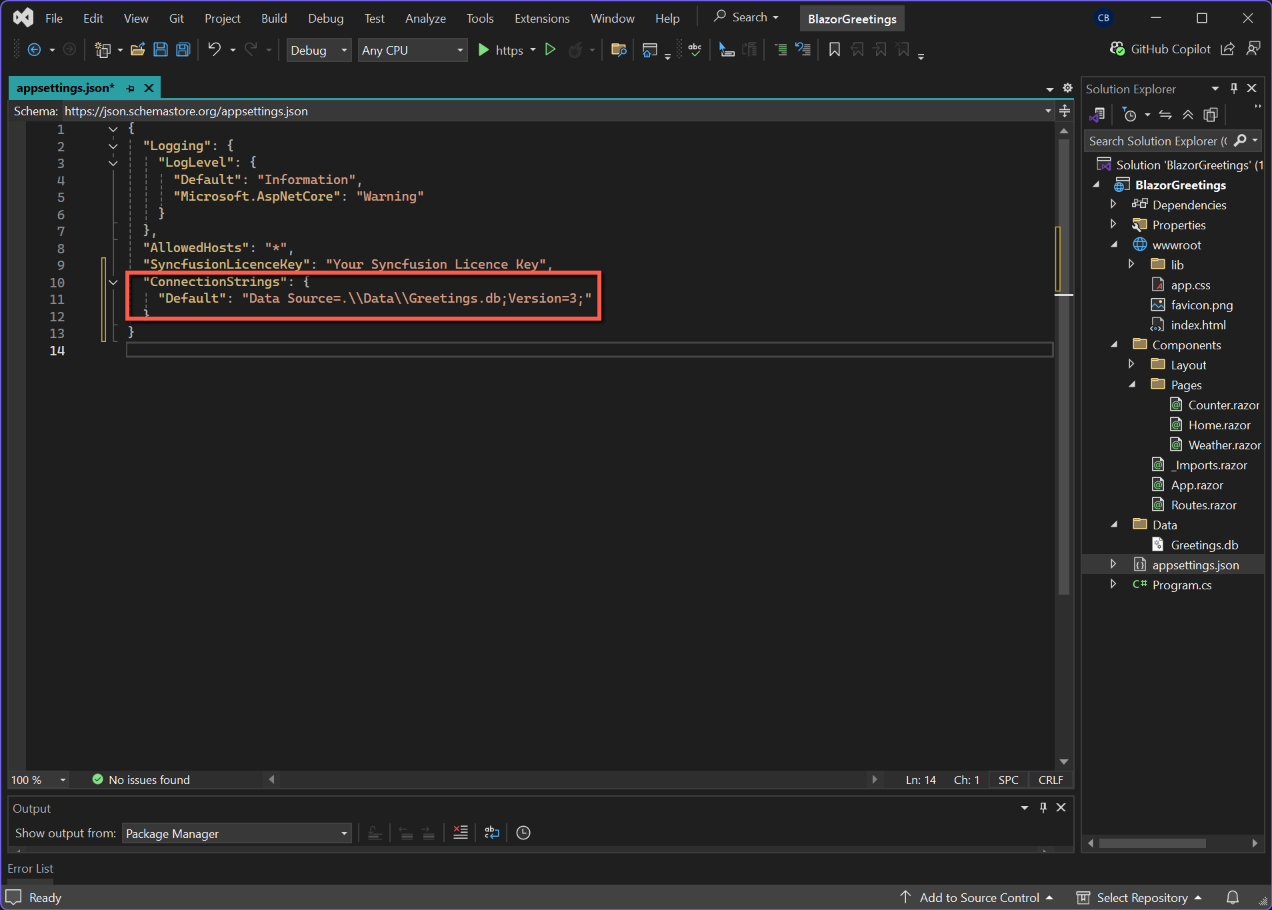
To link the application to the database we need to add a 'ConnectionString' to 'appsettings.json'. Open appsettings.json and add (or edit) the following (you will probably have to add a comma to the line above where this is to be inserted):
  "ConnectionStrings": {
    "Default": "Data Source=.\\Data\\Greetings.db;Version=3;"
  }
This is the relative path to the Greetings database from the root of the application.
Save and test
Nothing will have changed yet, but check the application opens.