Cities CRUD Operations
Introduction
On the Countries page we opened another 'page' to add or edit a country. With Cities we will take a slightly different approach, this time using Syncfusion dialogs within the Index page.
As with the Countries page though, we will add a toolbar to the top of the Cities data grid to allow adding, editing and deleting of cities.
YouTube Video
Custom Toolbar
Adding a Custom Toolbar requires the following steps:
- Adding 'Toolbar="Toolbaritems"' to the <SfGrid>
section. 'Toolbaritems' is a variable declared later. - Adding <GridEvents OnToolbarClick="ToolbarClickHandler" TValue="City">
to the grid HTML, where "Cities" is the data model. - Adding "private List<ItemModel>
Toolbaritems = new List<ItemModel> ();" at the top of the @Code section to declare the Toolbaritems variable. - For each Toolbaritem adding code similar to "Toolbaritems.Add(new ItemModel() { Text = "Add", TooltipText = "Add a new country", PrefixIcon = "e-add" });" to the OnInitializedSync procedure.
- Adding a procedure to handle the toolbar click event, (ToolbarClickHandler in the code below). At this stage the Add, Edit and Delete don't do anything.
I also wanted to add a bit of space between the Countries drop-down list and the Cities data-grid, so I have also added a <hr /> between the HTML these sections.
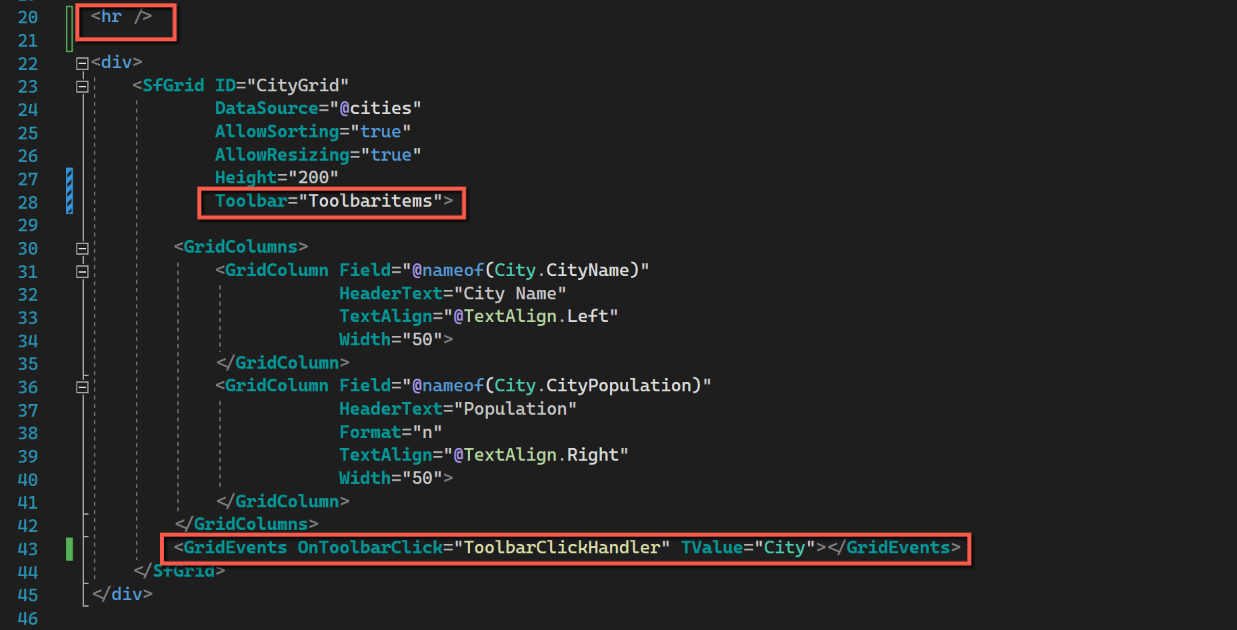


The full code for Index.razor, at this point is:
@page "/"
@inject ICountryService CountryService
@inject ICityService CityService;

<PageTitle>Countries & Cities List</PageTitle>

<h3>Countries and Cities</h3>

<div class="DropDownWrapper">
<SfDropDownList TItem="Country"
                TValue="string"
                DataSource="@countries"
                Placeholder="Select a country"
                PopupHeight="200px"
                PopupWidth="250px">
    <DropDownListFieldSettings Text="CountryName" Value="CountryId"></DropDownListFieldSettings>
    <DropDownListEvents TItem="Country" TValue="string" ValueChange="OnChange"></DropDownListEvents>
</SfDropDownList>
</div>
<hr />
<div>
    <SfGrid ID="CityGrid"
            DataSource="@cities"
            AllowSorting="true"
            AllowResizing="true"
            Height="200"
            Toolbar="Toolbaritems">

        <GridColumns>
            <GridColumn Field="@nameof(City.CityName)"
                        HeaderText="City Name"
                        TextAlign="@TextAlign.Left"
                        Width="50">
            </GridColumn>
            <GridColumn Field="@nameof(City.CityPopulation)"
                        HeaderText="Population"
                        Format="n"
                        TextAlign="@TextAlign.Right"
                        Width="50">
            </GridColumn>
        </GridColumns>
        <GridEvents OnToolbarClick="ToolbarClickHandler" TValue="City" />
    </SfGrid>
</div>

<style>
    .DropDownWrapper {
        width: 250px;
    }
</style>

@code {
    List<Country>? countries;
    List<Country>? countriesUnordered;
    List<City>? cities;
    List<City>? citiesUnordered;

    private List<ItemModel> Toolbaritems = new List<ItemModel>();

    [Parameter]
    public int SelectedCountryId { get; set; } = 0;


    protected override async Task OnInitializedAsync()
    {
        //Add options for the custom toolbar
        Toolbaritems.Add(new ItemModel() { Text = "Add", TooltipText = "Add a new city", PrefixIcon = "e-add" });
        Toolbaritems.Add(new ItemModel() { Text = "Edit", TooltipText = "Edit selected city", PrefixIcon = "e-edit" });
        Toolbaritems.Add(new ItemModel() { Text = "Delete", TooltipText = "Delete selected city", PrefixIcon = "e-delete" });

        //Populate the list of countries objects from the Countries table.
        await CountryService.GetCountries();
        countriesUnordered = new();
        foreach (var country in CountryService.Countries)
            countriesUnordered.Add(country);
        countries = countriesUnordered.OrderBy(c => c.CountryName).ToList();
    }

    public async Task OnChange(Syncfusion.Blazor.DropDowns.ChangeEventArgs<string, Country> args)
    {
        // Populate list of cities for the selected country
        SelectedCountryId = args.ItemData.CountryId;
        citiesUnordered = new();
        await CityService.GetCitiesByCountryId(SelectedCountryId);
        foreach (var city in CityService.Cities)
            citiesUnordered.Add(city);

        cities = citiesUnordered.OrderBy(c => c.CityName).ToList();
    }

    public async Task ToolbarClickHandler(Syncfusion.Blazor.Navigations.ClickEventArgs args)
    {
        if (args.Item.Text == "Add")
        {
            //Code for adding goes here
        }
        if (args.Item.Text == "Edit")
        {
            //Code for editing
        }
        if (args.Item.Text == "Delete")
        {
            //code for deleting
        }
    }

}
Add & Edit Cities Dialog
To add the dialog to enable adding and editing cities, insert the following immediately after the button section;
<div>
    <SfDialog @ref="DialogCity" IsModal="true" Width="500px" ShowCloseIcon="false" Visible="false" AllowDragging="true">
        <DialogTemplates>
            <Header> @dialogTitle</Header>
            <Content>
                <EditForm Model="@citiesAddEdit" OnValidSubmit="@CitiesSave">
                    <div>
                        <SfTextBox Enabled="true" Placeholder="City"
                                   FloatLabelType="@FloatLabelType.Always"
                                   @bind-Value="citiesAddEdit.CityName"></SfTextBox>
                        <SfNumericTextBox Enabled="true" Placeholder="Population" Width="50"
                                          FloatLabelType="@FloatLabelType.Always"
                                          @bind-Value="citiesAddEdit.CityPopulation"></SfNumericTextBox>
                    </div>
                    <br /><br />
                    <div class="e-footer-content">
                        <div class="button-container">
                            <button type="submit" class="e-btn e-normal e-primary">Save</button>
                            <button type="button" class="e-btn e-normal" @onclick="@Cancel">Cancel</button>
                        </div>
                    </div>
                </EditForm>
            </Content>
        </DialogTemplates>
    </SfDialog>
</div>
The SfDialog is defined with properties of
- @ref of "DialogAddCity"
- It's modal
- The close icon will be visible
- The dialog's visibility is set to "false", i.e. it will only become visible once the Add or Edit buttons are are clicked.
Within the SfDialog is an EditForm which uses a Model="citiesAddEdit" and an OnValidSubmit of "@CitiesSave". The form will display 2 text boxes, one for the CityName and the other for the CityPopulation. The form also has a button to handle a valid submission. Ignore the squiggly lines for the moment.
Checking a Country has been selected
In the @code section there is quite a bit to do, and can appear to be a bit messy - but is just a series of steps. There are a couple of potential user-type errors to trap and deal with, and the first of these is to ensure that the user has selected a country before trying to add a city. We will deal with this in exactly the same way as we checked a country had been selected before editing and deleting. i.e we will use the Syncfusion Predefined Dialog.
To check that a country has been selected:
- Add "@inject SfDialogService DialogService" at the top of the file to enable us to use the Syncfusion Predefined Dialog.
@inject SfDialogService DialogService- At the top of the 'ToolBarClickHandler' insert the following. It going at the top of this method as we will need to ensure that a country has been selected for 'Edit' and 'Delete' as well as 'Add'. (But in the case of 'Edit' and 'Delete' we will also need to ensure that a City has been selected.)
if (SelectedCountryId == 0)
{
    await DialogService.AlertAsync("Please select a country.", "No Country Selected");
    return;
} 
Adding a City
We are going to use DialogCity to allow the user to add a new city, entering a CityName and CityPopulation. The object used to gather this data is "citiesAddEdit" of type City. We must therefore declare this object, and as we will be referring to the SfDialog we must also declare that. Whilst declaring variables we will also need variables to record CityName, CityPopulation and CountryId. To declare these variables enter the following at the top of the code section.
SfDialog? DialogCity;
City citiesAddEdit = new City();
public string dialogTitle = "Add a City";

private int CityId = 0;
private string CityName = string.Empty;
private int CityPopulation = 0;
To add a new city we will create new empty citiesAddEdit object and then open the dialog. To do this, insert the following in the 'Add' section of the ToolBarHandler:
dialogTitle = "Add a City";
citiesAddEdit = new();
await DialogCity.ShowAsync(false);

DialogCity.ShowAsync can have either 'true' or 'false' passed to it to control whether it is shown full-screen or not. The default is 'false' but is included here for completeness.
This will display the dialog, ready for the user to enter data.

Once data has been entered (we'll deal with data validation later), the user will click 'Save'. This will trigger the OnValidSubmit="@CitiesSave", which in turn calls the 'CitiesSave' method.
The 'CitiesSave' method will need to cater for either saving after adding a new city, or editing an existing city. The code we need (at this stage) for adding a city is:
protected async Task CitiesSave()
{
    if (citiesAddEdit.CityId == 0)
    {
        // Insert if CityId is zero.
        citiesAddEdit.CountryId = SelectedCountryId;

        await CityService.CityInsert(citiesAddEdit);
        await DialogCity.HideAsync();
        await RefreshCitiesGrid();
    }
    else
    {
        //Editing an existing city
    }
}
Here we are checking that citiesAddEdit.CityId is 0 (i.e. it is a new record); if so we are setting citiesAddEdit.CountryId to SelectedCountryId (from the Country drop-down list), then calling the CityInsert service (passing to it the citiesAddEdit object) and then hiding the dialog.
At this point we will need to refresh the Cities data-grid to take account of the new city. We already have code for this in the Country drop-down list OnChange method. Rather than repeating the code it makes sense to create a new method and call it from both the Country drop-down list change event and the CitiesSave. To create the new method, add the following code to the end of the code section:
public async Task RefreshCitiesGrid()
{
    citiesUnordered = new();
    await CityService.GetCitiesByCountryId(SelectedCountryId);
    foreach (var city in CityService.Cities)
        citiesUnordered.Add(city);

    //Sort in alphabetical name ascending
    cities = citiesUnordered.OrderBy(c => c.CityName).ToList();

}
Now, in the OnChange method for the countries drop-down list, replace the above code with:
await RefreshCitiesGrid();And add the same line to the end of the CitiesSave method.
We have also got to deal with the situation where the user clicks the 'Cancel' button. In fact all we need to do is hide the dialog box; there is no need to refresh the grid.
void Cancel()
{
    DialogCity.HideAsync();
}
Before we can test the above we need to make some changes to the CityController
CityController
When we created the CityController we copied the CountryController and used 'find and replace' to substitute 'City' for 'Country' (with variations for plural and lower case). However, the City object has more fields/columns than Country and we need to allow for this. To include the additional columns replace 'CityInsert' in CityController with the following:
[HttpPost]
[Route("api/city/")]
public async Task<ActionResult<List<City>>> CityInsert(City city)
{
    var parameters = new DynamicParameters();
    parameters.Add("@CityName", city.CityName, DbType.String);
    parameters.Add("@CityPopulation", city.CityPopulation, DbType.Int32);
    parameters.Add("@CountryId", city.CountryId, DbType.Int32);

    sqlCommand = "Insert into City (CityName, CityPopulation, CountryId) " +
        "values(@CityName, @CityPopulation, @CountryId)";
    using IDbConnection conn = new SQLiteConnection(_config.GetConnectionString(connectionId));
    {
        await conn.ExecuteAsync(sqlCommand, parameters);
    }
    return Ok();
}
We have a similar situation when updating a city; the code for this is:
[HttpPut]
[Route("api/city/{cityId}")]
public async Task<ActionResult<List<City>>> CityUpdate(City city)
{
    var parameters = new DynamicParameters();
    parameters.Add("@CityId", city.CityId, DbType.Int32);
    parameters.Add("@CityName", city.CityName, DbType.String);
    parameters.Add("@CityPopulation", city.CityPopulation, DbType.Int32);
    parameters.Add("@CountryId", city.CountryId, DbType.Int32);

    sqlCommand =
        "Update City " +
        "set CityName = @CityName, " +
        "CityPopulation = @CityPopulation, " +
        "CountryId = @CountryId " +
        "Where CityId = @CityId";
    using IDbConnection conn = new SQLiteConnection(_config.GetConnectionString(connectionId));
    {
        await conn.ExecuteAsync(sqlCommand, parameters);
    }
    return Ok();
}

In both cases we are adding the parameters for the additional columns and amending the SQL statement to take account of those additional columns.
No changes are needed to CityService or ICityService.
Save all the files and test, adding a few cities to a couple of countries.
Editing a City
When editing a City the first thing we must do is check that a city has been selected from the data-grid. To allow us to detect if a row has been selected we need to add the following into the <GridEvents> section:
RowSelected="RowSelectHandler"And to add a 'RowSelectHandler' method. Add the following at the end of the code section:
public void RowSelectHandler(RowSelectEventArgs<City> args)
{
    //{args.Data} returns the current selected records.
    CityId = args.Data.CityId;
    CityName = args.Data.CityName;
    CityPopulation = args.Data.CityPopulation;
}
Values for CityId, CityName and CityPopulation are being assigned to variables as the user clicks on a row.
To check that a row has been selected we can check that CityId is not 0. (We will reset these variables when saving a record - see later.) Again we can use the Syncfusion Predefined Dialog to warn the user if no city has been selected.
If CityId is not 0 we can conclude that the user has selected a row and can then add a new empty citiesAddEdit object and populate with values established when the user clicked on a row, and then open the dialog to allow the user to make changes. The code is shown below:
if (args.Item.Text == "Edit")
{
    //Code for editing
    dialogTitle = "Edit a City";

    //Check that a City has been selected
    if (CityId == 0)
    {
        await DialogService.AlertAsync("Please select a city.", "No City Selected");
        return;
    }
    citiesAddEdit = new();
    citiesAddEdit.CityId = CityId;
    citiesAddEdit.CityName = CityName;
    citiesAddEdit.CityPopulation = CityPopulation;
    citiesAddEdit.CountryId = SelectedCountryId;
    await DialogCity.ShowAsync(false);
}
Once opened, the dialog will appear just as for adding, but will show the CityName and CityPopulation of the record being edited.
When the user clicks 'Save' on the dialog we need to call the CityUpdate service in place of the CityInsert and pass to it the CityId of the city being updated together with the amended citiesAddEdit object. The code is shown below:
protected async Task CitiesSave()
{
    if (citiesAddEdit.CityId == 0)
    {
        // Insert if CityId is zero.
        citiesAddEdit.CountryId = SelectedCountryId;

        await CityService.CityInsert(citiesAddEdit);
        await DialogCity.HideAsync();
    }
    else
    {
        //Editing an existing city
        await CityService.CityUpdate(CityId, citiesAddEdit);
        await DialogCity.HideAsync();
    }
    await RefreshCitiesGrid();
}
Having updated the city record we should clear the variables and reset the citiesAddEdit object to empty. As we will need to do this whenever we refresh the cities data-grid we can add the additional code to that method.
public async Task RefreshCitiesGrid()
{
    citiesUnordered = new();
    await CityService.GetCitiesByCountryId(SelectedCountryId);
    foreach (var city in CityService.Cities)
        citiesUnordered.Add(city);

    //Sort in alphabetical name ascending
    cities = citiesUnordered.OrderBy(c => c.CityName).ToList();

    //Clear city data
    citiesAddEdit = new();
    CityId = 0;
    CityName = string.Empty;
    CityPopulation = 0;
}
Save all the files and test, editing a couple of cities.
Deleting a City
To delete a city
- We must make sure the user has selected a city
- Ask for confirmation that the user wants to delete the city
- If both the above are true:
- Delete the city
- Refresh the cities data-grid
To achieve the above enter the following code into the ToolBarHandler for the 'Delete' button:
//Check a City has been selected
if (CityId == 0)
{
    await DialogService.AlertAsync("Please select a city.", "No City Selected");
    return;
}
else
{
    //code for deleting
    //Check that user really wants to delete the selected city
    string dialogMessage = $"Are you sure you want to delete {CityName}?";
    bool isConfirm = await DialogService.ConfirmAsync(dialogMessage, "Delete City");
    if (isConfirm)
    {
        await CityService.CityDelete(CityId);
        await RefreshCitiesGrid();
    }
}
In the above, we are using the Syncfusion Predefined Dialog not only to warn the user if no city has been selected, but also, in a different mode, to ask the user to confirm they want to delete the city. A variable for the dialog message is constructed using the CityName. If the user confirms the deletion CityService.CityDelete is called followed by RefreshCitiesGrid.
Save all the files and test.
Before we finish with the Index page we need to handle data validation - we will tackle this next.
Code
Code changes for this post can be found here: Cities CRUD Operations - Code