Countries & Cities - Part 2
Introduction
We will need methods to add, update and delete cities. This means we will need controllers, services and interfaces. Much of what we need for cities is going to be virtually the same as for countries and so I propose to copy the code for countries and then modify to cater for cities.
CityController.cs
We originally created a CityController, but have done nothing with it! We will simply overwrite the code with code copied from CountryController.
- Open Server > Controllers > CountryController and copy all the code to the clipboard (ctrl-A followed by ctrl-C).
- Open Server > Controllers > CityController and delete all existing code (Ctrl-A followed by 'Del').
- With CityController open, paste the code from the clipboard (Ctrl-V).
We will now find and replace 'Country' with 'City'.
- With CityController open, place the cursor at the top of the file.
- Press 'Ctrl-F' to open Find and Replace
- Enter 'Country' in the 'Find' text box
- Click the down arrow to the left of the 'Find' text box to display the 'Replace' text box
- Enter 'City' in the 'Replace' text box
- Click the 'Aa' or 'Alt-C' to toggle the 'Match case' option. Make sure this is set to true - there will be a border around the symbol when true.
- Click 'Ab' or 'Alt-W' to toggle the 'Match whole word' option. Make sure this is set to false - there will be a border around the symbol when true.
- In the 'Selection' drop-down box select 'Current document'.
- Now, click 'Alt-R' to replace each occurrence of 'Country' with 'City', inspecting each replacement to ensure that nothing is replaced that shouldn't be. (There shouldn't be a problem.)
- Repeat the above, finding 'country' and replacing with 'city'.
- Repeat, finding 'Countries' and replacing with 'Cities' - BUT not in the namespace name
- Repeat, finding 'countries' and replacing with 'cities'
Save the file.
We might not need all the methods created above, but we can prune them later. We will also need to make some changes as the City model has additional fields that Country does not.
CityService.cs
Open Client > Services folder and add a new folder called 'CityService'
There are several ways of achieving what follows, this is just one way.
- Open Client > Services folder and expand the CountryService folder.
- Right-Click 'CountryService' and select 'Copy'
- Select 'CityService' folder, right-click and select 'Paste'
- Right-click the new file and select 'Rename'. Call it 'CityService'. If a pop-up box appears asking if you want to rename all references to CountryService answer 'No'.
- Open CityService
- Using the 'Find and Replace' technique described above, replace
- 'Country' with 'City'
- 'country' with 'city'
- 'Countries' with 'Cities' - BUT not in the namespace name
- 'countries' with 'cities'
Save the file.
ICityService.cs
Using the same technique as for CityService,
- Open Client > Services folder and expand the CountryService folder.
- Right-Click 'ICountryService' and select 'Copy'
- Select 'CityService' folder, right-click and select 'Paste'
- Right-click the new file and select 'Rename'. Call it 'ICityService'. If a pop-up box appears asking if you want to rename all references to ICountryService answer 'No'.
- Open ICityService
- Using the 'Find and Replace' technique described above, replace
- 'Country' with 'City'
- 'country' with 'city'
- 'Countries' with 'Cities' - BUT not in the namespace name
- 'countries' with 'cities'
Save the file.
Register the City Service
Open Program.cs in the Client project and insert the following two lines; the first at the top of the file (under the using statement for CountryService) and the second in the 'builder.Services' section under the line for CountryService.
global using BlazorCountriesWasm.Client.Services.CityService;

builder.Services.AddScoped<ICityService, CityService>();
Save the file.
Linking Cities to Countries
In Index.razor we have a page with a Countries drop-down list and a Cities data grid, but they are currently not connected.
To link the Countries drop-down list to the Cities grid, we need to add something to the drop-down list to detect when the value in the drop-down changes and then to do something to get the cities records.
Step one is to open Index.razor (if not already) and to add the following after the <DropDownListFieldSettings/> line.
<DropDownListEvents TItem="Country" TValue="string" ValueChange="OnChange"></DropDownListEvents>When the value of the country changes we need the data grid to be populated with cities for that country only. We will add the code to handle this a little later. However, we will need a controller method to retrieve cities by CountryId (note this is not CityId) and then add the associated code to the CityService and ICityService interface.
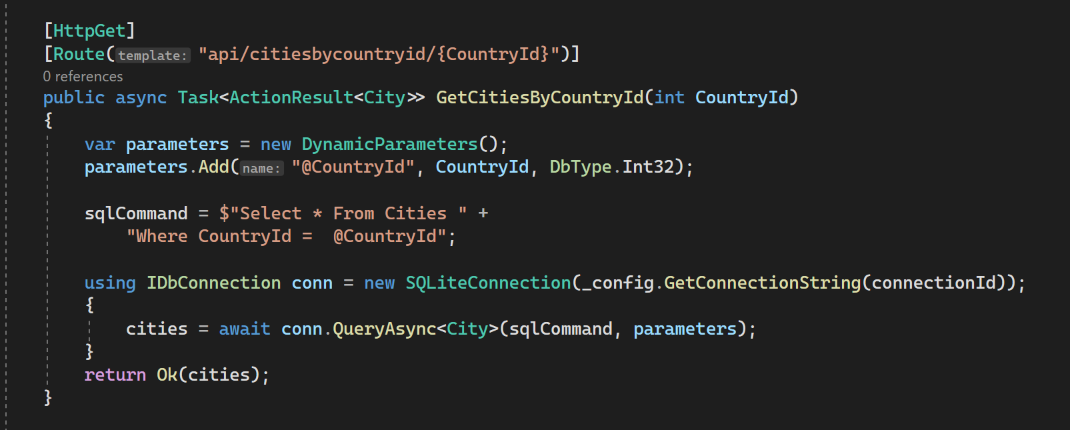
Step two is to add a method to CityController.cs. This is a hybrid of the existing methods to 'GetCities' and 'GetCityById'.
[HttpGet]
[Route("api/citiesbycountryid/{CountryId}")]
public async Task<ActionResult<City>> GetCitiesByCountryId(int CountryId)
{
    var parameters = new DynamicParameters();
    parameters.Add("@CountryId", CountryId, DbType.Int32);

    sqlCommand = $"Select * From City " +
        "Where CountryId =  @CountryId";

    using IDbConnection conn = new SQLiteConnection(_config.GetConnectionString(connectionId));
    {
        cities = await conn.QueryAsync<City>(sqlCommand, parameters);
    }
    return Ok(cities);
}
Note that I have called the method 'GetCitiesByCountryId' and made the route "api/citiesbycountryid/{CountryId}".
Step three is to add a method to CityService.cs. We need to insert the corresponding code into CityService:
public async Task GetCitiesByCountryId(int CountryId)
{
    var result = await _http.GetFromJsonAsync<List<City>>($"api/citiesbycountryid/{CountryId}");
    Cities = result;
}
Step four, not forgetting to insert the following into ICityService:
Task GetCitiesByCountryId(int CountryId);Step five, back in Index.razor we need to add code into the @code section to the handle the change event in the drop-down list, and to declare the parameter being passed to it. Add the following under the declaration of the Lists.
[Parameter]
public int SelectedCountryId { get; set; } = 0;
Insert the following at the top of the file to inject the CityService.
@inject ICityService CityService;And add the following to the end of the code section.
public async Task OnChange(Syncfusion.Blazor.DropDowns.ChangeEventArgs<string, Country> args)
{
    // Populate list of cities for the selected country
    SelectedCountryId = args.ItemData.CountryId;
    citiesUnordered = new();
    await CityService.GetCitiesByCountryId(SelectedCountryId);
    foreach (var city in CityService.Cities)
        citiesUnordered.Add(city);

    cities = citiesUnordered.OrderBy(c => c.CityName).ToList();
}
Add the declaration for citiesUnordered under the orther declarations:
List<City>? citiesUnordered;When the value in the Countries drop-down list changes, the above refreshes the 'cities', limiting them to those associated with the country. This follows the pattern we used for 'OnInitializedAsync'.
Although we still have no City records, build and run the application to check no errors have crept in.
In the next post we will add the ability to add, edit and delete city records.
Code
Code changes for this post can be found here: Countries & Cities #2