Display a list of countries
Introduction
Although we are only using dummy data, we can expand our application by adding a Razor Component to display a list of countries (and/or cities).
YouTube Video
Adding a Service
Before we can display data on our web page we are going to need a mechanism to get the data, and that mechanism is called a 'Service'. To make the system as flexible as possible the service itself is served through an 'Interface' (or can be).
We will be adding a number of services and to keep them all in one place add a folder in the Client project called 'Services', and within that folder we will create separate folders for each entity.
- On the Client project, right-click and select Add > New Folder and name it 'Services'
- Now right-click the Services folder and select Add > New Folder and name it 'CountryService'.
Now we have the folders, we will add an interface class and then an implementation class. To add the interface:
- Right-click on the CountryService folder and select Add > Class
- Select 'Interface', name it 'ICountryService' and click 'Add'
And now to add the service (implementation)
- Right-click on the CountryService folder and select Add > Class
- Select 'Class', name it 'CountryService' and click 'Add'


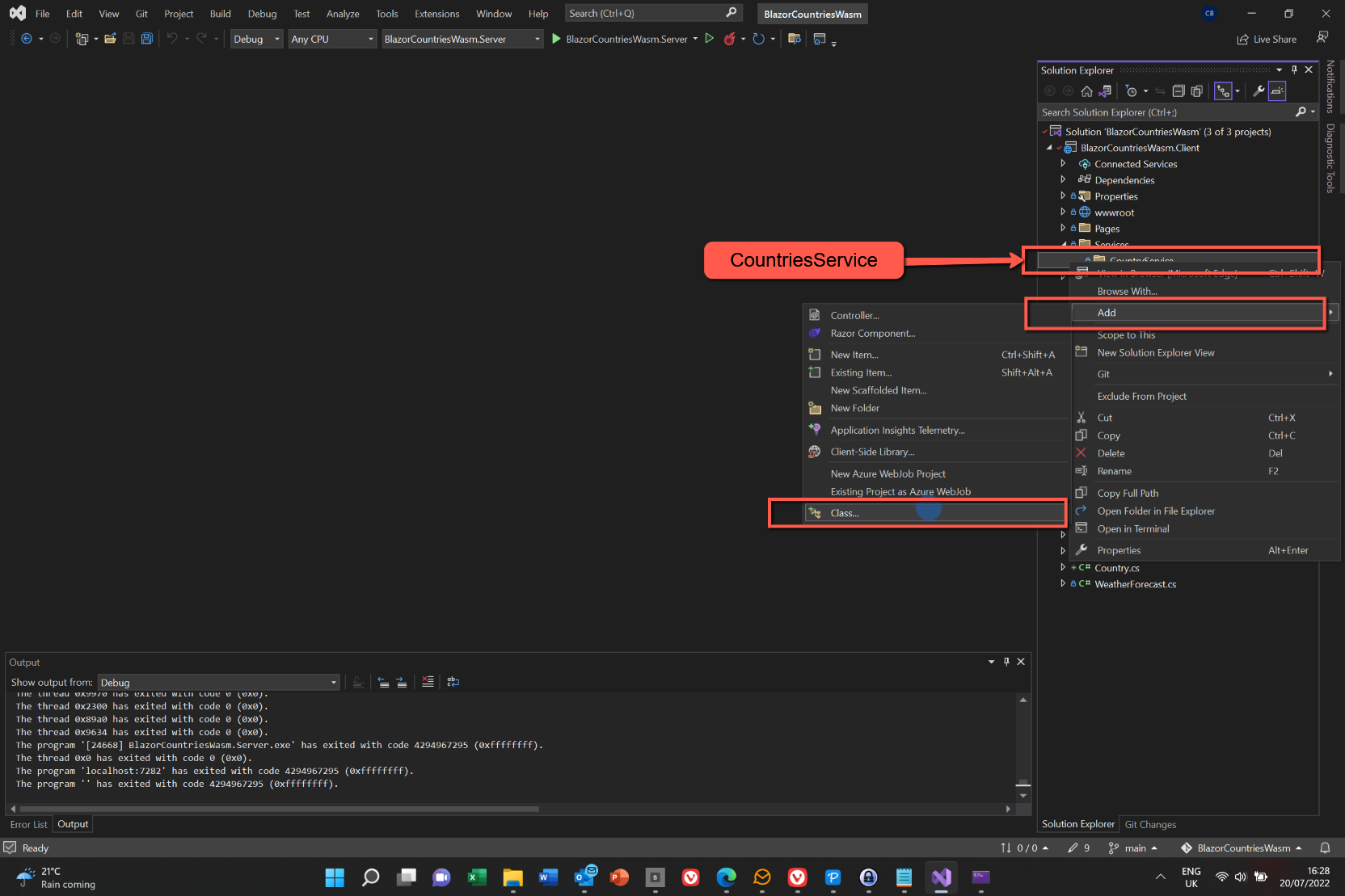


We will be making a number of changes to these files, but before embarking on the major changes it makes sense to register the service now, and to do that we need to make one small change to CountryService. Change the existing code to this (it only appends ' : ICountryService' to the class name):
namespace BlazorCountriesWasm.Client.Services.CountryService
{
    public class CountryService : ICountryService
    {
    }
}
To register the service, find Program.cs in the .Client project, open it and amend it as follows:

global using BlazorCountriesWasm.Client.Services.CountryService;builder.Services.AddScoped<ICountryService, CountryService>();The 'global' in front of the 'using' statement makes the CountryService available throughout the application. Any 'global' directives must be placed at the top of the file.
Since we are going to need access to the Shared project we should also add a 'global using' statement to Program.cs in the Client project, i.e.
global using BlazorCountriesWasm.Shared;This is probably superfluous, but for belt and braces, we can also add the using statement for the 'CountryService' to _Imports.cs.
@using BlazorCountriesWasm.Client.Services.CountryService;ICountryService
Amend the code in ICountriesService to this (replace all existing code):
namespace BlazorCountriesWasm.Client.Services.CountryService
{
    public interface ICountryService
    {
        List<Country> Countries { get; set; }

        Task GetCountries();
        Task<Country> GetCountryById(int id);
    }
}
in the above we are declaring a List of type Country called 'Countries' and adding two tasks, one for getting a list of all countries and one to get a single country by supplying its 'id'.
CountryService
Amend the code in CountryService to this, replacing any existing code. (If entering the code manually, by creating the Interface first it is possible to put the cursor on 'ICountryService' and pressing Ctrl+. to create the skeleton code. We also need a constructor, for which the skeleton code can be created by placing the cursor on a new line at the top of the class and entering 'ctor' and pressing <tab> twice.)
In the code below we are not yet creating the code to get a country by Id.
using System.Net.Http.Json;

namespace BlazorCountriesWasm.Client.Services.CountryService
{
    public class CountryService : ICountryService
    {
        private readonly HttpClient _http;
        public CountryService(HttpClient http)
        {
            _http = http;
        }

        public List<Country> Countries { get; set; } = new List<Country>();
        public HttpClient? Http { get; }        //? here gets rid of green squiggly on "Public CountryService(HttpClient http)"

        public async Task GetCountries()
        {
            var result = await _http.GetFromJsonAsync<List<Country>>("api/country");
            if (result != null)
                Countries = result;
        }
        public Task<Country> GetCountryById(int id)
        {
            throw new NotImplementedException();
        }
    }
}
The using statement at the top of the code is because we have 'http.GetFromJsonAsync' in the GetCountries method.
Adding a Razor Component
The pages of the web application are stored in the Client folder.
To add a new Blazor page (or more specifically, a Razor component):
- Right-click on the Pages folder and select Add > Razor Component
- Give the page a name. They must begin with an uppercase character and I prefer to add a suffix of 'Page'.
- Click 'Add' and a new file will be created, ready for editing.
@page "/countrylist"

@inject ICountryService CountryService;

<PageTitle>Countries List</PageTitle>

<h3>Countries List</h3>

<table class="table">
    <thead>
        <tr>
            <th>Country ID</th>
            <th>Country Name</th>
        </tr>
    </thead>
    <tbody>
        @foreach(var country in CountryService.Countries)
        {
            <tr>
                <td>@country.CountryId</td>
                <td>@country.CountryName</td>
            </tr>
        }

    </tbody>
</table>

@code {
    protected override async Task OnInitializedAsync()
    {
        await CountryService.GetCountries();
    }

}
The @page directive provides a route for the page (which will be used in NavMenu and the @inject line injects the CountryService enabling us to get a list of countries on the @code block.
PageTitle is html code that will display the name of the page in the browser tab, whilst the h3 section provides a heading for the page.
The table section has a row-header section <thead> which displays one row with two columns for 'Country ID' and 'Country Name'.
The body of the table cycles round a number of records retrieved by the CountryService displaying the details for each country in turn.
The @code section has one method, the 'OnInitializedAsync' which gets called whenever the page is loaded or refreshed, and simply gets the list of counries as supplied by the 'GetCountries' method of the 'CountryService'
Add to Navigation
In the 'Shared' folder under the Client project find NavMenu.razor and open for editing.
Copy one of the sections, e.g. the section for 'fetchdata' and paste immediately under the fetchdata section.
Amend the pasted text and replace 'fetchdata' with 'countrylist' and 'Fetch Data' with 'Countries List'.
The icons used by NavMenu are 'Open Iconic'. A full list of icons can be found here.
Whilst we have NavMenu open, edit the name of the application on line 3 from 'BlazorCountriesWasm' to simply 'Countries & Cities' (or whatever you want to call it).