Purchase Orders List
Introduction
When we originally added the Purchase Order List to the Index page we kept it simple by only showing columns from the Purchase Order Header table (POHeader). In the last post we added the ability to add records to the Purchase Order Lines table (POLine). It would improve the Purchase Order List if we added additional columns instead of just the order number and order date.
This is what we currently have.

I think it would make sense to add columns to show the following on the Orders List:
- Supplier Name
- Total Order Value
- Requested By
SQL
To re-cap, if we look at the IndexPage, we will see that the DataGrid for the list of purchase orders has a data source populated by the POHeaderService.POHeaderList, and this, in turn, is linked through to the SQL stored procedure 'POHeader_List'. Looking at this stored procedure we then see that it is simply returning records from the POHeader table.
The starting point is therefore to modify the stored procedure so that it returns the additional data we need.
To do this we are going to need to include data from the Supplier and POLine tables. We will also need to consider the possibility that a POHeader record is present but for which there are no POLIne records. (Which raises the question of whether we should prevent an order being saved for which no order lines have been entered - another item for the To Do list!)
Open SQL Management Studio and right-click on spPOHeader_List in the Programmability > Stored Procedures folder. It should look similar to this (I have added carriage returns to make it more readable):

We need to replace the SELECT statement with a modified version that includes the extra data we want. If you are familiar with SQL you could just type in the code required. Personally I find the visual tools a much easier way to work out the required code. The method I use is to 'pretend' I want to create a View.
- Right-click on the Views folder and select 'New View...'
- Select, in turn, (or use the Ctrl key to select them together), POHeader, POLine and Supplier, click the 'Add' button.
- Close the 'Add Tables' dialog once added.
- Swap the positions of the tables in the top pane so the order is POLine, POHeader, Supplier.
- Join the POHeader and POLine tables by dragging 'POHeaderID' from the POHeader table and dropping it onto 'POLineHeaderID' on the POLine table.
- Repeat by joining the POHeader and Supplier tables by dragging 'SupplierID' from the Supplier table and dropping it onto 'POHeaderSupplierID' on the POHeader table.
- We want all records from the POHeader table, regardless of whether there nil, one, or more records in POLine, and similarly we want all POHeader records regardless of the number of Suppliers (there should always be one and only one supplier, but this is the safest approach).
- Right-click on the join between POLine and POHeader, and choose 'Select All Rows from POHeader'.
- Repeat by right-clicking on the join between POHeader and Supplier. Again choose 'Select All Rows from POHeader'.
- We want all columns from POHeader so tick the box to the left of the columns individually. (It's easier later not to tick 'All Columns'.)
- We also want the Supplier Name, so click 'SupplierName' on the Supplier table.
- For 'Total Order Value' we need to do some calculations. In the pane that now lists the columns make the 'Column' column wider and scroll down so you can see an empty row.
- In the Column column enter
- (POLine.POLineProductQuantity * POLine.POLineProductUnitPrice) * (1 + POLine.POLineTaxRate)
- In the Alias column enter
- TotalOrderValue
- Click the 'Group By' button on the toolbar. It will reveal a 'Group By' column with most items marked as 'Group By'.
- The POHeaderIsArchived column will be marked as 'Expression'. For now change it to 'Group By'
- In the Group By column on the TotalOrderValue row change 'Group By' to 'Sum'.
- Run the query by clicking the Execute button (or Ctrl + R) to check everything so far looks reasonable.
- To handle the possibility that an order header exists with no order lines, make the Column column extra wide and at the start of the formula we have already for TotalOrderValue enter 'ISNULL(' and at the end enter ', 0)'. The formula should now read:
- ISNULL((POLine.POLineProductQuantity * POLine.POLineProductUnitPrice) * (1 + POLine.POLineTaxRate), 0)
- (This is saying 'if the result is null, replace it by 0'.)
- It might be easier to make this change in the statement pane
- We don't want records returned where 'POHeaderIsArchived' is true. To exclude these records adjust the column widths so that the 'Filter' column is shown. On the 'POHeaderIsArchived' row change
- Untick 'Output'
- Group By to 'Where'
- In the Filter column enter '=0'
- Lastly, we want the records shown in the Purchase Orders List so that the most recent is at the top. To do tjhis, scroll up to the 'POHeaderOrderNumber' row and
- In 'Sort Type' select 'Descending'
- In 'Sort Order' select 1
- Run the query to check it still looks OK


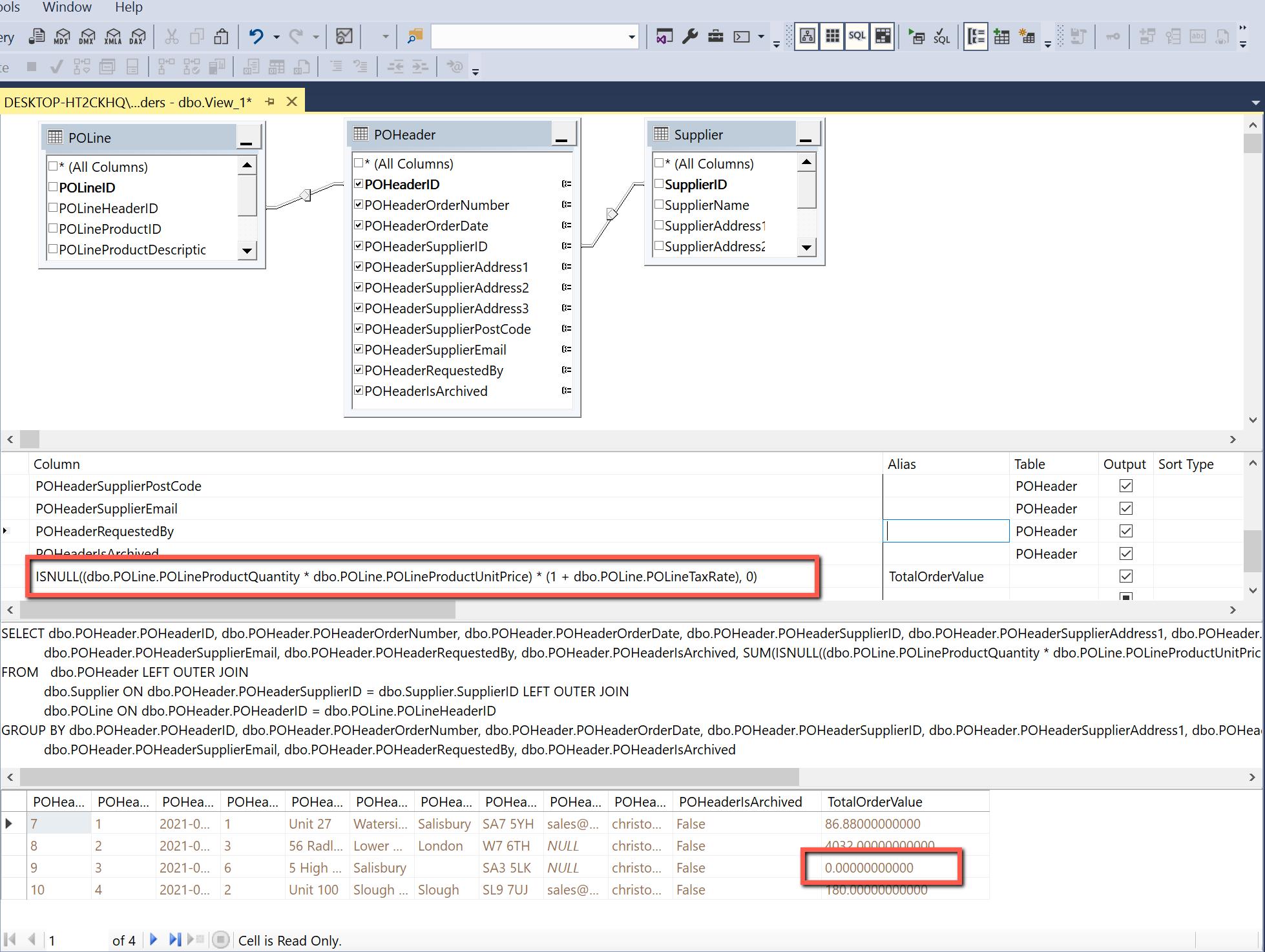
- We now have the Select statement we need for the stored procedure. Copy the SQL code from the 'script' pane and paste into the stored procedure replacing the existing 'Select' statement, as shown below. (I have added carriage returns to make it all visible.)

Execute the query to make the change to the stored procedure.
C#
Back in the C# code in Visual Studio there are relatively few changes that need to be made.
POHeader.cs
The first is to amend the POHeader model to include the two new columns being returned by the stored procedure, TotalOrderValue and SupplierName. Simply add these to the end of POHeader.cs, as shown. In both cases neither are going to be written to the database so only { get; } needs to be specified.

Index.razor
The main change to Index.razor is to add the new columns to the Syncfusion DataGrid for Supplier Name, Total Order Value and Requested By. I have also changed the column widths of the existing columns to make the grid look sensible. Note also the Format property on the TotalOrderValue column so that the amount appears in currency format with 2 decimal places.

Project Code
The C# and SQL code for the changes made in this post are shown here.
YouTube Video
Blazor Purchase Orders - Part 14 - Purchase Orders List