Syncfusion
Introduction
We will be adding some Syncfusion 'controls' (such as grids, drop-down lists, modal dialog boxes, etc.) to the project. The principal reason for doing this is that by using third-party component libraries we make programming simpler. It can also add a visual richness that would also require a lot of programming.
Why Syncfusion? There are a number of reasons I have alighted on Syncfusion; for individuals and companies with fewer than 5 employees and a turnover of less than $1millionthere is a free 'Community Licence' - this is obviously an important point for me. I also like the 'look and feel' of the Syncfusion controls but recognise that this is a personal preference. From my, admittedly limited, experience I have had a good response from Syncfusion's support and I have normally found the information I needed from documentation or the forum.
For even-handedness I list other Blazor component libraries at the end of this post; some are free, some have free trials and others are quite expensive. I haven't tried any other than Syncfusion so I'm not in a position to make any kind of recommendation.
In this post we will simply add the NuGet package for some Syncfusion controls and licence the product.
YouTube Video
Add Syncfusion for Blazor
Open the Birthday Reminders project in Visual Studio 2022. The following applies specifically for .Net 6.
Install Syncfusion Blazor Packages
- Select Project > Manage NuGet Packages... from the top menu.
- Select the Browse tab
- Enter 'Syncfusion Blazor' in the Search box.
- A number of Syncfusion packages will be displayed. From Syncfusion Blazor version 18.4.0 individual Syncfusion Blazor controls are able to be installed separately and this is now the Syncfusion recommendation. Select the following Syncfusion Blazor components and install, accepting the licence:
- Syncfusion.Blazor.Calendars
- Syncfusion.Blazor.Core
- Syncfusion.Blazor.DropDowns
- Syncfusion.Blazor.Grid
- Syncfusion.Blazor.Inputs
- Syncfusion.Blazor.Notifications
- Syncfusion.Blazor.Popups
- Click the 'Install' button and accept the licence. Syncfusion.Blazor should install and no errors should be shown in the Errors pane. A green tick will also appear next to the packages in the Browse tab.
- Note: I am not sure exactly which Syncfusion controls will be needed, but I think the above list will probably be sufficient; if not, I will add the any additional components later.
Register Syncfusion Blazor Service
Open '_Imports.razor' and add the following Syncfusion control names. (This is not the complete set, you may need to add additional controls according to your needs.)
@using Syncfusion.Blazor
@using Syncfusion.Blazor.Inputs
@using Syncfusion.Blazor.Popups
@using Syncfusion.Blazor.Data
@using Syncfusion.Blazor.DropDowns
@using Syncfusion.Blazor.Calendars
@using Syncfusion.Blazor.Navigations
@using Syncfusion.Blazor.Lists
@using Syncfusion.Blazor.Grids
@using Syncfusion.Blazor.Buttons
@using Syncfusion.Blazor.Notifications
Open Program.cs and add the following at the top of the file:
using Syncfusion.Blazor;and the following in the // Add services to the container.
builder.Services.AddSyncfusionBlazor(options => { options.IgnoreScriptIsolation = true; });Add Style Sheet
To add the NuGet Syncfusion Blazor theme package
- Select Project > Manage NuGet Packages... from the top menu.
- Select the Browse tab
- Enter 'Syncfusion.Blazor.Themes' in the Search box
- Select 'Syncfusion.Blazor.Themes' and install it.
From the 'Pages' folder open '_Layout.cshtml' and add the following within the <head> section:
<head>
    ....
    <link href="_content/Syncfusion.Blazor.Themes/bootstrap5.css" rel="stylesheet" />
</head>
To substitute a different theme for your application you can replace the "bootstrap5.css" part of the above with one of the following:
- bootstrap5-dark.css
- bootstrap4.css
- bootstrap.css
- bootstrap-dark.css
- material.css
- material-dark.css
- tailwind.css
- tailwind-dark.css
- fabric.css
- fabric-dark.css
- highcontrast.css
See https://blazor.syncfusion.com/documentation/appearance/themes for a full description of how themes work.
Add Script Reference
From the 'Pages' folder open '_Layout.cshtml' and add the following within the <head> section (in addition to the above):
<head>
    ....
    <link href="_content/Syncfusion.Blazor.Themes/bootstrap5.css" rel="stylesheet" />
    <script src="_content/Syncfusion.Blazor.Core/scripts/syncfusion-blazor.min.js" type="text/javascript"></script>
</head>
Syncfusion Licence
Syncfusion needs to be licensed. To obtain a licence:
- Open the Syncfusion web page - https://www.syncfusion.com
- Create an account if you don't already have one, and log into your account.
- Select 'My Dashboard' by clicking on your user name in the page header.
- Select 'License & Downloads', followed by 'Downloads & Keys'.
- Select 'Get License Key' and follow the instructions.
Because we are using .NET 6 we need to place the following code in Program.cs, replacing 'Your License Code' with your actual licence key. Place the code after 'var app = builder.Build'
//Register Syncfusion license
Syncfusion.Licensing.SyncfusionLicenseProvider.RegisterLicense("Your Licence Key");
Move Licence Key to appsettings.json
Because it is possible that I will want to show, or share, code in program.cs I do not want to have the Syncfusion Licence Key explicitly shown in program.cs. To get around this problem I have moved the actual licence key to appsettings.json, and will also add appsettings.json to gitignore so that the key is not exposed on GitHub.
Summary of Tasks
- Amend appsettings.json to add Syncfusion Licence Key
- Modify Program.cs to read licence from appsettings.json
Change to appsettings.json
Simply add the following line to appsettings.json
"SyncfusionLicenceKey": "Your Syncfusion Licence Key",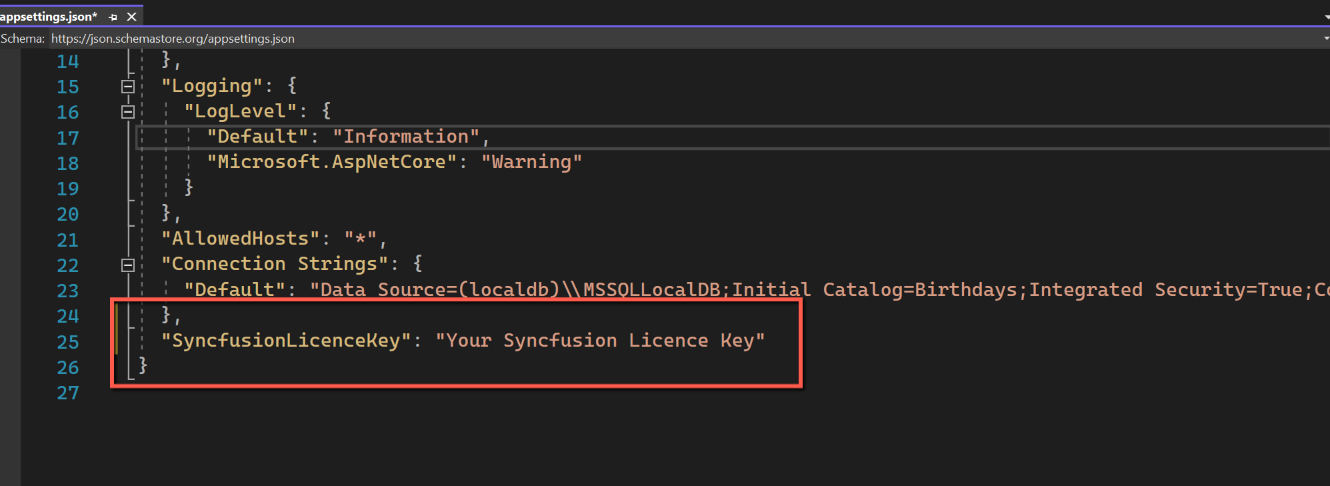
Changes to program.cs
Modify program.cs to replace the existing Syncfusion licensing code with this:
//Register Syncfusion license
var SyncfusionLicenceKey = builder.Configuration["SyncfusionLicenceKey"];
Syncfusion.Licensing.SyncfusionLicenseProvider.RegisterLicense(SyncfusionLicenceKey);

We can now safely add appsettings.json to gitignore in the knowledge that our Syncfusion Licence key is not going to get exposed.
References
Syncfusion Blazor Components Installation Guide
Other Blazor Component Libraries