Keep appsettings out of GitHub
Introduction
It seems that when you add a project to GitHub from Visual Studio 2022 there is no simple way of excluding files from the initial commit. For example, it doesn't appear to be possible to edit .gitignore to exclude appsettings.json and appsettings.Development.json until after the repository has been created and pushed for the first time.
These instructions assume you have a GitHub account... but should work with just a local Git repository.
YouTube Video
Prevention
For me prevention is better than cure, and this can be accomplished in a relatively simple way.
Before you make the first commit:
- If necessary copy the contents of appsettings.json and appsettings.Development.json to Notepad
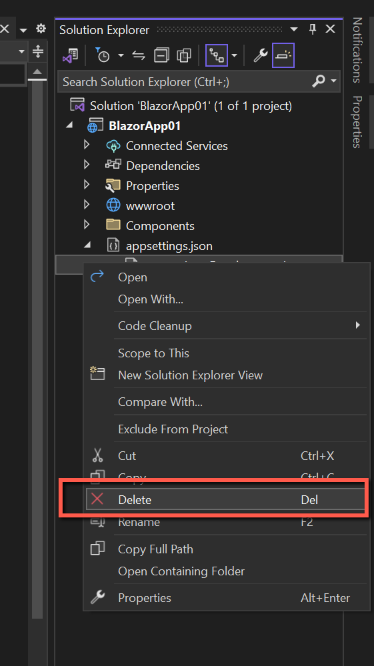
- Delete both appsettings.json and appsettings.Development.json (Deleting appsettings.json will also delete appsettings.Development.json.)

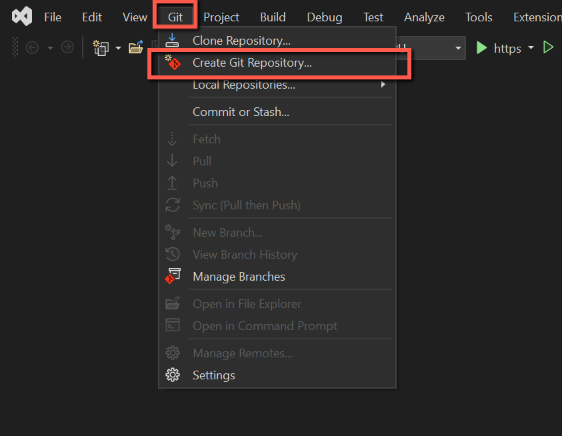
Create a Git Repository by selecting Git > Create Git Repository from the top menu bar.
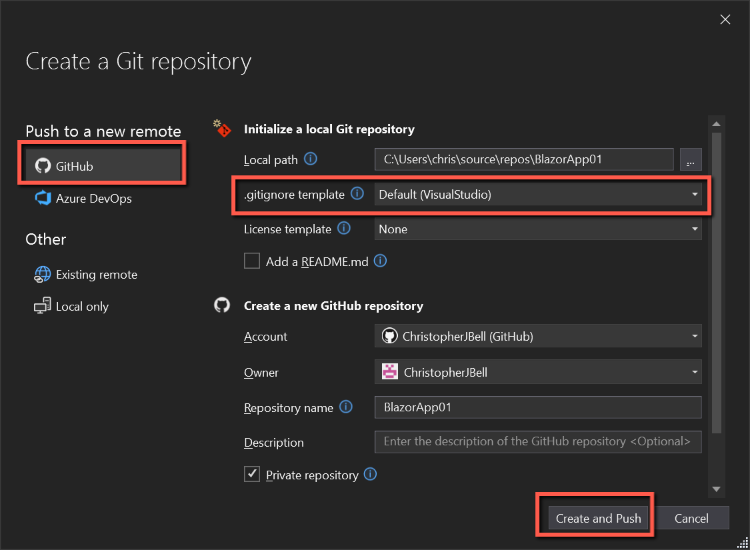
When the 'Create a Git Repository' dialog opens:
- Leave the local path as the default
- Select "Default (Visual Studio)" .gitignore template
- Leave the rest as defaults (unless you want to add a Read.me or Description)
- Click "Create & Push"
This will create a GitHub (and local) repository. It will also add .gitignore and .gitattributes files to the Solution Explorer.
Open .gitignore and add the following to the end of the file:
# Edited by (your name here)
appsettings.json
appsettings.Development.json
We now need to add back appsettings.json and appsettings.Development.json.
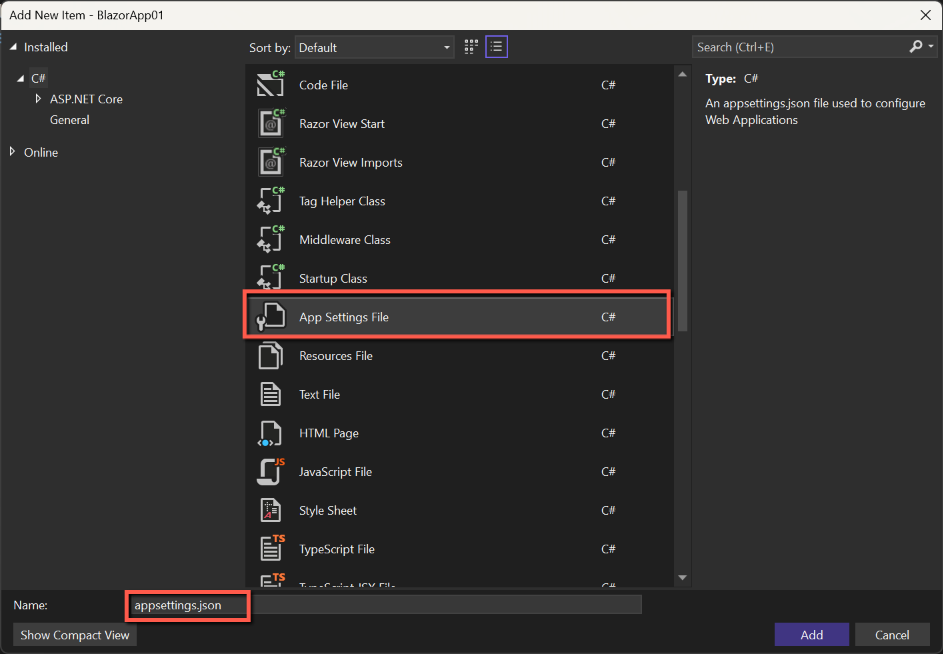
- Right-click on the project name and select 'Add new item'
- Scroll down to 'App Settings File'
- Check the Name is 'appsettings.json' and click 'Add'
- Repeat, changing the name to 'appsettings.Development.json'
If necessary, paste back any code you previously copied to Notepad.

We are now ready to Commit and Push to GitHub again. To demonstrate that the commit and push has had an effect, edit Home.razor to change something, e.g. the Welcome message.
- Save and close all files
- Click on the pencil icon at the bottom of the screen
- Enter a description for the changes
- Click 'Commit All'
- Click the 'Push' icon


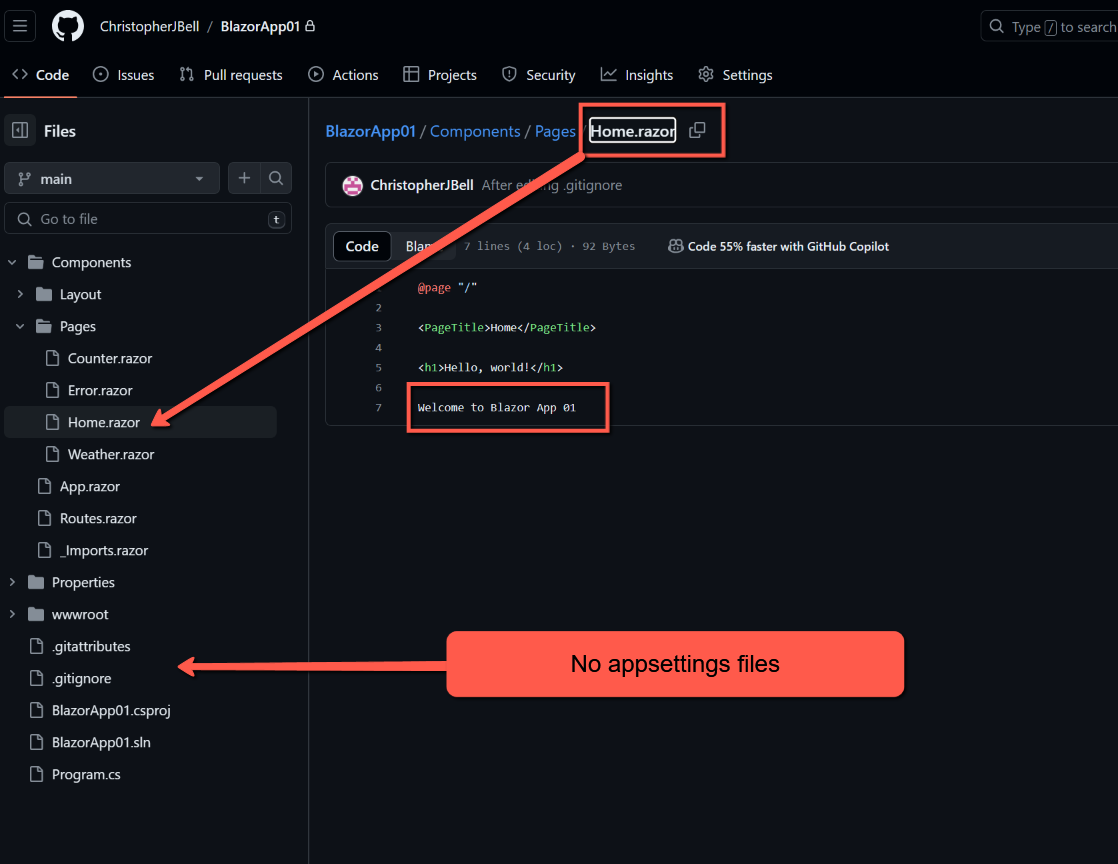
To check that this has worked, log into your GitHub account and open the relevant repository. You shouldn't see either appsettings files, but should see the change to Home.razor
Cure
Setting the scene
Start a new Blazor project in Visual Studio 2022. Edit appsettings.json to include the following (for example):
{
  "Logging": {
    "LogLevel": {
      "Default": "Information",
      "Microsoft.AspNetCore": "Warning"
    }
  },
  "AllowedHosts": "*",
  "ConnectionStrings": {
    "Default": "Data Source=.\\Data\\SQLiteDatabaseName.db;Version=3;"
  }
}
Create a GitHub repository as described above in the 'Prevention' section. Open the GitHub repository and note that appsettings.json is present with the above code.
Update .gitignore to include appsettings.json and appsettings.Development.json
# Edited by (your name here)
appsettings.json
appsettings.Development.json
Update appsettings.json to remove the Connection string section (and to show a push has taken place, also edit Home.razor).
Commit and push all the changes to git.
Open GitHub and view the repository. Notice that Home.razor has been amended, but that the original appsettings.json and appsettings.Development.json are still present.
Solving the problem
Open Git Bash, or similar, and change to the folder containing the solution, e.g.
C:\Users\chris\source\repos\MyApp
Enter the following to clear the cache. Note the full stop at the end.
git rm -r --cached .
Now execute the following (as separate commands)
git add .
git commit -m "fixed untracked files"
Return to the project in Visual Studio and make a change to any file. I suggest making another change to Home.razor again.
Commit and push to GitHub.
Open GitHub. Notice that appsettings.json and appsettings.Development.json are no longer present, but that the most recent change to Home.razor is reflected in the code.
Resources
Git Download (for Git Bash) Download and just accept all defaults.