Saving a PDF file
Introduction
One of my original requirements for the purchase orders project was the ability to save a purchase order as a pdf and then attach that pdf to an email sent to the supplier. This has proved to be far more difficult than I had ever anticipated.
The two main obstacles have been, firstly, discovering a suitable tool to create pdf documents and secondly a way to save them so they could be attached to an email.
In my trawl through suitable pdf tools I came across PDFSharp and IText7. I dismissed IText7 on licensing grounds; it is free for open source projects but appears to be rather demanding:
"When using iText 7 Community under AGPL, you must prominently mention iText and include the iText copyright and AGPL license in output file metadata, and also retain the producer line in every PDF that is created or manipulated using iText."
PDFSharp (and PDFSharpCore) are less restrictive, and looked very promising. I could create a pdf of the purchase order with the correct formatting of currency, right-alignment of columns, suitable boxes, totals, etc. and I could save the resulting pdf to the server. My only reservation was that it seemed a little fragile. For example, in one scenario I could create a pdf provided I included an image before some text, but if the image was placed after the text the pdf was not created. PDFSharp could be used to create the purchase order, but I wanted to find a tool with wider potential application and for this reason I also dismissed PDFSharp/PDFSharpCore.
In my eagerness to find a tool to create pdf files I completely overlooked the obvious, Syncfusion PDF. I had come across Syncfusion's Bold Reports, but had missed the fact that Syncfusion PDF even existed, not to mention that it is included in the Community License. As I am using the other Syncfusion controls this is obviously the path to follow.
Proof of Concept
I am going to assume that Syncfusion PDF is able to create the documents I want, initially the Purchase Order. To start with, I am more concerned whether I can save the PDFs to the server in order to be able to attach them to emails. This post is therefore going to follow the example published on the Syncfusion website and then adapt it to save the PDF to the server.
YouTube Video
Getting Started - Creating a PDF
The example we are going to follow is the Syncfusion 'Create or Generate PDF file in Blazor', but for ease of reference most of the steps are reproduced below - see the screenshots for more detailed information:
- Open Visual Studio 2019.
- Create a new Blazor Server project (call it BlazorServerPDF).
- Using 'Tools > Nuget Package Manager > Manage NuGet Packages for Solution' install Syncfusion.Pdf.Net.Core.
- In the Data folder add a new class called 'ExportService'.
- Copy the code from the Syncfusion example for 'Export Service'.
- Add 'using System.IO;' to remove the red squiggly under 'MemoryStream' (not mentioned in the Syncfusion instructions).
- Register ExportService in Startup.cs
- Follow the instructions at step 6 of the Syncfusion help, but note that
- 'ExportService' has erroneously been called 'ExportToFileService'
- C# code should be inserted in the @code section - @functions does not exist
- In the 'ExportToPDF()' method 'PDFExportService' should be 'exportService'
- Create a folder called 'Utils' and within that folder add a class called 'FileUtil'. Copy the C# code from Syncfusion, step 7. Note that this will produce a red squiggly under 'IJSRuntime'. To correct this add 'using Microsoft.JSInterop' to the code at the top of the file.
- To include the 'Utils' folder in the path for the code, add '@using Utils' to _Imports.razor.
- Copy and paste the code from Syncfusion help step 8 into _Host.cshtml; I placed it at the end of the file.
Run the application, select the Fetch Data page and click the 'Export to PDF' button. A PDF report of the Weather Forecast will be downloaded to your 'Downloads' folder.
Since a picture is worth a thousand words, here are screenshots of the above process.


What is happening here?
Looking at the code in FetchData.razor, the essential process is the 'ExportToPdf' method. This calls 'exportService.CreatePdf', passing to it the 'forecasts' data and returns a MemoryStream of the pdf document. (For the moment we will simply consider this to be a 'black box' that creates the pdf; we will need to look into this in greater detail later.) I have taken the sample code from Syncfusion, and for unknown reasons they chose to call the MemoryStream returned by this method 'excelStream' - this has nothing to do with Excel; I might change this further down the line to avoid any possible confusion.
Once the MemoryStream is returned the system then uses the 'SaveAs' method in 'FileUtil' to use JavaScript to save the file locally as 'Sample.pdf'. Again I'm going to treat this as a black box for the moment.

So far, so good. But, for our purposes, we don't want the file downloaded to the local machine, we want it saved to the server. The next steps show how this can be achieved.
Saving to the Server
In 'ExportToPdf' we can continue to use the 'exportService.CreatePdf' method to create the MemoryStream, but we will need to replace the 'JS.SaveAs' line with something that will save the file to the server.
In preparation for saving to the server, create a 'Files' folder from the root of the project.

Now, in FetchData.razor, amend the ExportToPdf method as shown below:
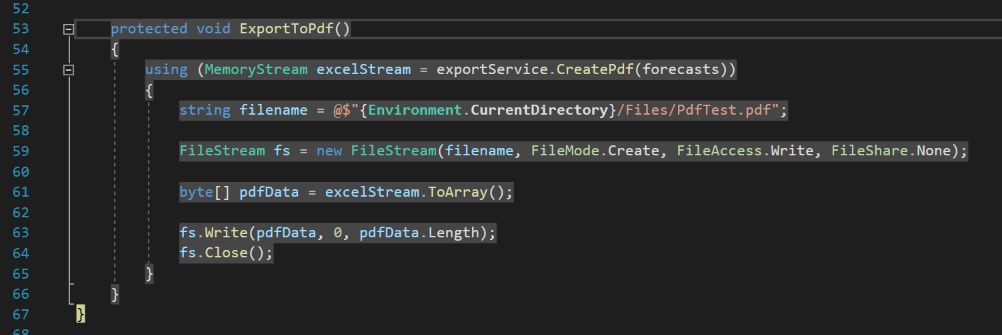
Within the using statement, the first line declares a string variable called 'filename' and concatenates the root directory {Environment.CurrentDirectory} with the path to the '/Files/' folder and a hard-coded file named 'PdfTest.pdf'.
A Filestream is declared, passing to it variables. 'filename' is the path and file name declared on the previous line. FileMode.Create will create a new file with the name passed by the first parameter and will overwrite any existing file with the same name. (FileMode.CreateNew will not overwrite an existing file.) FileAccess.Write will write a file. (FileAccess.Read will read a file.) FileShare.None will ensure that all other requests to open the file will be declined.
The following line declares a byte array, called 'pdfData' and passes to it the MemoryStream created by 'export.Service.CreatePdf' changing it to an array.
The FileStream fs then performs a 'write', passing to it parameters for byte data, and the starting and end positions. (pdfData.Length effectively gives the end position.)
The FileStream is then closed.
Note that the method has been changed from 'protected async Task' to 'protected void' as nothing is returned by the method.
Run the application and click the 'Export to Pdf' button on the Fetch Data page. There will be no response from the page, (at this stage). Close the application and examine the 'Files' folder; there should be a file called 'PdfTest.pdf' which can be opened by double-clicking.
Conclusion
This is a fairly rough and ready application; it uses a hard-coded file name and gives the user no indication whether it has worked or not, but it demonstrates that a pdf file can be created and saved to the server.
References
https://help.syncfusion.com/file-formats/pdf/create-pdf-document-in-blazor
Code
Complete code for all files changed in this post can be found here