Enhancing Blazor Web App
Introduction
So far we have our Blazor web app linked to Entra External ID and have authentication/authorisation on the Counter page, forcing a user to log in before being given access. However, once logged in there is no method to allow the user to log out and other than selecting the Counter page there is no other way to log in.
Here we will add specific Sign in and Sign out options
The changes we need to make are:
_Imports.razor
Add the following to _Imports. This allows us to use authorization attributes and identity UI helpers anywhere in our components. It ensures that [Authorise] works in all .razor pages and we can drop the built-in login/logout UI.
@using Microsoft.AspNetCore.Authorization
@using Microsoft.AspNetCore.Components.Authorization
@using Microsoft.Identity.Web
@using Microsoft.Identity.Web.UI
The full _Imports.razor should now be:
@using System.Net.Http
@using System.Net.Http.Json
@using Microsoft.AspNetCore.Components.Forms
@using Microsoft.AspNetCore.Components.Routing
@using Microsoft.AspNetCore.Components.Web
@using static Microsoft.AspNetCore.Components.Web.RenderMode
@using Microsoft.AspNetCore.Components.Web.Virtualization
@using Microsoft.JSInterop
@using BlazorEntra
@using BlazorEntra.Components
@using BlazorEntra.Components.Layout
@using Microsoft.AspNetCore.Authorization
@using Microsoft.AspNetCore.Components.Authorization
@using Microsoft.Identity.Web
@using Microsoft.Identity.Web.UI
Program.cs
We need to make some change to Program.cs, and rather than do this piecemeal, the new version of Program.cs is shown below. I have attempted to structure the code so that it is grouped by concern (Blazor services, authentication/token services, OIDC options, authorisation/UI), chained related service registrations for readability with clear separation between Services and Middleware pipeline.
using BlazorEntra.Components;
using Microsoft.AspNetCore.Authentication.OpenIdConnect;
using Microsoft.Identity.Web;
using Microsoft.Identity.Web.UI;

var builder = WebApplication.CreateBuilder(args);

// =======================================
// Services
// =======================================

// Blazor + UI services
builder.Services
    .AddRazorComponents()
        .AddInteractiveServerComponents()
        .AddMicrosoftIdentityConsentHandler(); // handles consent & conditional access

// Authentication + Token services
builder.Services
    .AddAuthentication(OpenIdConnectDefaults.AuthenticationScheme)
        .AddMicrosoftIdentityWebApp(builder.Configuration.GetSection("AzureAd"))
        .EnableTokenAcquisitionToCallDownstreamApi() // optional if you call APIs
        .AddInMemoryTokenCaches();

// Configure OpenID Connect options (logout redirect)
builder.Services.Configure<OpenIdConnectOptions>(
    OpenIdConnectDefaults.AuthenticationScheme,
    options =>
    {
        options.Events.OnRedirectToIdentityProviderForSignOut = context =>
        {
            context.ProtocolMessage.PostLogoutRedirectUri =
                $"{context.Request.Scheme}://{context.Request.Host}/";
            return Task.CompletedTask;
        };
    });

// Authorization + Identity UI
builder.Services
    .AddAuthorization();
builder.Services
    .AddControllersWithViews()
    .AddMicrosoftIdentityUI();

var app = builder.Build();

// =======================================
// Middleware pipeline
// =======================================

if (!app.Environment.IsDevelopment())
{
    app.UseExceptionHandler("/Error", createScopeForErrors: true);
    app.UseHsts();
}

app.UseStatusCodePagesWithReExecute("/not-found", createScopeForStatusCodePages: true);
app.UseHttpsRedirection();
app.UseStaticFiles();

app.UseAuthentication();
app.UseAuthorization();
app.UseAntiforgery();

app.MapStaticAssets();
app.MapRazorComponents<App>()
    .AddInteractiveServerRenderMode();

app.MapControllers();

app.Run();
appsettings.json
To handle logging out we need to add three lines to appsetings.json as shown below:
  {
  "Logging": {
    "LogLevel": {
      "Default": "Information",
      "Microsoft.AspNetCore": "Warning"
    }
  },
  "AllowedHosts": "*",

  "AzureAd": {
    "Instance": "https://{your-tenant}.ciamlogin.com/",
    "Domain": "{your-tenant}.onmicrosoft.com",
    "TenantId": "{GUID-of-external-tenant}",
    "ClientId": "{APP-REGISTRATION-CLIENT-ID}",
    "ClientSecret": "{APP-REGISTRATION-CLIENT-SECRET-VALUE}",
    "CallbackPath": "/signin-oidc",
    "SignedOutCallbackPath": "/signout-callback-oidc",
    "SignedOutRedirectUri": "/",
    "RemoteSignOutPath": "/signout-oidc" // optional but good to include
  }
}
App.razor
This is the code we need for App.razor. The significant change is the addition of the CascadingAuthenticationState section.
<!DOCTYPE html>
<html lang="en">

<head>
    <meta charset="utf-8" />
    <meta name="viewport" content="width=device-width, initial-scale=1.0" />
    <base href="/" />
    <ResourcePreloader />
    <link rel="stylesheet" href="@Assets["lib/bootstrap/dist/css/bootstrap.min.css"]" />
    <link rel="stylesheet" href="@Assets["app.css"]" />
    <link rel="stylesheet" href="@Assets["BlazorEntra.styles.css"]" />
    <ImportMap />
    <link rel="icon" type="image/png" href="favicon.png" />
    <HeadOutlet />
</head>

<body>
    <CascadingAuthenticationState>
        <Router AppAssembly="@typeof(App).Assembly">
            <Found Context="routeData">
                <RouteView RouteData="@routeData" DefaultLayout="@typeof(MainLayout)" />
                <FocusOnNavigate RouteData="@routeData" Selector="h1" />
            </Found>
            <NotFound>
                <PageTitle>Not found</PageTitle>
                <LayoutView Layout="@typeof(MainLayout)">
                    <p>Sorry, there's nothing at this address.</p>
                </LayoutView>
            </NotFound>
        </Router>
    </CascadingAuthenticationState>
    <ReconnectModal />
    <script src="@Assets["_framework/blazor.web.js"]"></script>
</body>

</html>
The key elements of the above are:
<CascadingAuthenticationState>- Wraps the entire app in an authentication context
- Provides the current user's identity and claims to components like
<AuthoriseView>and<LoginDisplay> - Without this, Blazor components wouldn't know if a user was signed in.
<RouterAssembly="@typeof(App).Assembly">- Handles navigation between pages (@page components)
- Looks inside the app assembly for routable components
- Decides what to render based on the current URL
<Found Context = "routeData">- Executes when the router finds a matching page
<RouteView>: Renders the matched component, wrapped in MainLayout<FocusOnNavigate>Moves the keyboard focus to the first<h1>on the page after navigation (it's an accessibility feature)<NotFound>- Executed when no route matches the URL
- Sets the page title to 'Not Found'
- Renders a fallback layout (MainLayout) with a simple error message
<ReconnectModal/>- A built-in Blazor component that appears if the Signal-R connection between the server and the client drops
- Lets the user reconnect without refreshing the whole page
<script src="@Assets["_framework/blazor.web.js"]"><script/>- Loads the Blazor runtime JavaScript
In short, App.razor wires up authentication, routing, layouts, accessibility, error handling and connection resilience - it's the "engine room" of the Blazor application.
MainLayout.razor
@inherits LayoutComponentBase
@using BlazorEntra.Components.Shared
@using Microsoft.Identity.Web.UI

<div class="page">
    <div class="sidebar">
        <NavMenu />
    </div>

    <main>
        <div class="top-row px-4">
            <MyLoginDisplay />
            <a href="https://learn.microsoft.com/aspnet/core/" target="_blank">About</a>
        </div>

        <article class="content px-4">
            @Body
        </article>
    </main>
</div>

<div id="blazor-error-ui" data-nosnippet>
    An unhandled error has occurred.
    <a href="." class="reload">Reload</a>
    <span class="dismiss">🗙</span>
</div>
The significant change to MainLayout.razor is the inclusion of the <MyLoginDisplay> component and the @using statements at the top of the file.
I have specifically called the 'login display' component 'MyLoginDisplay' component because I believe older Blazor templates automatically included a 'LoginDisplay' component and I didn't want any possible confusion. We will come to MyLoginDisplay' shortly, but it will be saved in a new sub-folder of Components called 'Shared', hence the inclusion of this folder in the using statements.
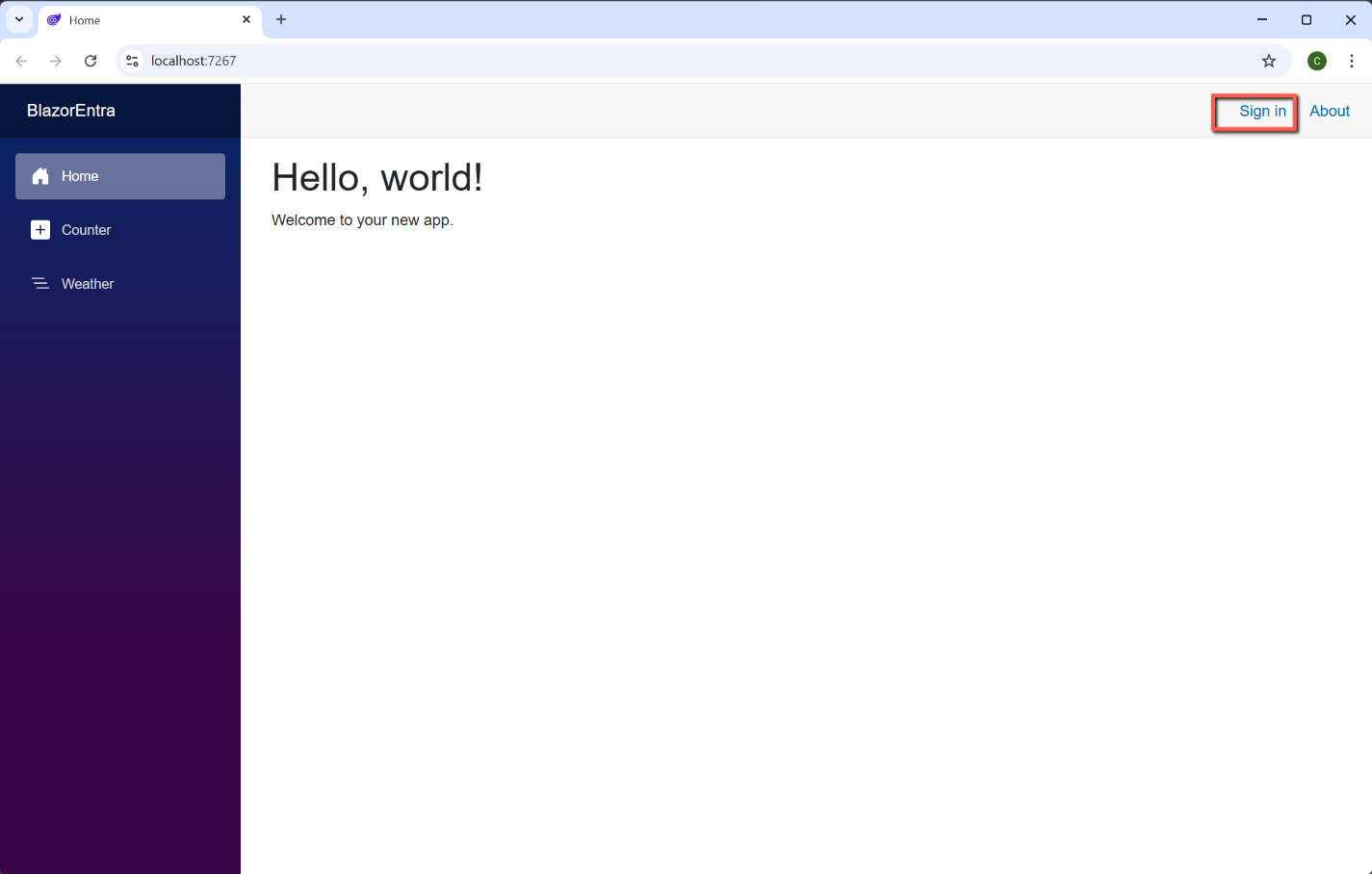
Adding the <MyLoginDisplay> component will insert a 'Sign in' link to the top bar.
MyLoginDisplay.razor
- Create a sub-folder of Components and call it 'Shared'
- Add a new razor file called 'MyLoginDisplay'
- Insert the following code
<AuthorizeView>
    <Authorized>
        Hello, @context.User.Identity?.Name!
        <a href="MicrosoftIdentity/Account/SignOut">Sign out</a>
    </Authorized>
    <NotAuthorized>
        <a href="MicrosoftIdentity/Account/SignIn">Sign in</a>
    </NotAuthorized>
</AuthorizeView>
This is the minimum that's required, but we will enhance this later.
Entra External ID
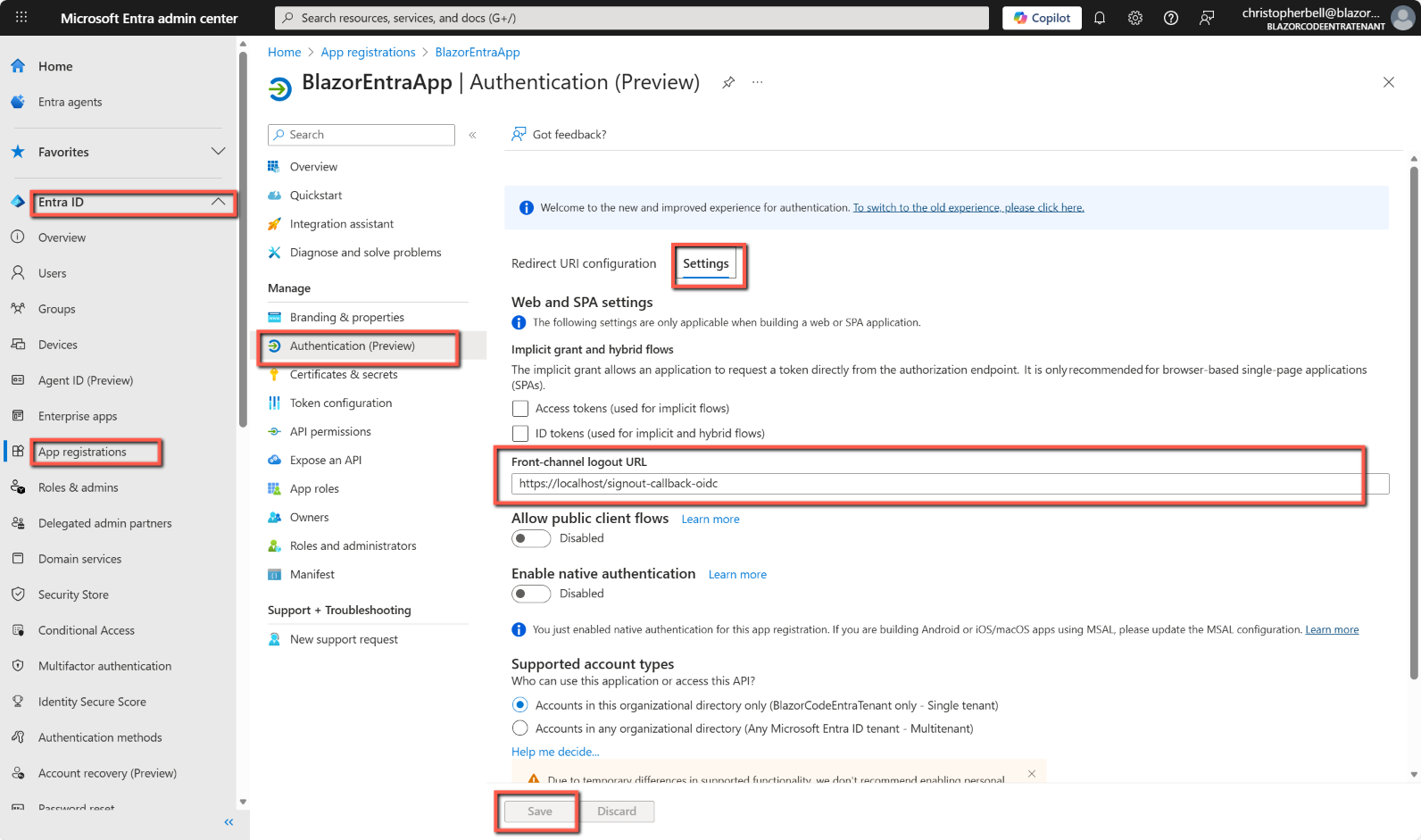
We need to make a change to Entra External ID to ensure that sign-outs are handled correctly; this is to add a 'Front-channel logout URL'.
The full instructions are:
- Go to https://entra.microsoft.com and sign in.
- Switch to your Entra ID tenant
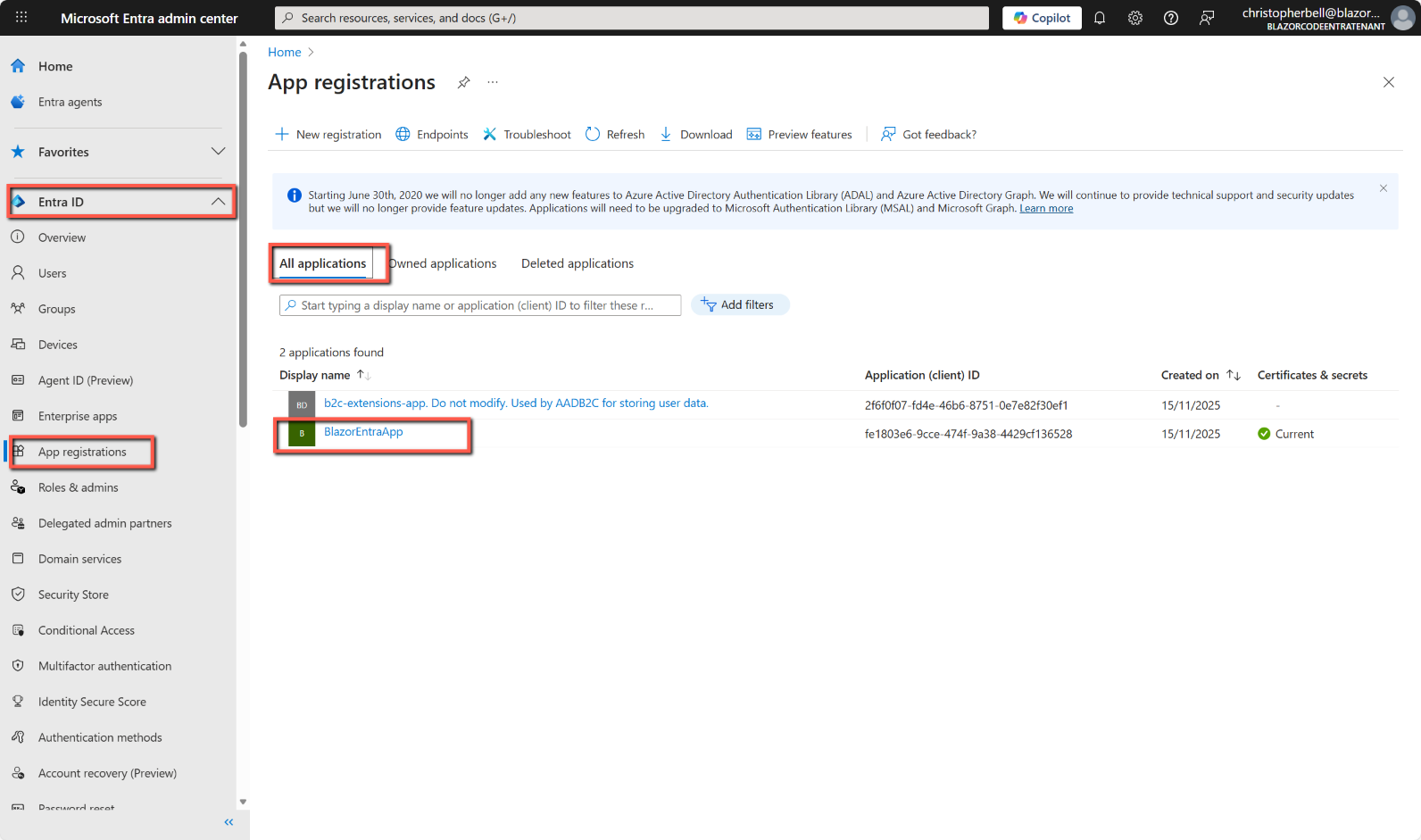
- Select Entra ID > App registrations > All applications
- Select the relevant application and click to open it
- Select Authentication > Settings
- In Front-channel logout URL enter:
https://localhost/signout-callback-oidc- Click Save
Save & Test
Return to Visual Studio, save all the files and test.
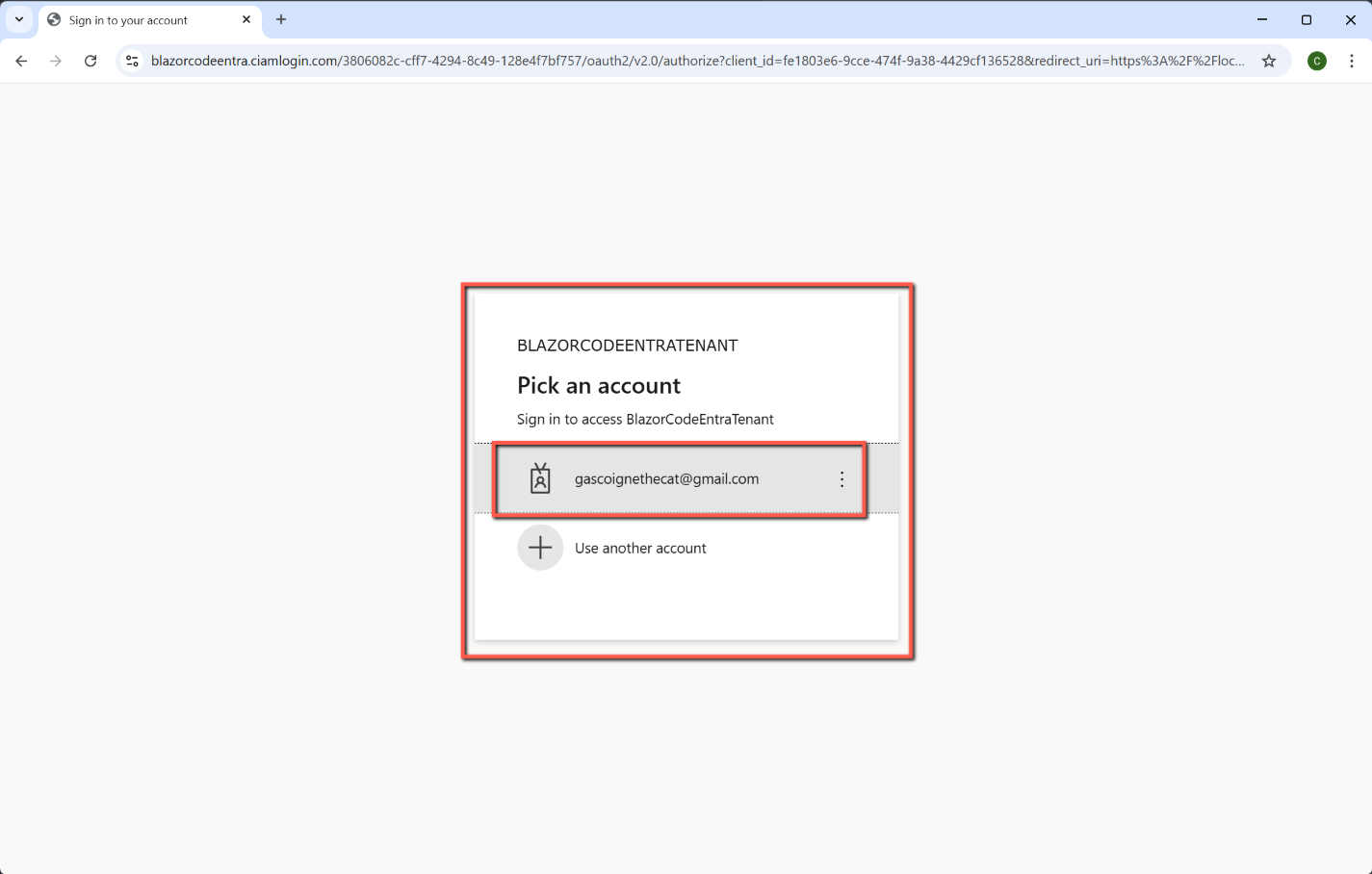
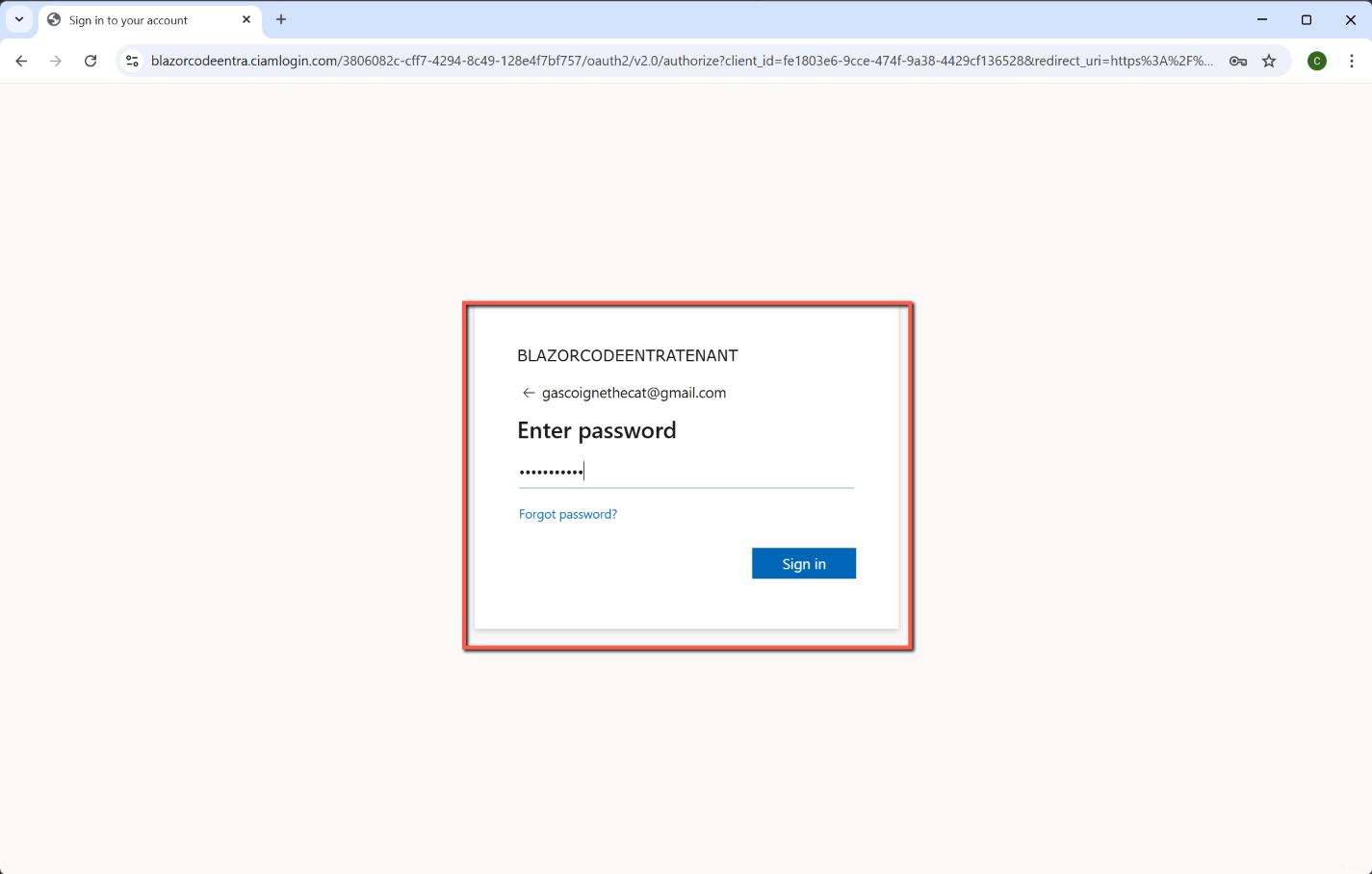
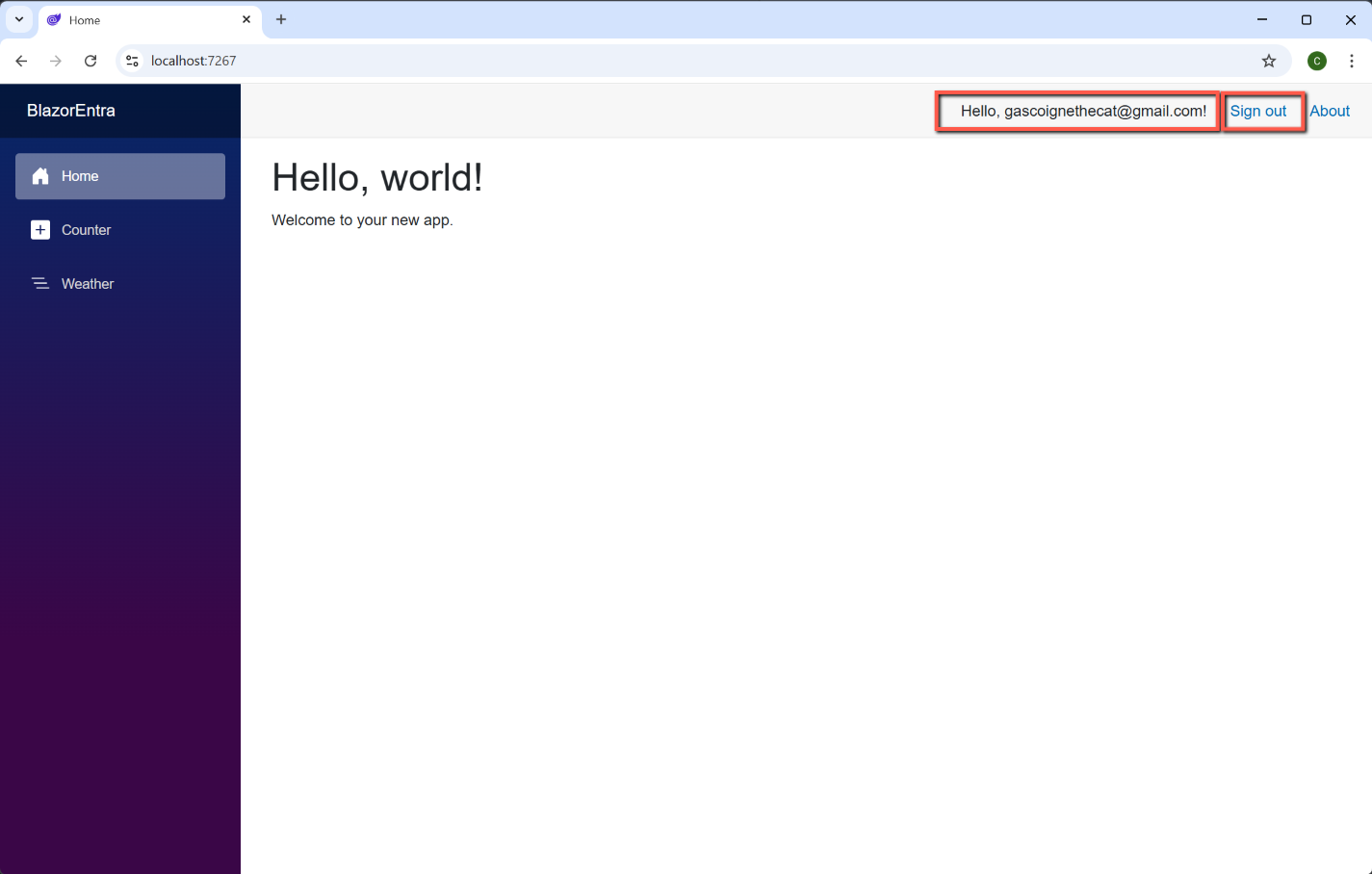
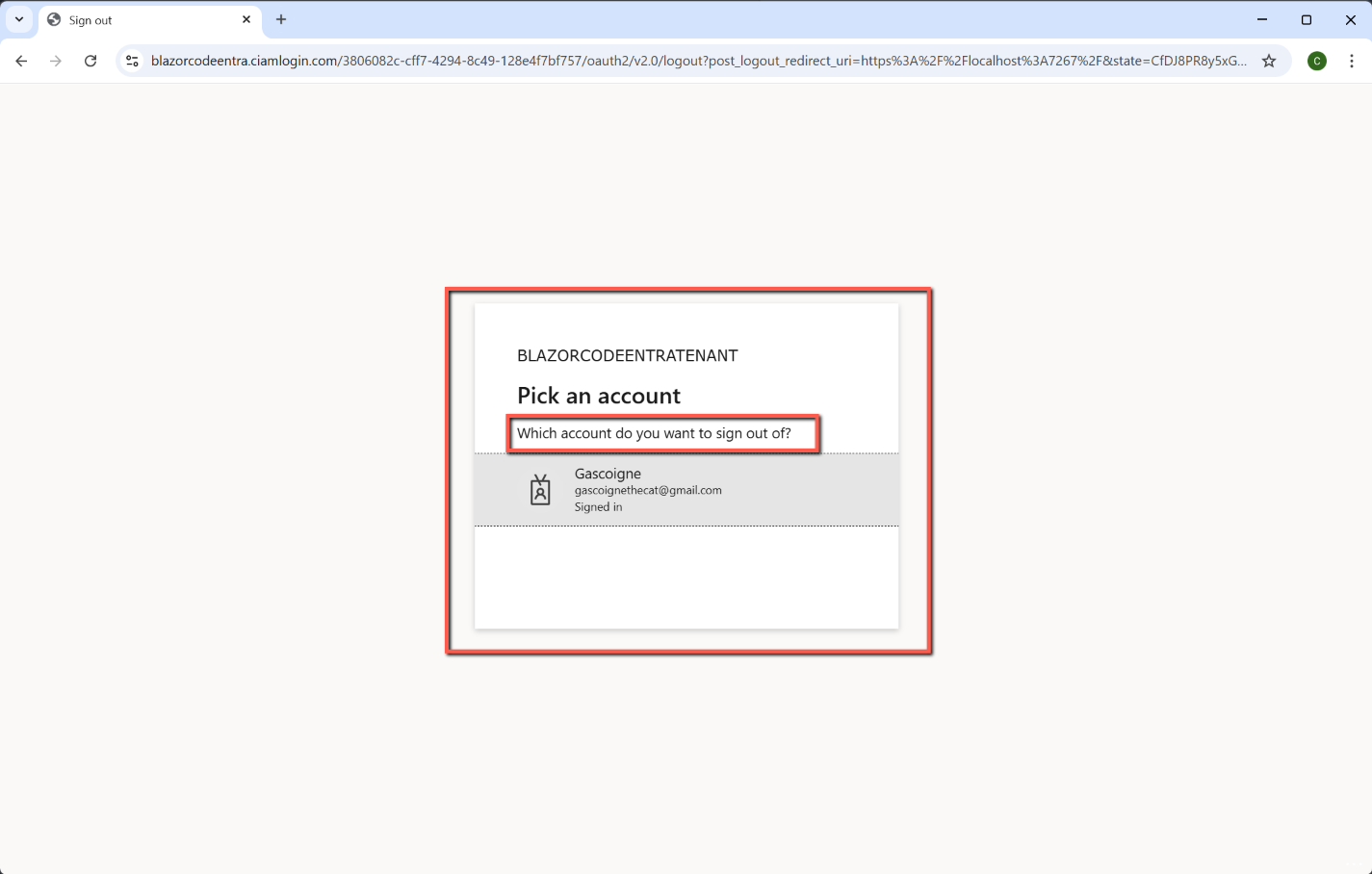
You should be able to sign into the application, open the Counter page and sign out. Sign out should return you to the application, enabling you to sign in again if you wish.
One Last Thing
You will notice that although the code in MyLoginDisplay.razor implied that the greeting at the top of the screen would welcome the user by name it actually displays the user's email address.
When we created the user flow in Entra we had a choice of which 'User attributes' we wanted to collect from the user when they registered. Our choice was to keep it simple and just collect the 'Display name'. (We could have collected the user's 'Given name', 'Surname', and/or address elements, etc.) I think it would be better to greet the user by name rather than email address.
To do this we need to alter MyDisplayLogin.razor to:
<AuthorizeView>
    <Authorized>
        @* Hello, @context.User.Identity?.Name! *@
        Hello, @GetDisplayName(context)!

        <a href="MicrosoftIdentity/Account/SignOut">Sign out</a>
    </Authorized>
    <NotAuthorized>
        <a href="MicrosoftIdentity/Account/SignIn">Sign in</a>
    </NotAuthorized>
</AuthorizeView>

@code {
    private string GetDisplayName(AuthenticationState? context)
    {
        var user = (context?.User);
        if (user == null) return string.Empty;

        // Try the "name" claim first (display name)
        var displayName = user.FindFirst("name")?.Value;

        // Fallback to email/UPN if "name" isn’t present
        return displayName ?? user.Identity?.Name ?? string.Empty;
    }

    private void SignIn() => Nav.NavigateTo("MicrosoftIdentity/Account/SignIn", true);
    private void SignOut() => Nav.NavigateTo("MicrosoftIdentity/Account/SignOut", true);

    [Inject] NavigationManager Nav { get; set; } = default!;
}
This code attempts to get the "name" claim from the signed in user (confusingly called 'name', whereas the Entra ID user flow calls id 'Display name') and assigns it to the variable 'displayName' (somewhat ironically!), otherwise it returns the 'name', i.e. email address.
The little block starting with 'private void...' is there to make the sign in and sign out links work correctly in Blazor Server. That code injects NavigationManager so the component can programmatically navigate to the Entra sign in/out endpoints, forcing a full reload. It prevents Blazor’s router from swallowing the navigation and ensures the authentication flow works reliably.
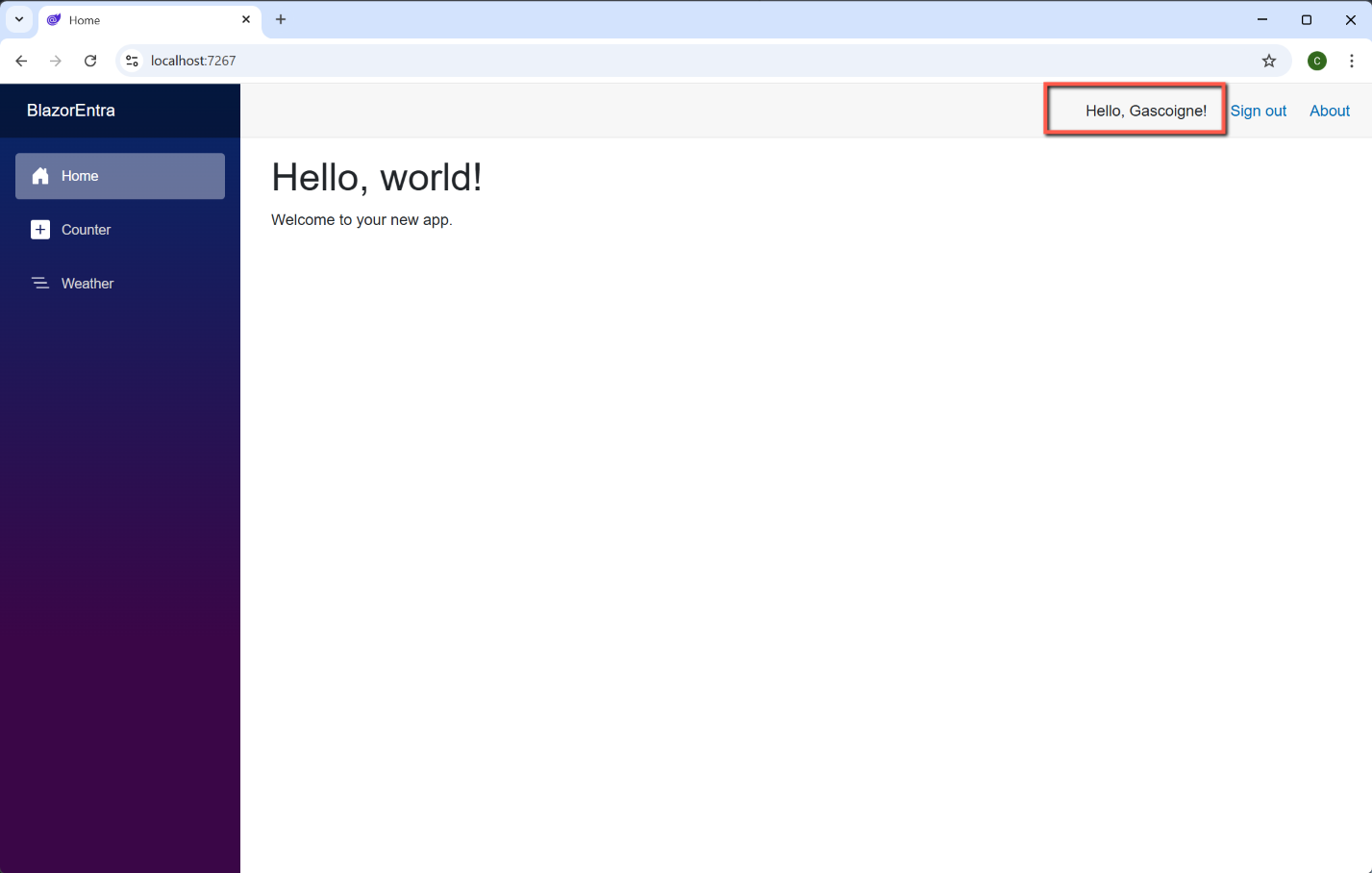
If we re-run the application it will now display: