Entra - Getting Started
Creating an Entra Tenant
Add a new tenant
This assumes you already have an Azure subscription; if you don't have a subscription you can sign up for a free trial here: https://azure.microsoft.com/en-us/pricing/purchase-options/azure-account. Once the free trial has expired you can convert the account to 'Pay as you go', although there is no charge as far as we are concerned, with regards to Entra External ID so long as the Monthly User Accesses remain under 50,000.
- Go to https://entra.microsoft.com and sign in
- On the left-hand menu, under Entra ID, select 'Overview' (slide 1)
- Select 'Manage Tenants' (slide 2)
- Select 'Create' (slide 3)
- Select 'External' and click 'Continue' (slide 4)
- Select 'Use Azure subscription' (slide 5)
- Enter the following: (slide 6)
- Tenant Name - this is an internal name for the tenant - I don't believe it has to be unique, but it makes sense to name it so you can identify it)
- Domain Name - this must be unique (this the URL that our application will access to get a token to authenticate)
- Select a suitable location
- Click 'Next - Add a subscription' (slide 7)
- Select a subscription from the drop-down list
- For 'Resource group' I suggest selecting 'Create new' as this will allow deletion of all items within the resource group later if one wants to clean up everything associated with this investigation.
- Select a 'Resource group location'
- Click 'Review + create' (slide 8)
- Click 'Create' to complete the addition of the Entra External ID tenant. (This may take a few minutes.) (slide 9)
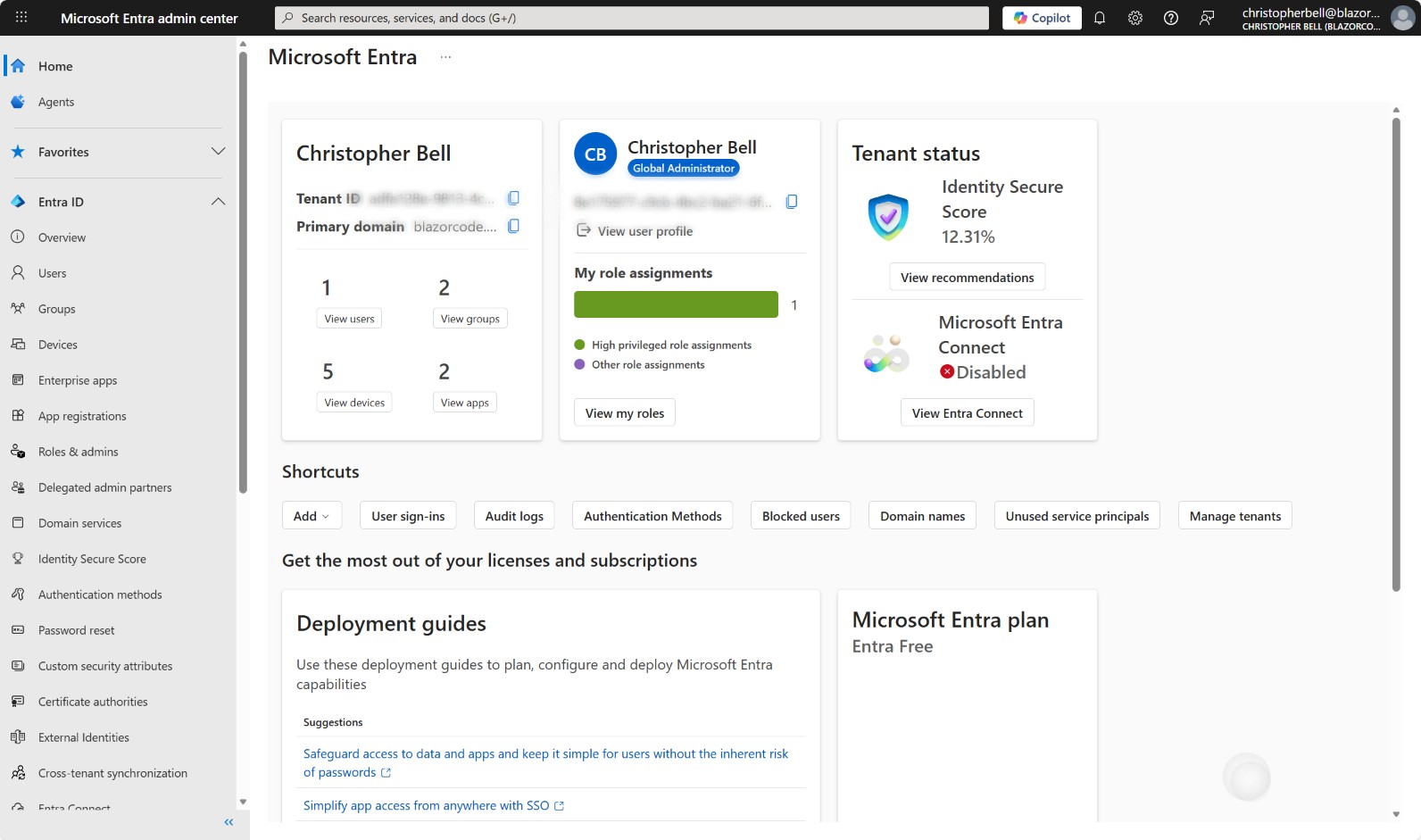
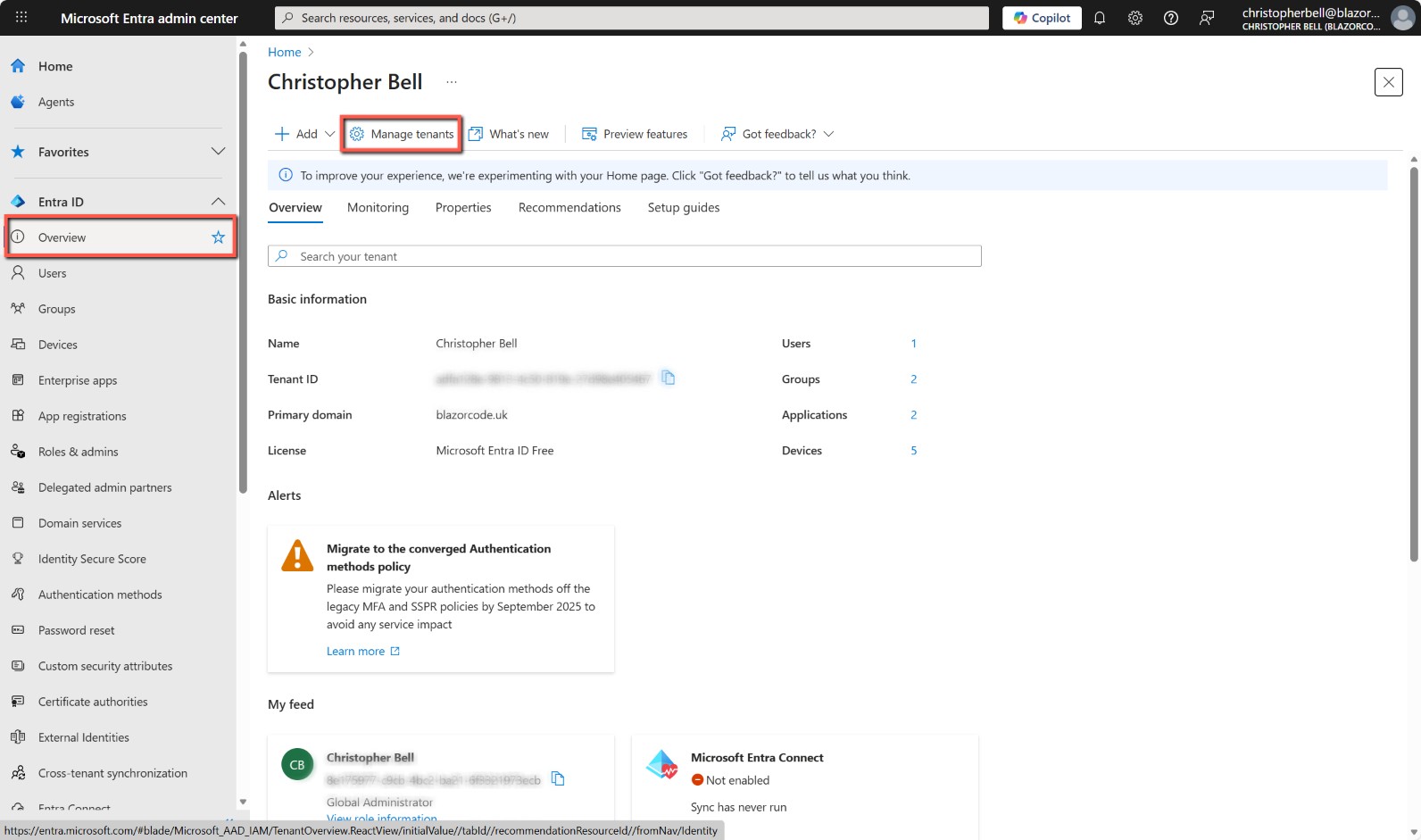
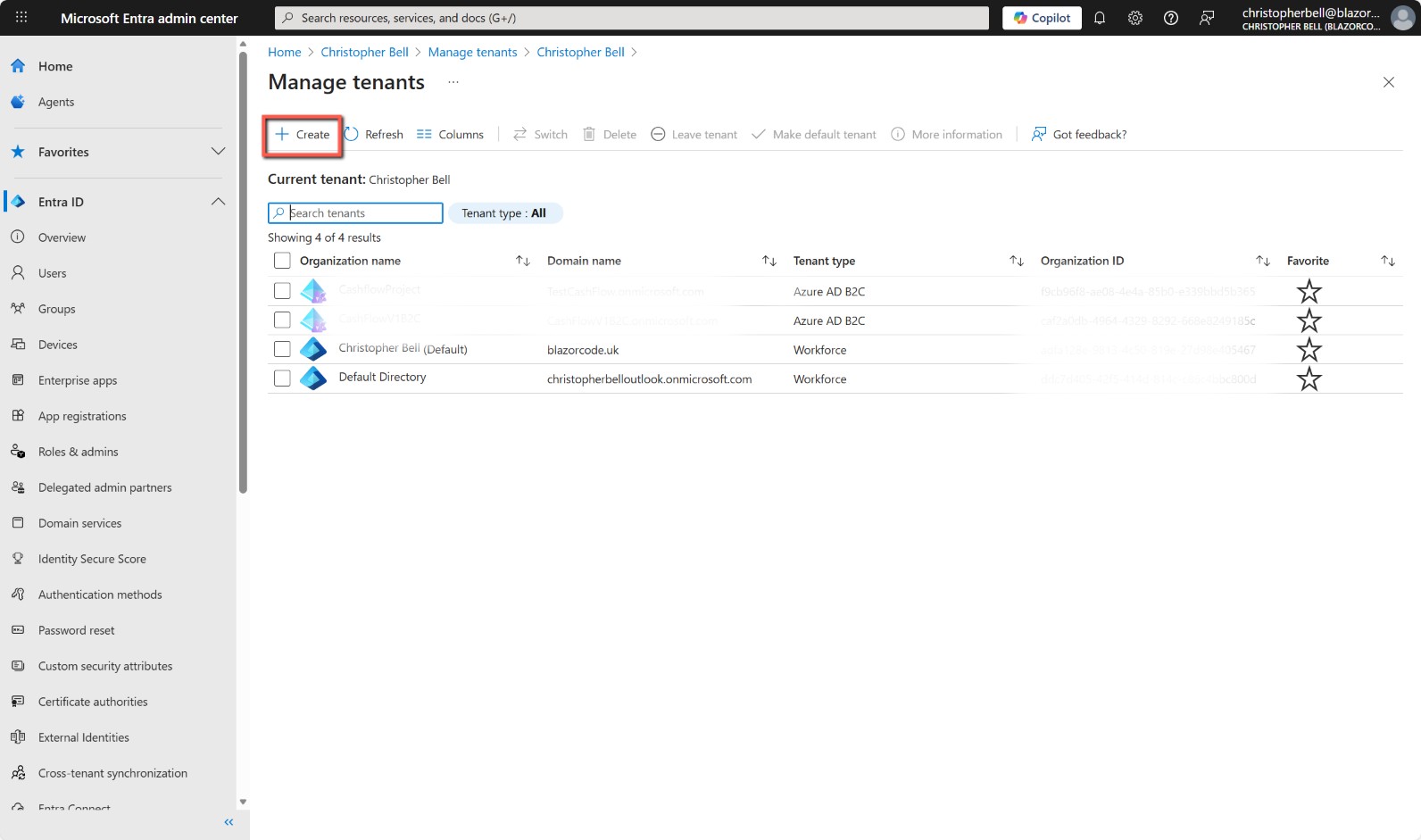
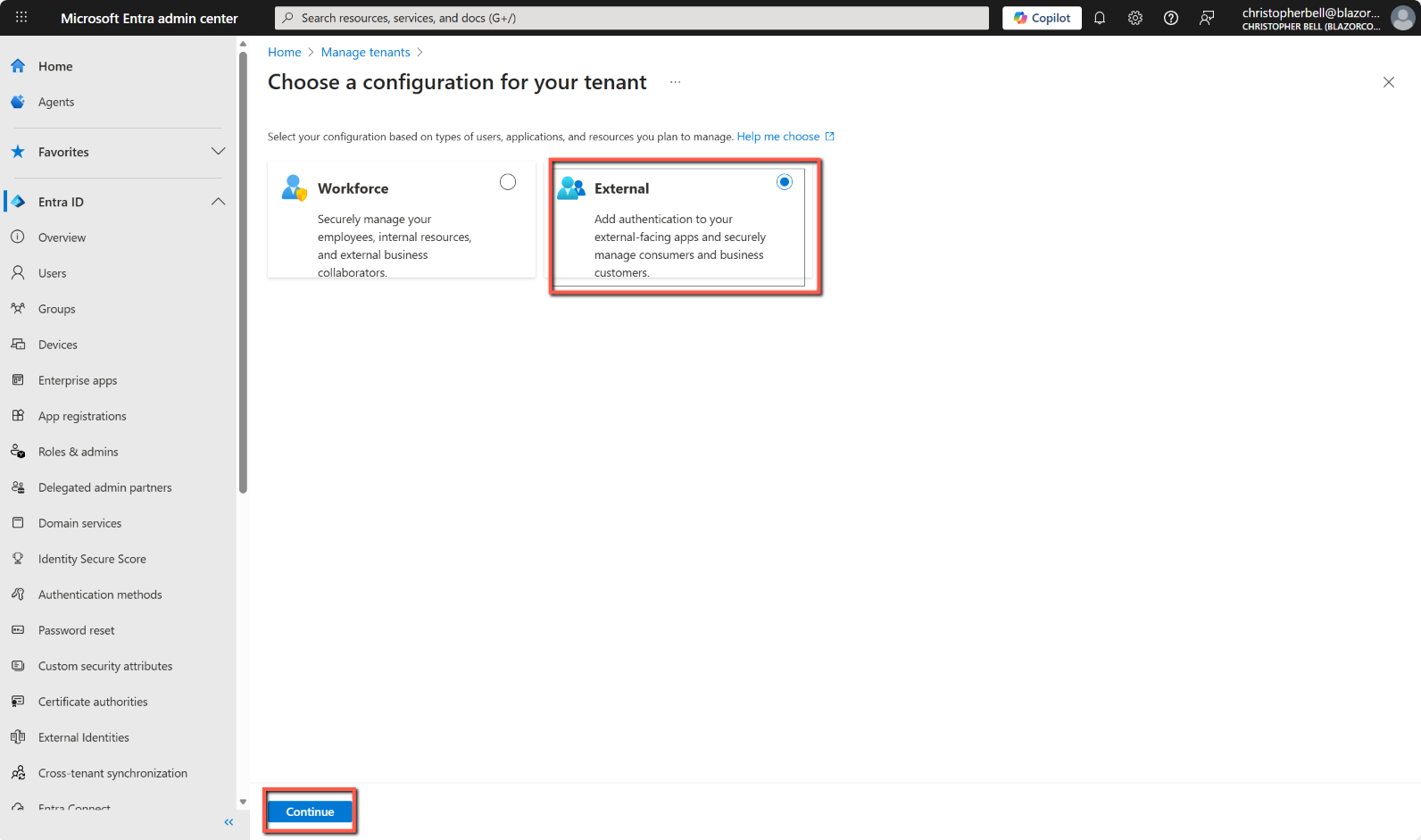
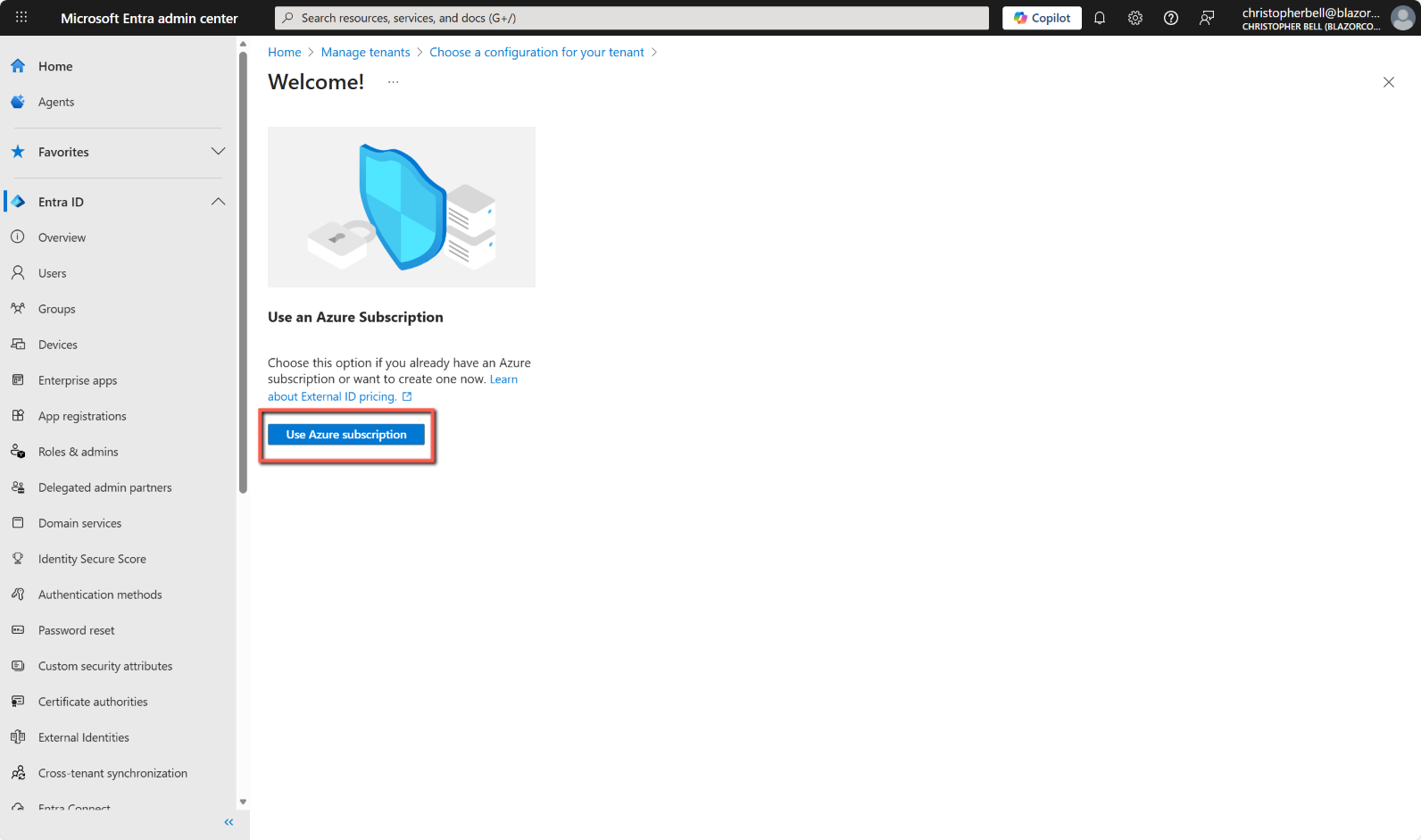
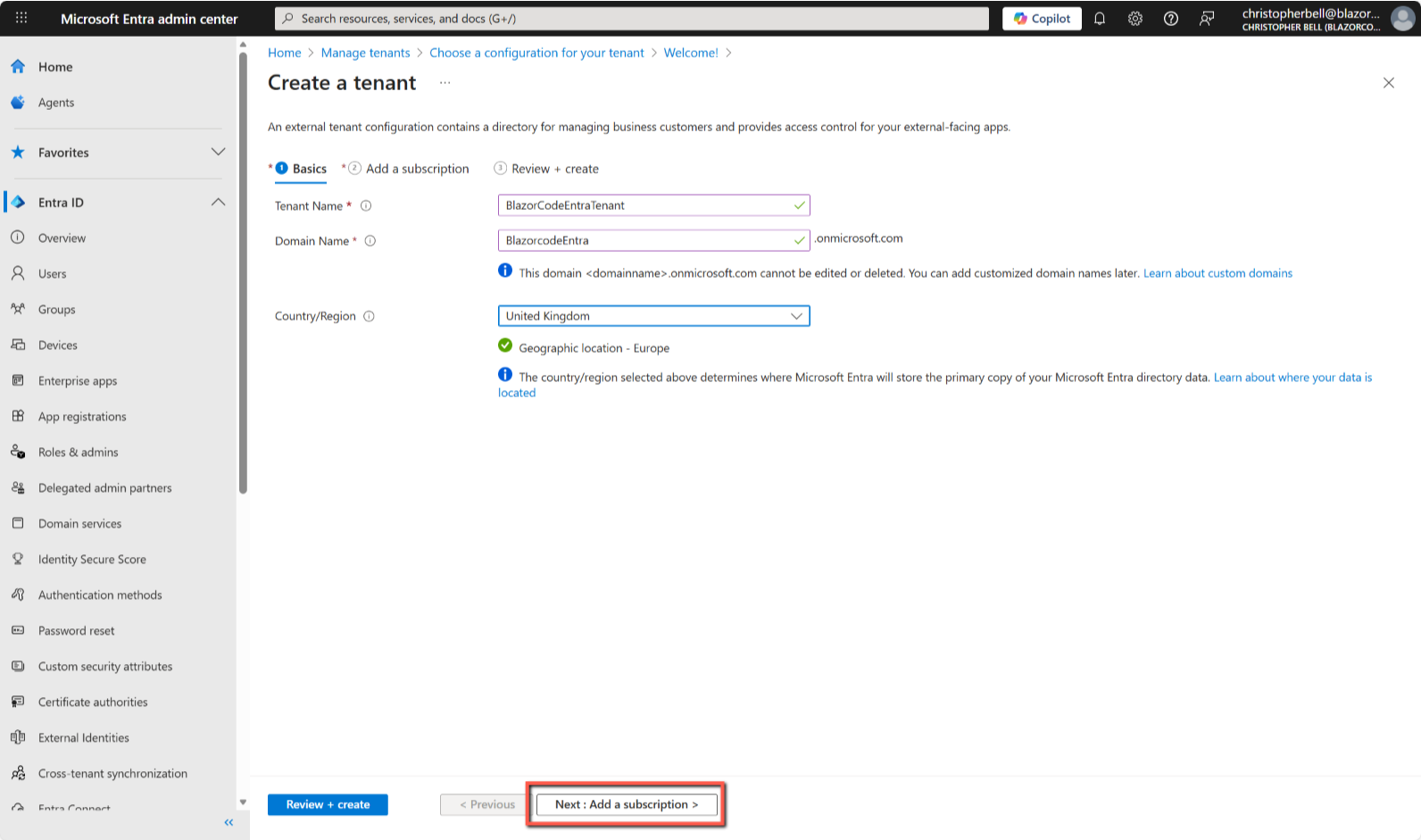
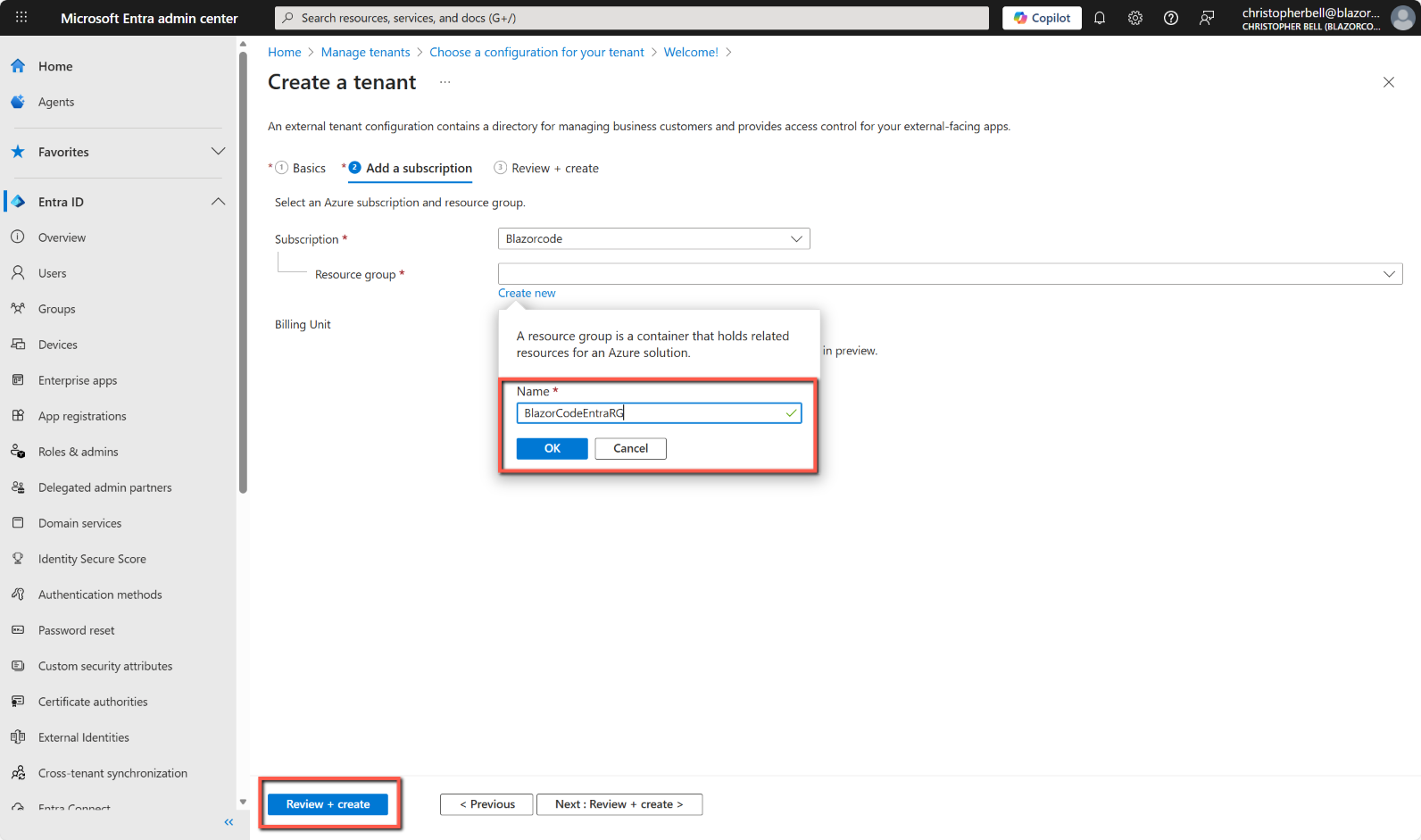
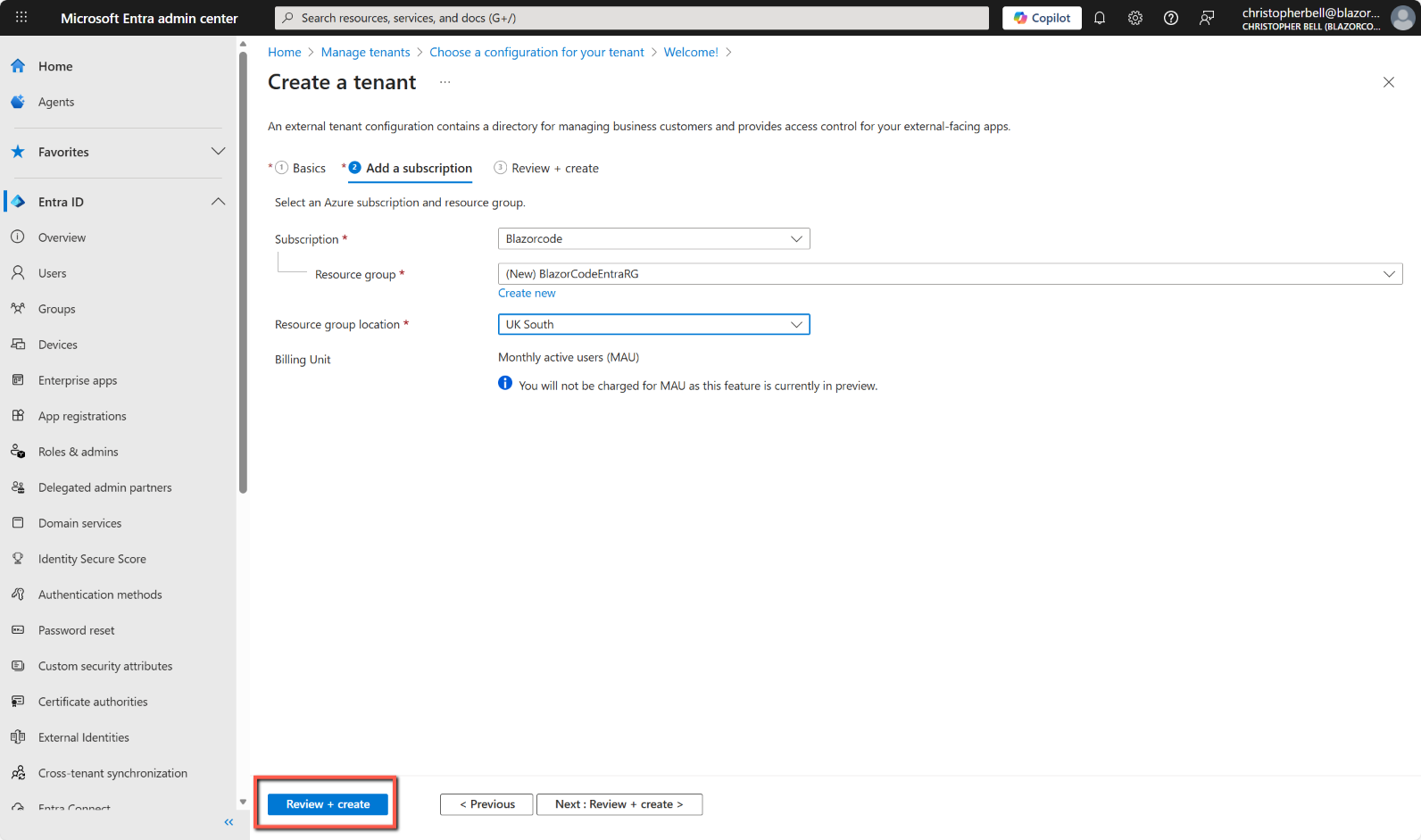
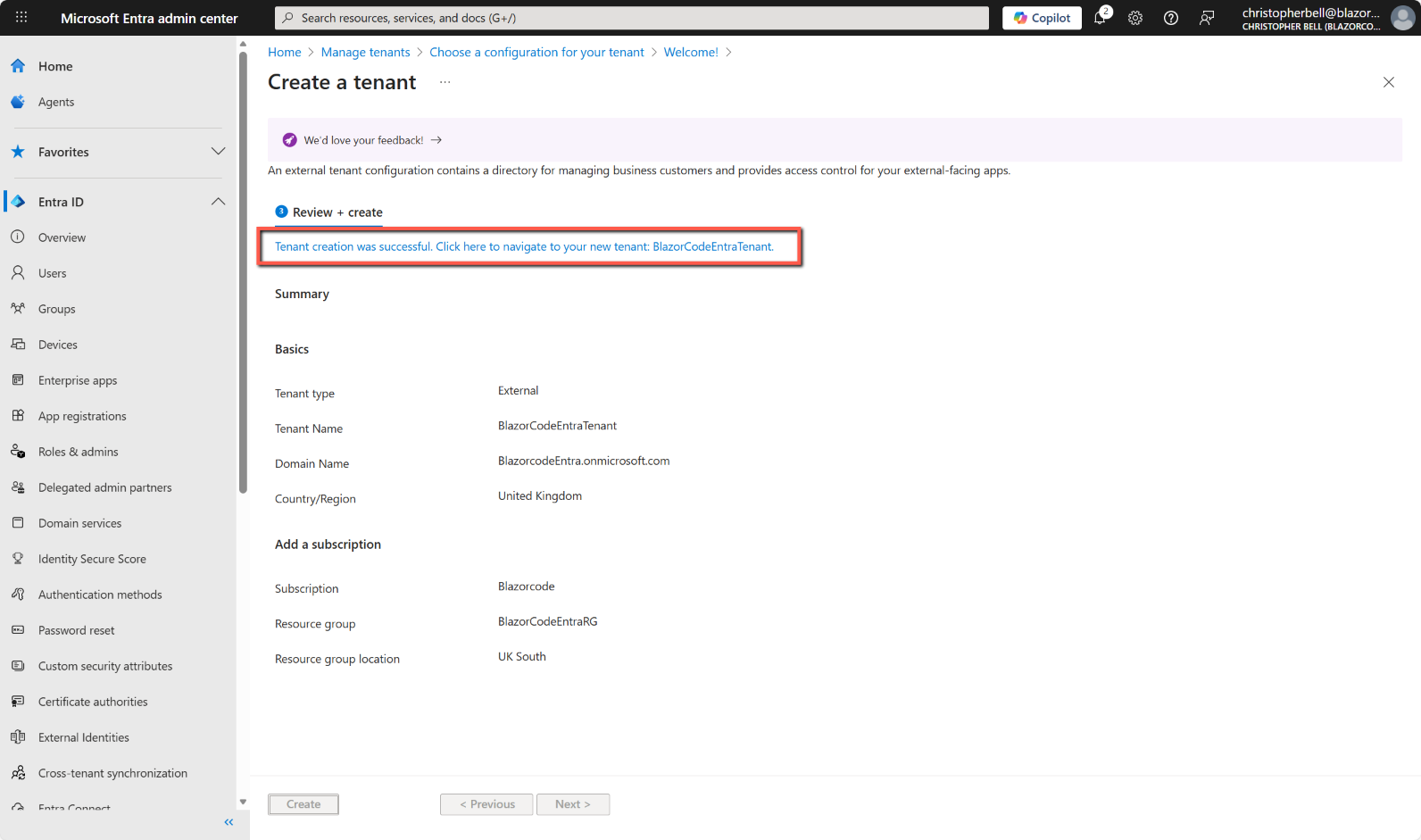
That will create the Entra tenant and give you the option to switch to it. If you select to switch to the new tenant you will be forced to enable Multifactor Authentication (see next section), otherwise, to see the new tenant listed, select 'Overview' under 'Entra ID' in the left-hand menu followed by 'Manage tenants'. The new tenant will be shown with the 'Tenant type' of 'External'.
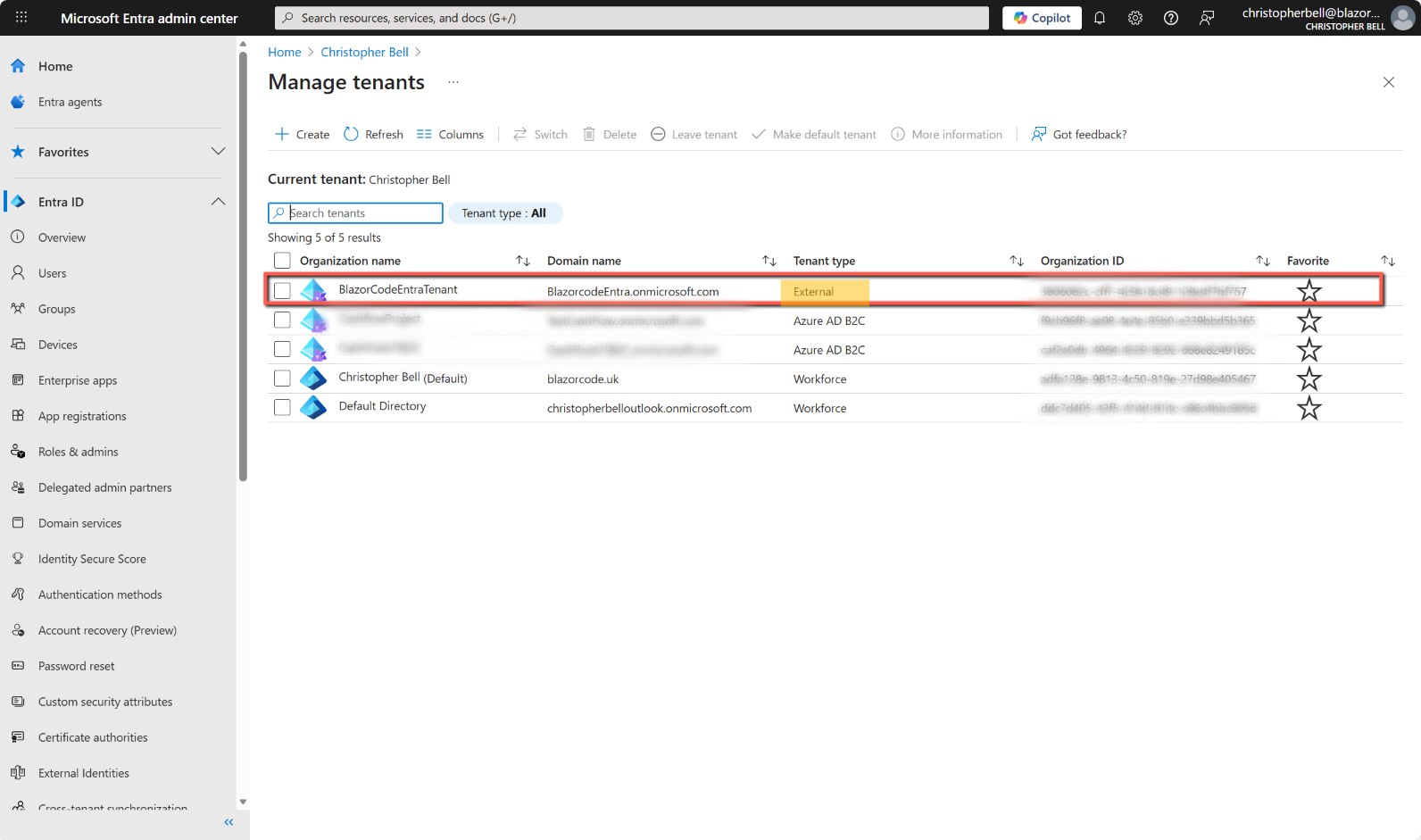
As an aside, there are 5 tenants shown in the above, the one we have just created plus two of tenant type 'Workforce' and two of type 'Azure AD B2C'. The two 'Workforce' are defaults associated with my two Azure subscriptions, one as a result of my 'Microsoft Outlook' account (i.e. personal account) and the other my workplace account (Microsoft 365 Business, linked with blazorcode.uk). The 'Azure AD B2C' tenants are two tenants I created some time ago and for unknown reasons I cannot delete!
Switch to the new tenant
The first time you switch to the new tenant you are forced to enable Multifactor Authentication (MFA). This is simply a matter of stepping through the prompts. If you don't already have the Microsoft Authenticator app on your phone you will need to download it, otherwise just follow the prompts.
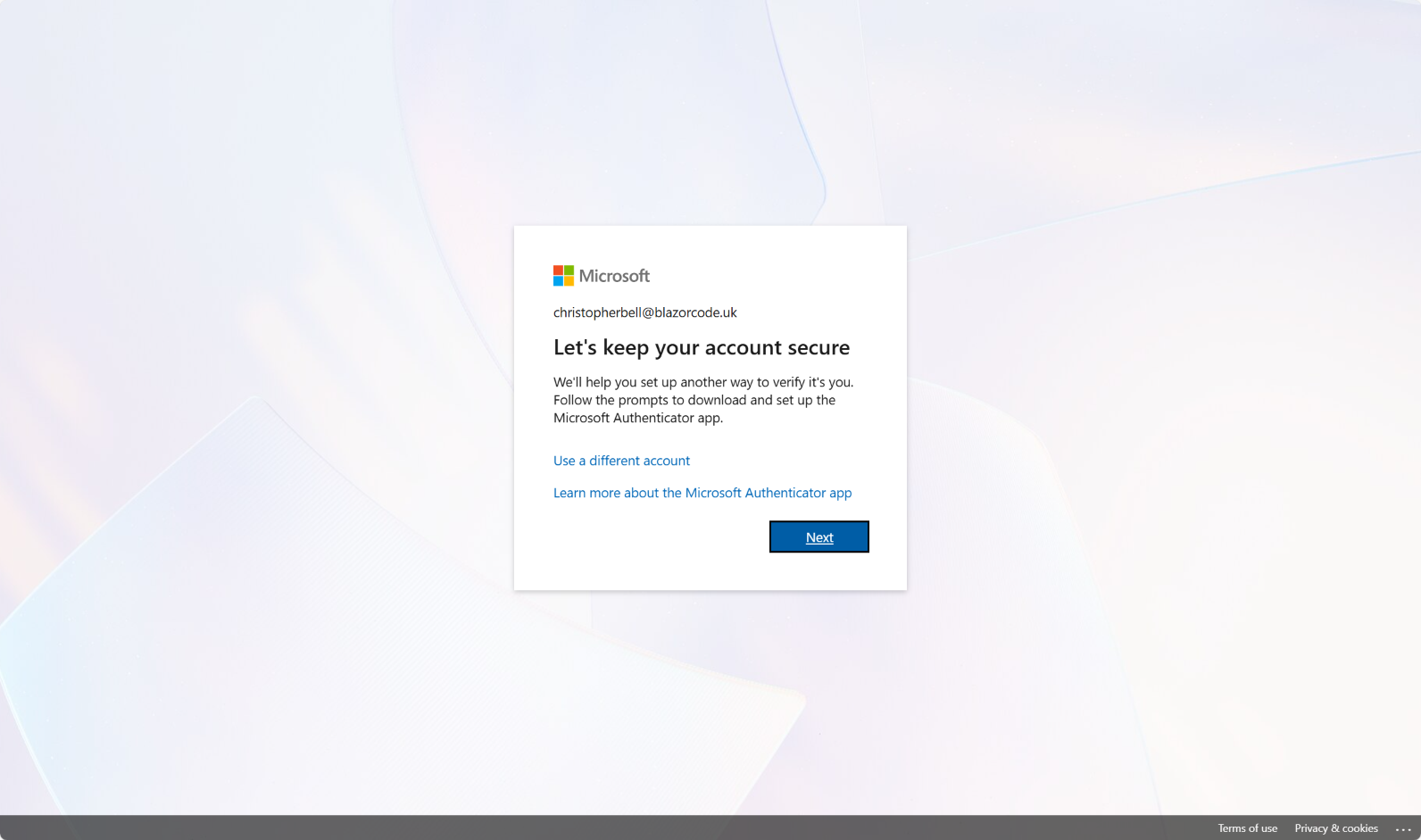
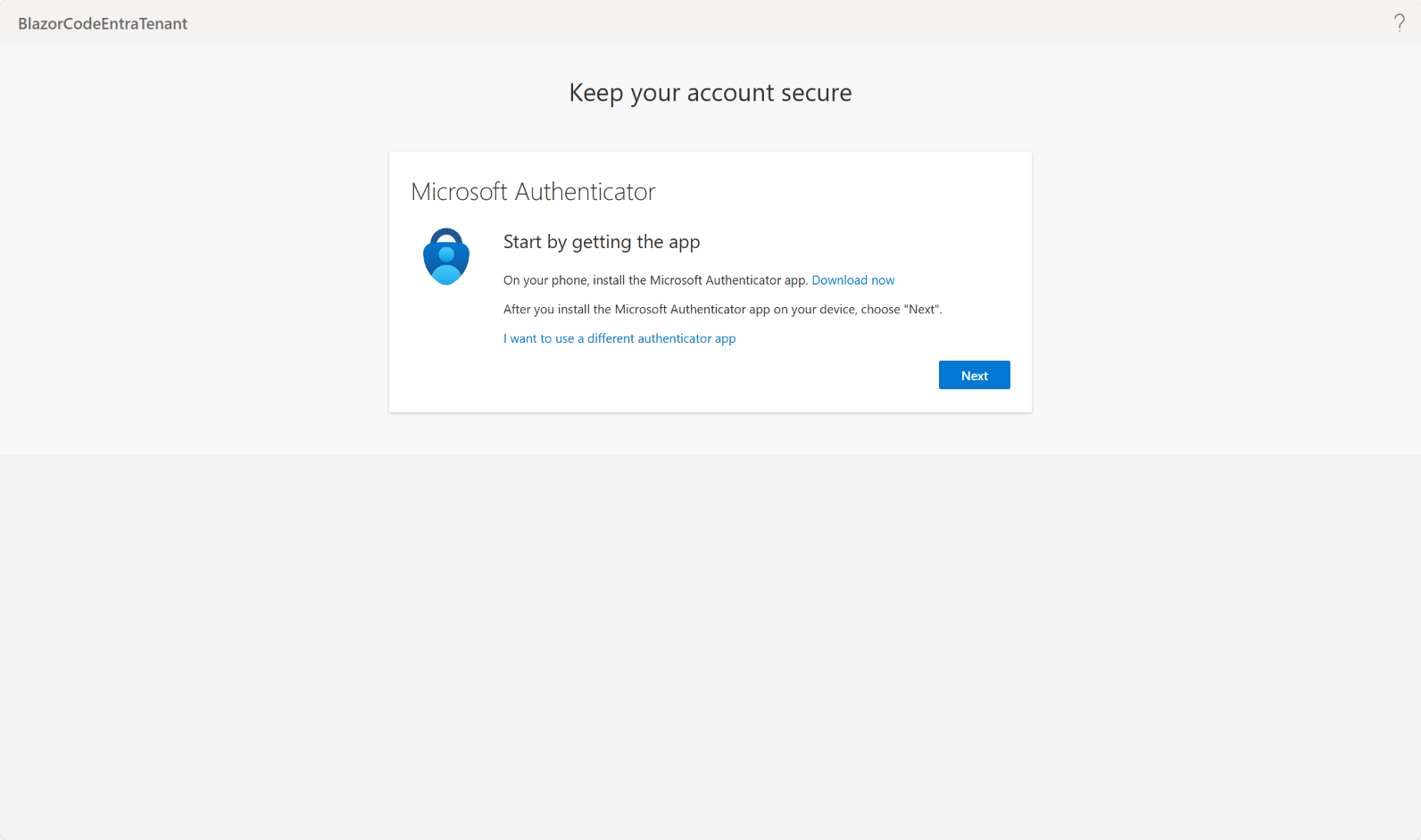
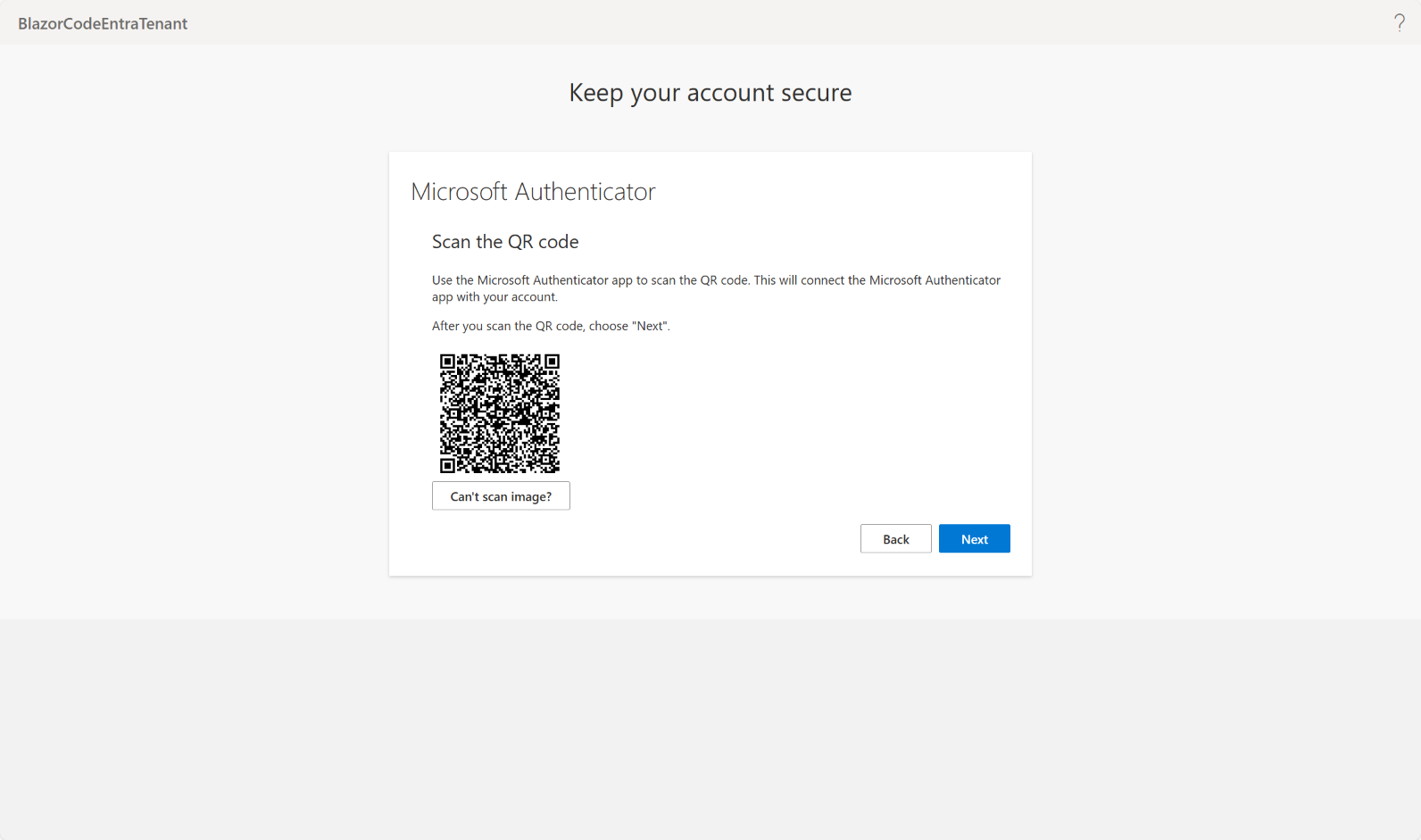
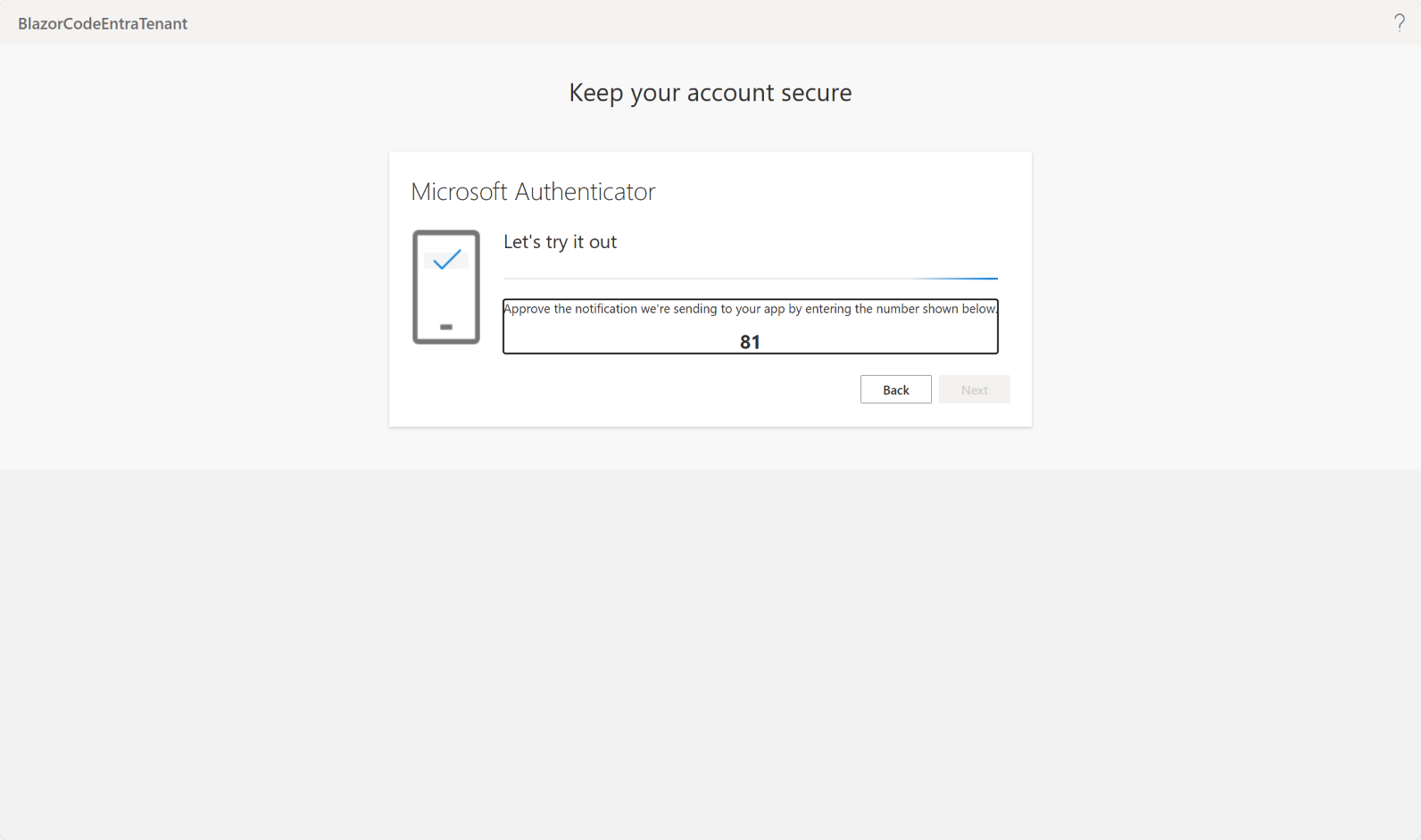
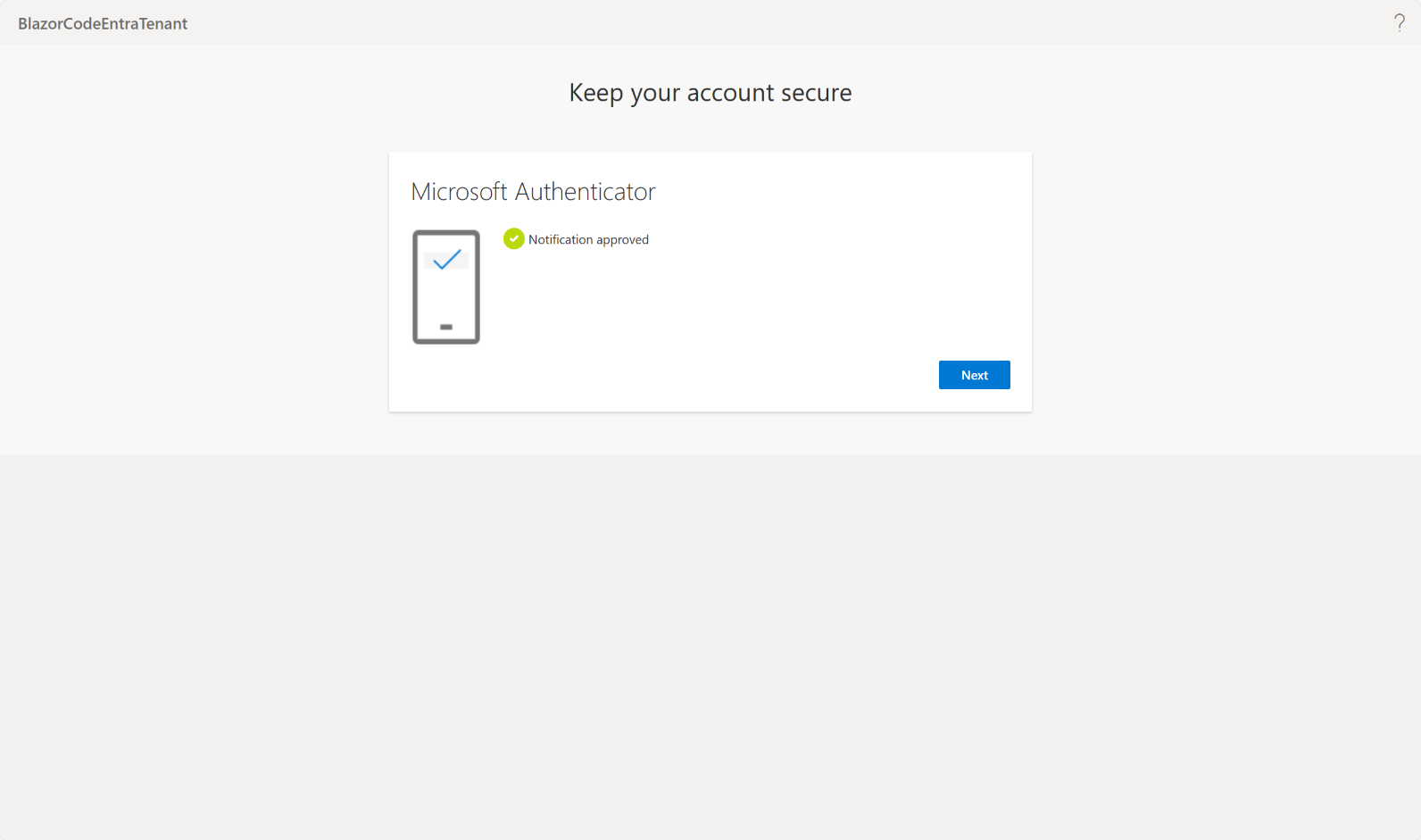
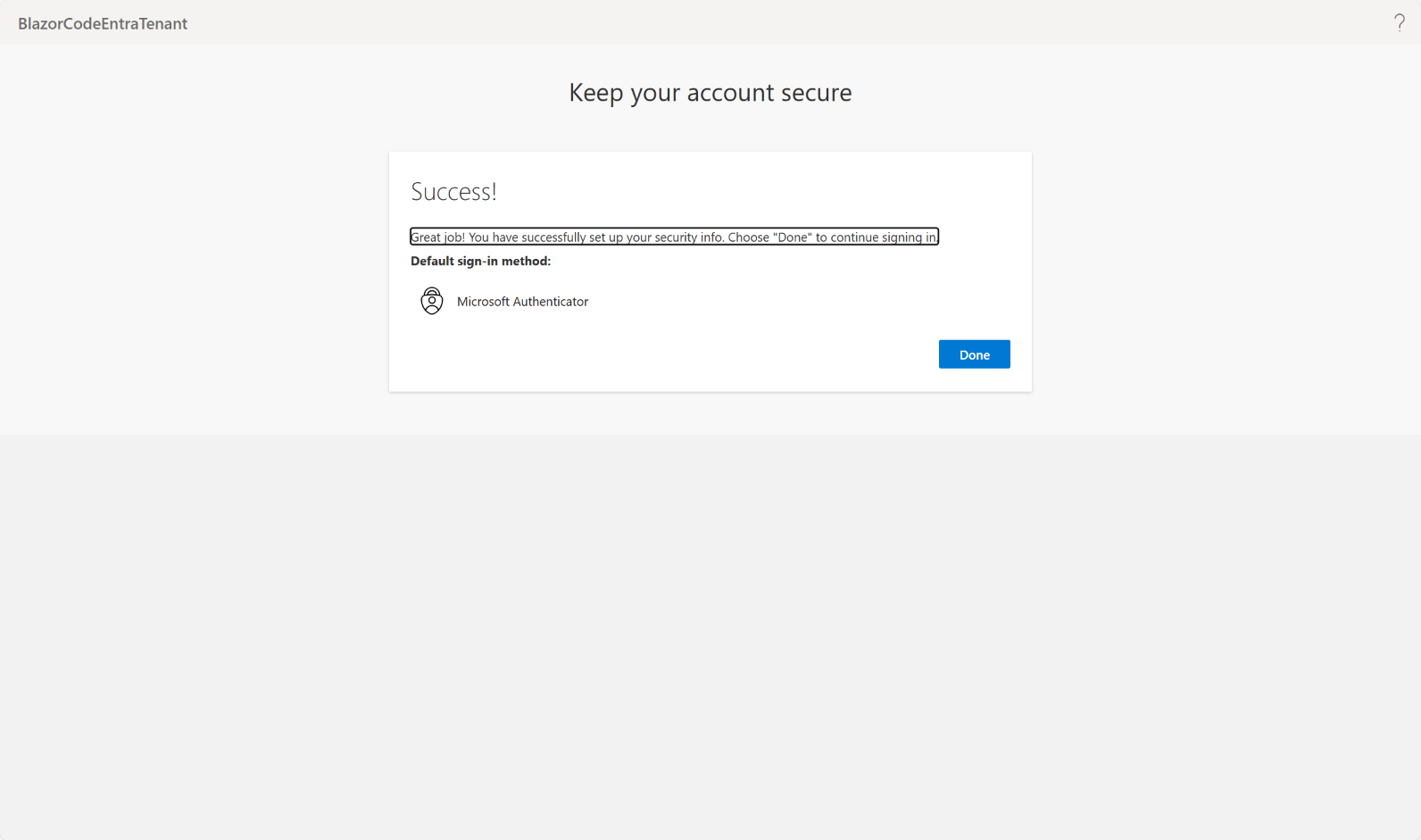
As an aside I have had terrible frustrations with Azure tenants MFA. From one of the screenshots above you will notice that I have 2 old Azure B2C tenants - I now seem to be totally locked out of these.
Create Sign-up/Sign-in User Flow
It might seem that we are jumping the gun here by creating a user flow before we have created the Blazor web app, but at this stage we don't need any information about the web app.
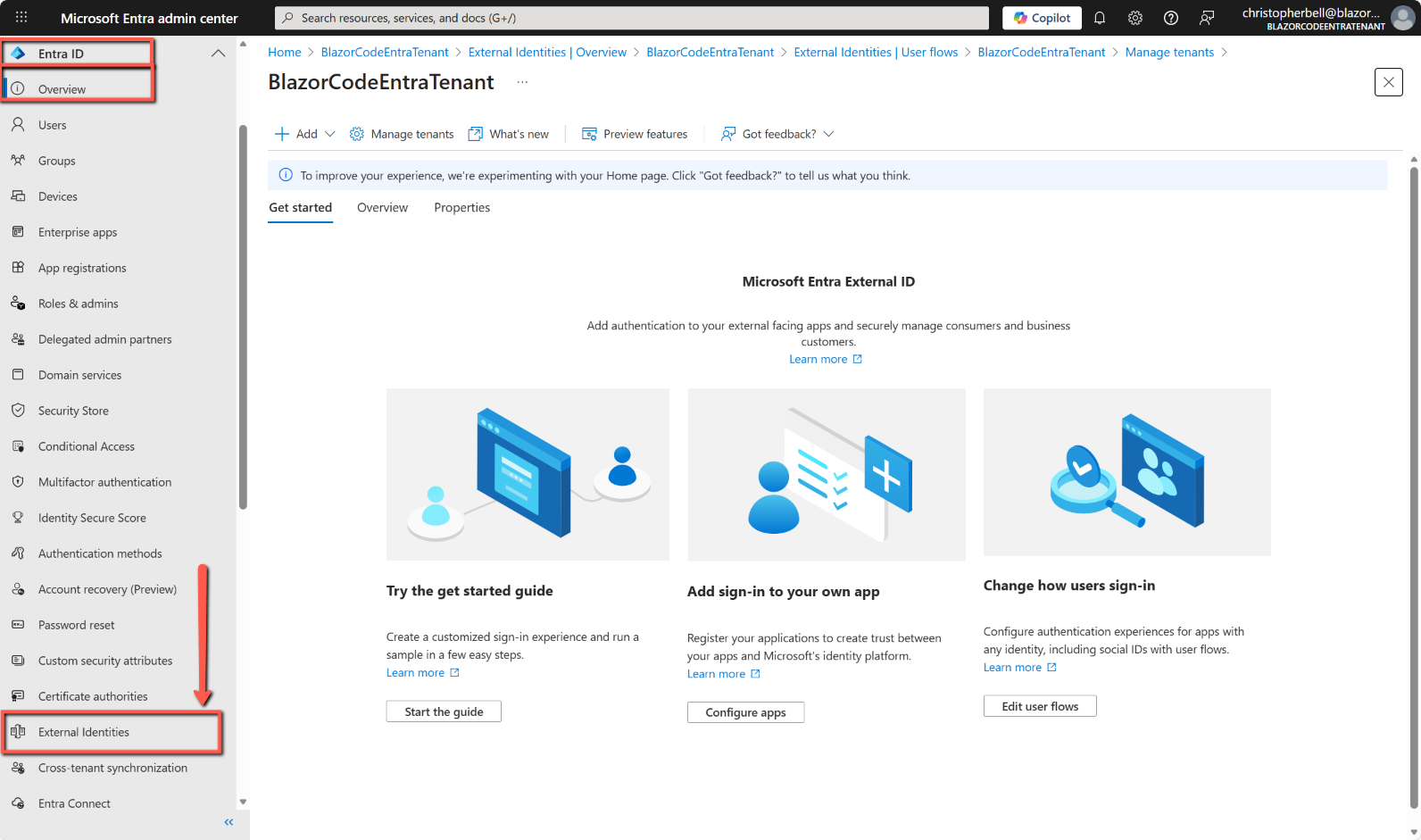
- If you haven't already, switch to the new tenant. Use the Settings icon in the top menu to switch to your external tenant from the Directories + subscriptions menu.
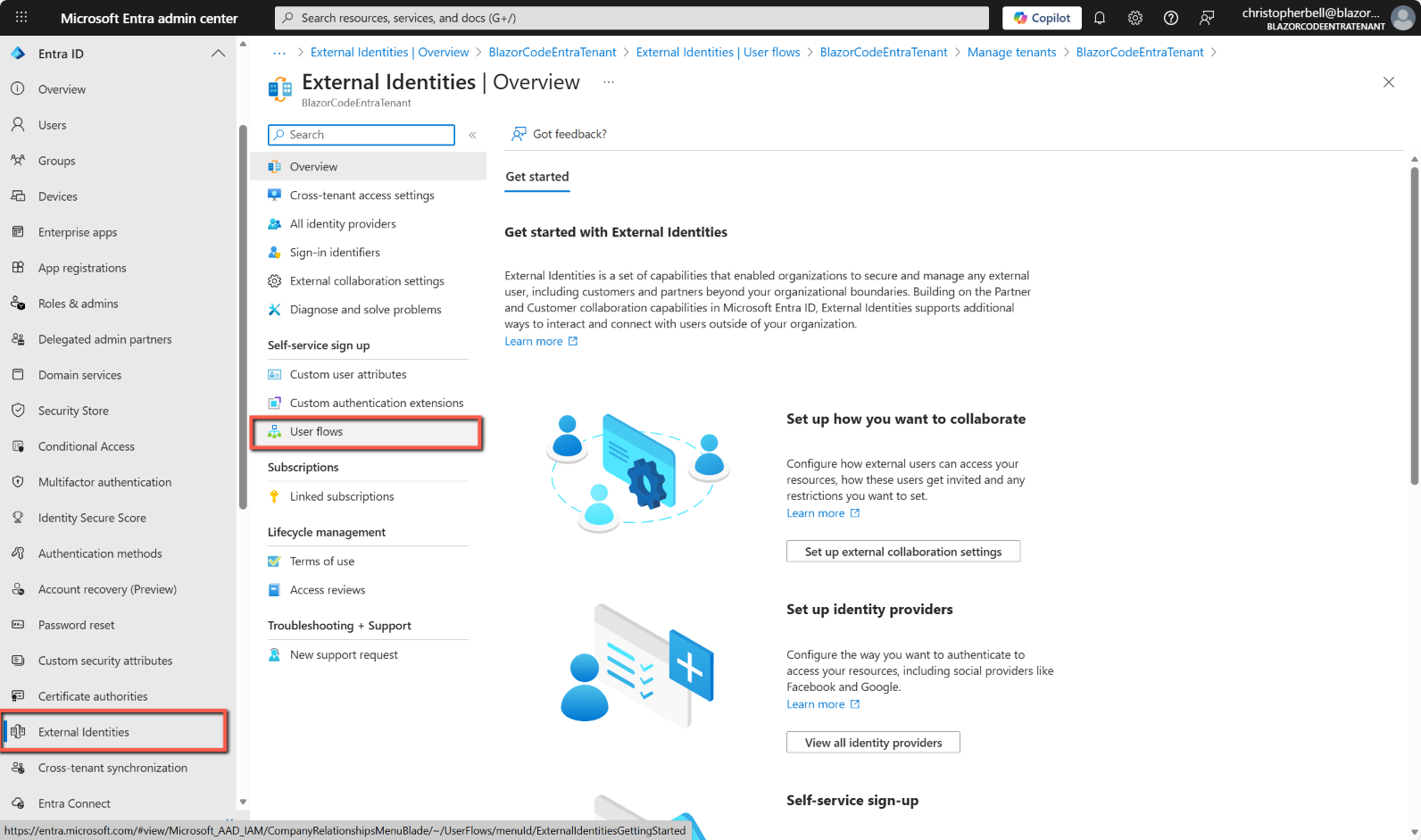
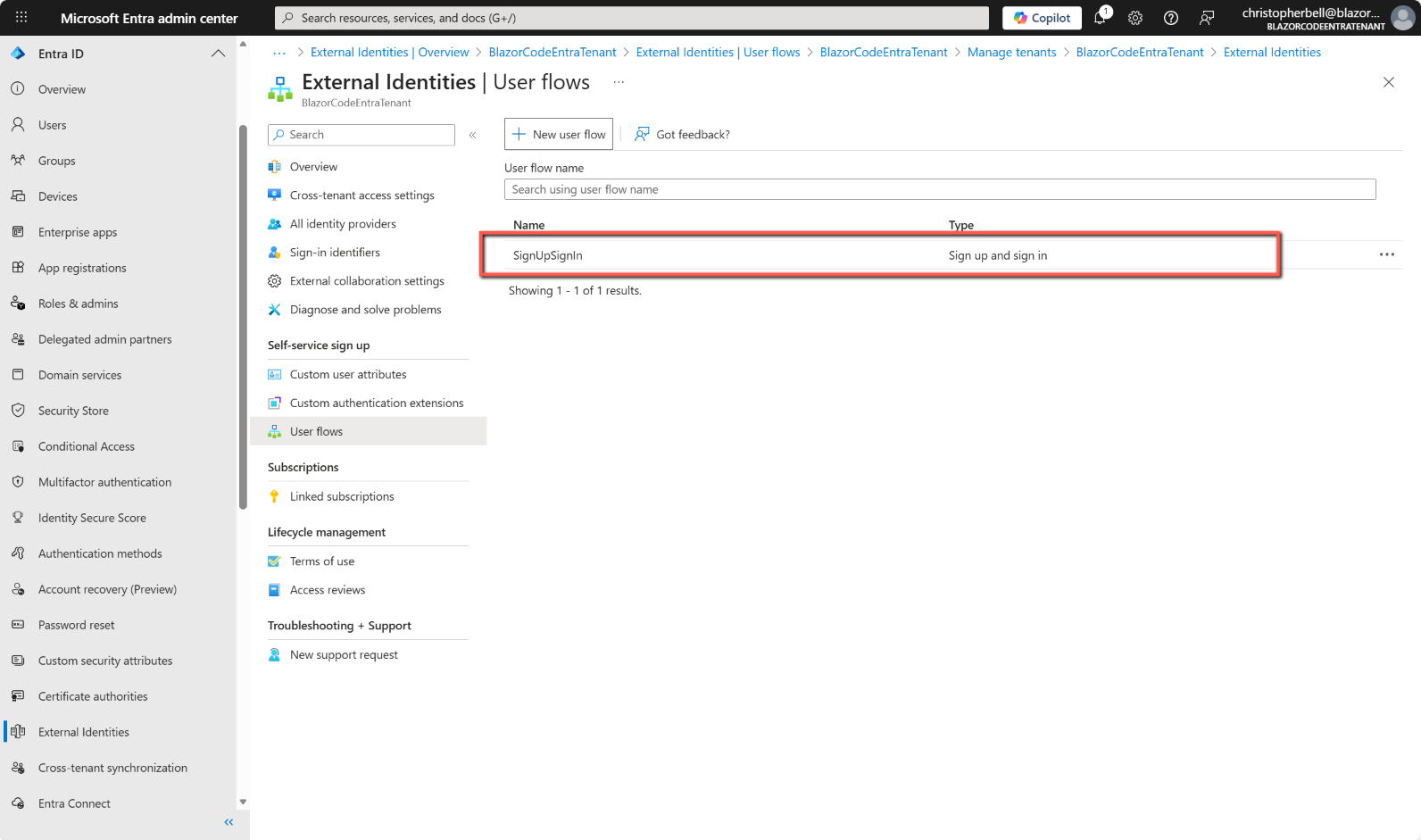
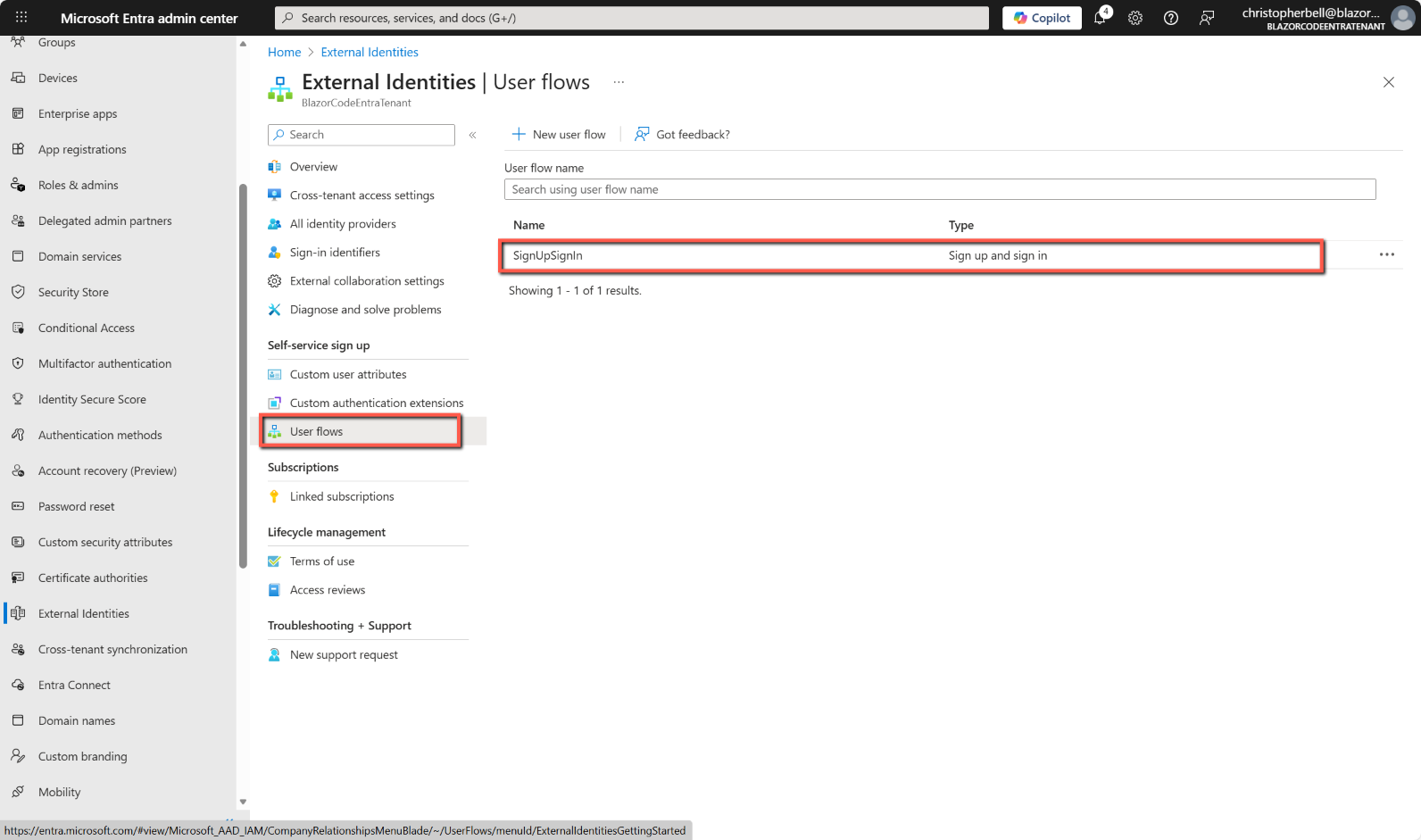
- Browse to Entra ID > External Identities > User flows
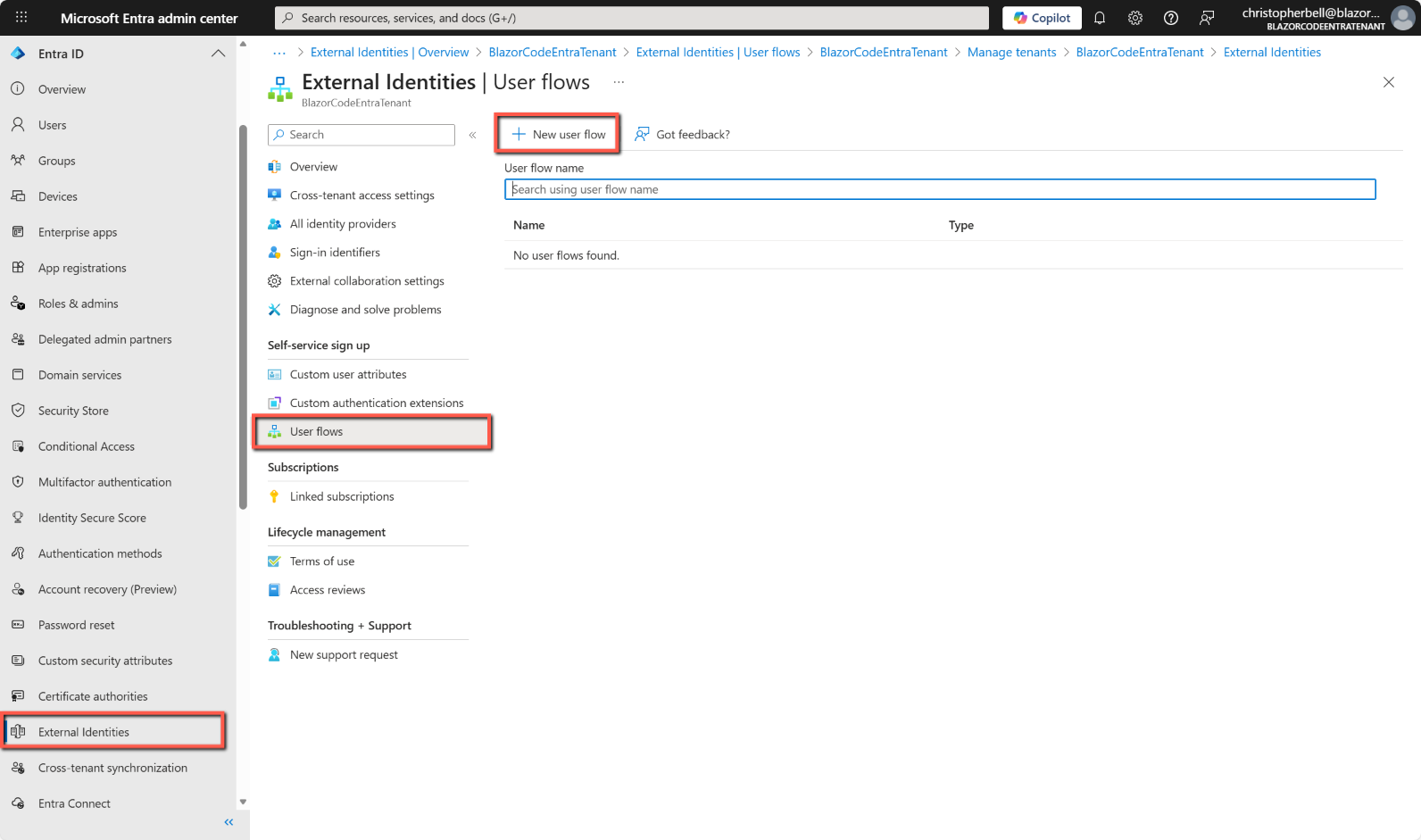
- Select New user flow
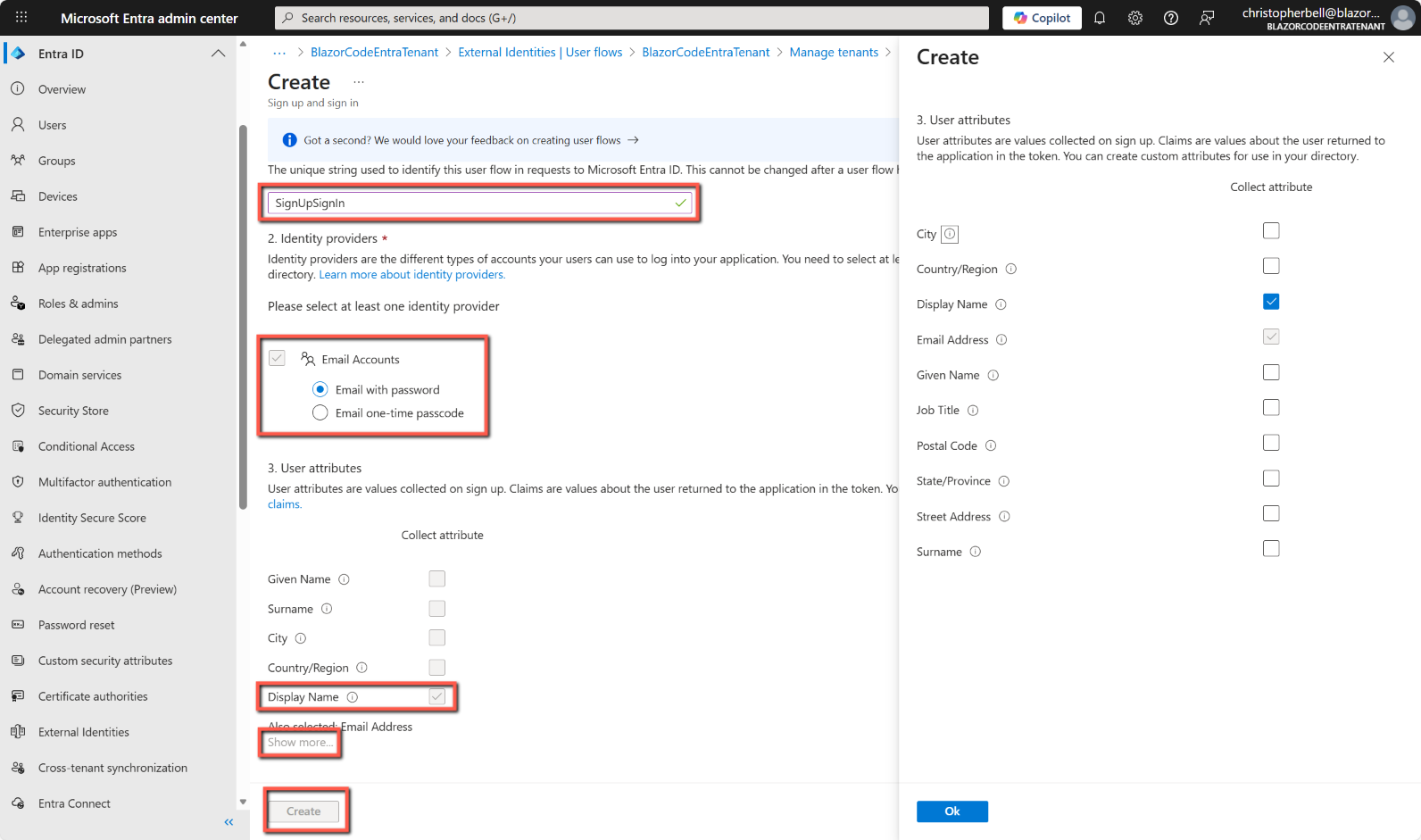
- On the Create page, enter a Name for the user flow (for example, "SignUpSignIn").
- Select either 'Email with password' or 'Email with one-time passcode'.
- In User Attributes select the values you want to collect when the user signs up. I suggest keeping it very simple, but if you want collect additional information, such as address details, click 'Show more...'
Register the Blazor Server app
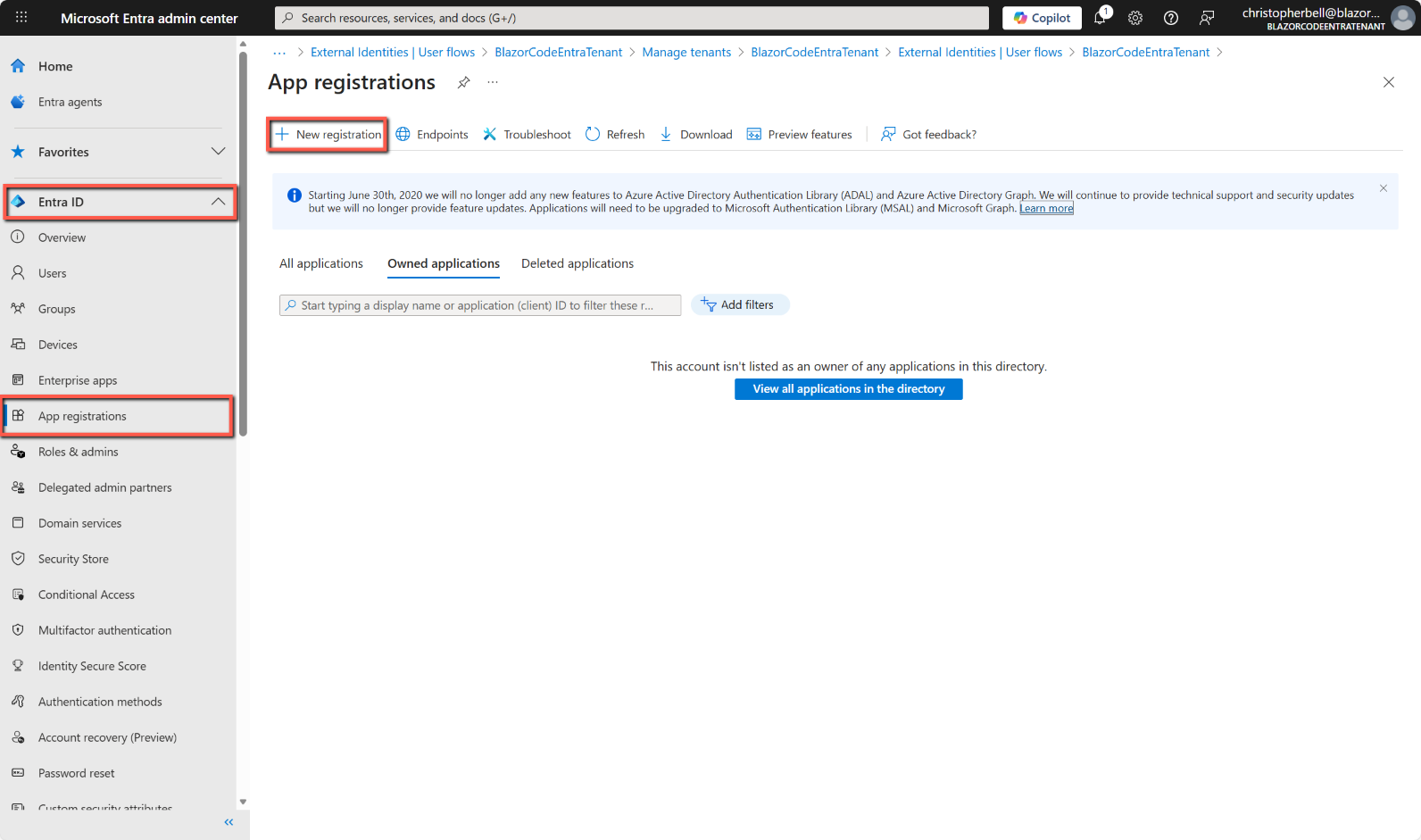
- Browse to Entra ID > App registrations > New registration
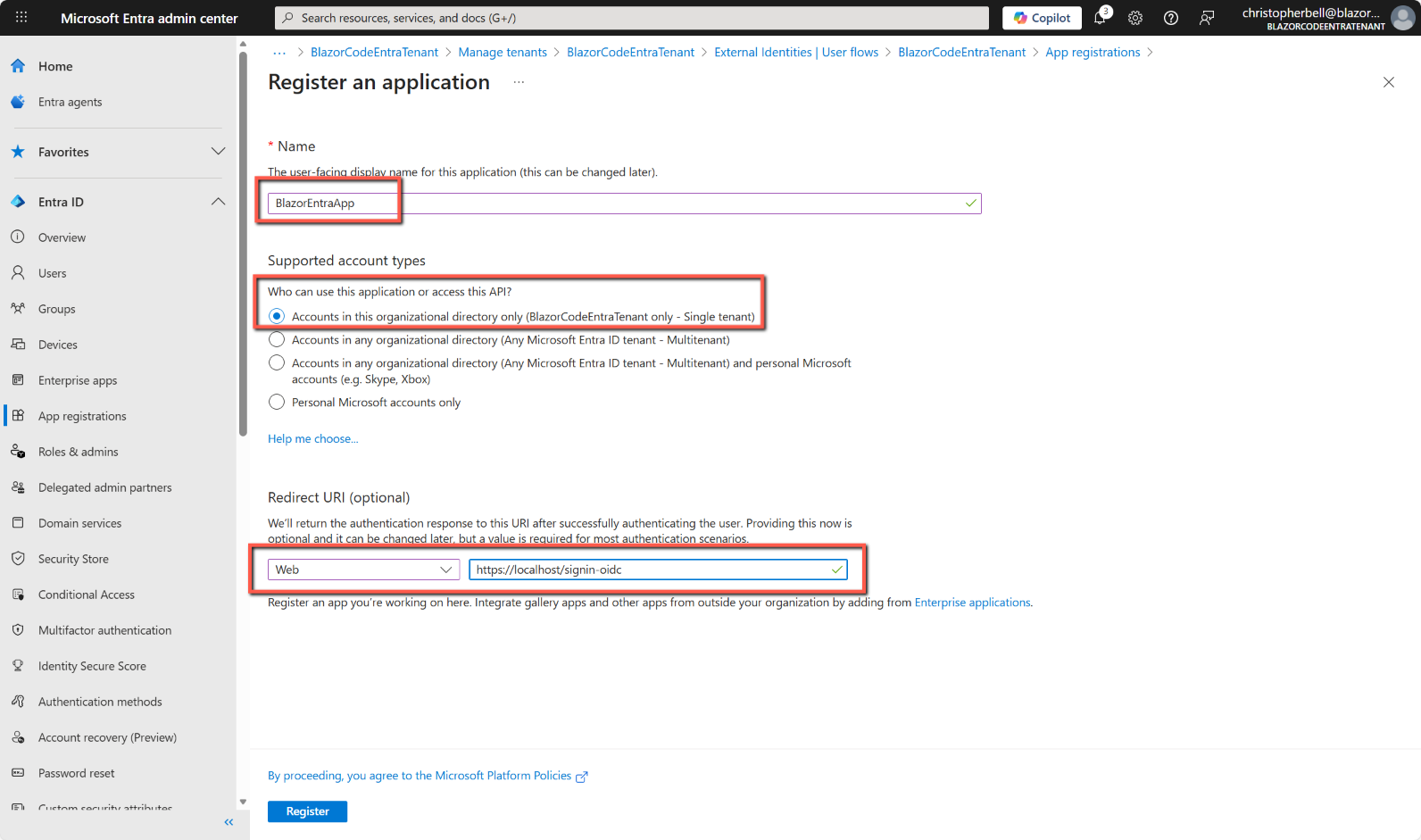
- Enter a Name for the application (just to identify it - in this example BlazorEntraApp)
- Select Accounts in this organizational directory only (first option)
- In Redirect URI select Web and enter: https://localhost/signin-oidc (plus, maybe the port number?)
- Click Register
Add the App to the User flow
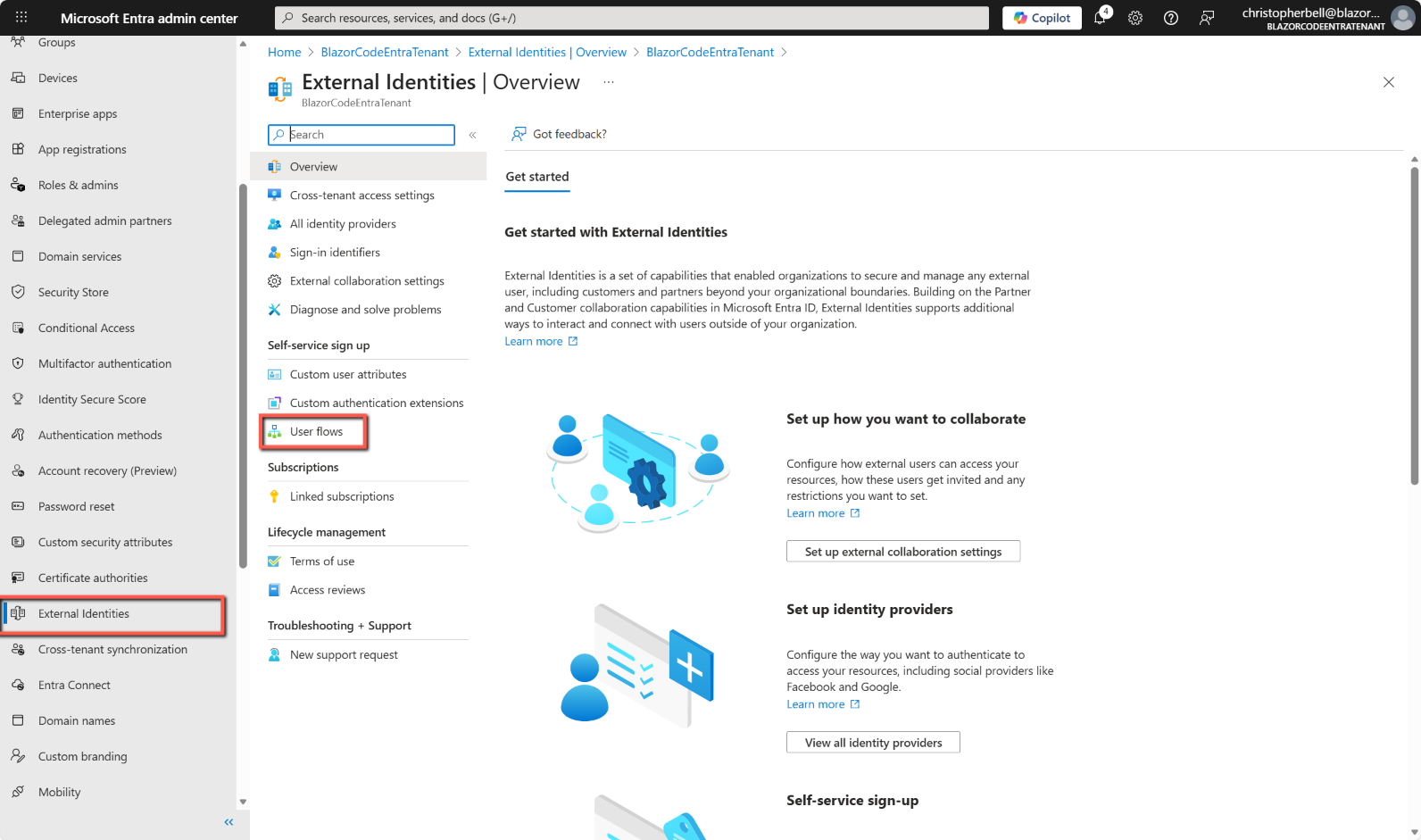
- Browse to Entra ID > External Identities > User flows
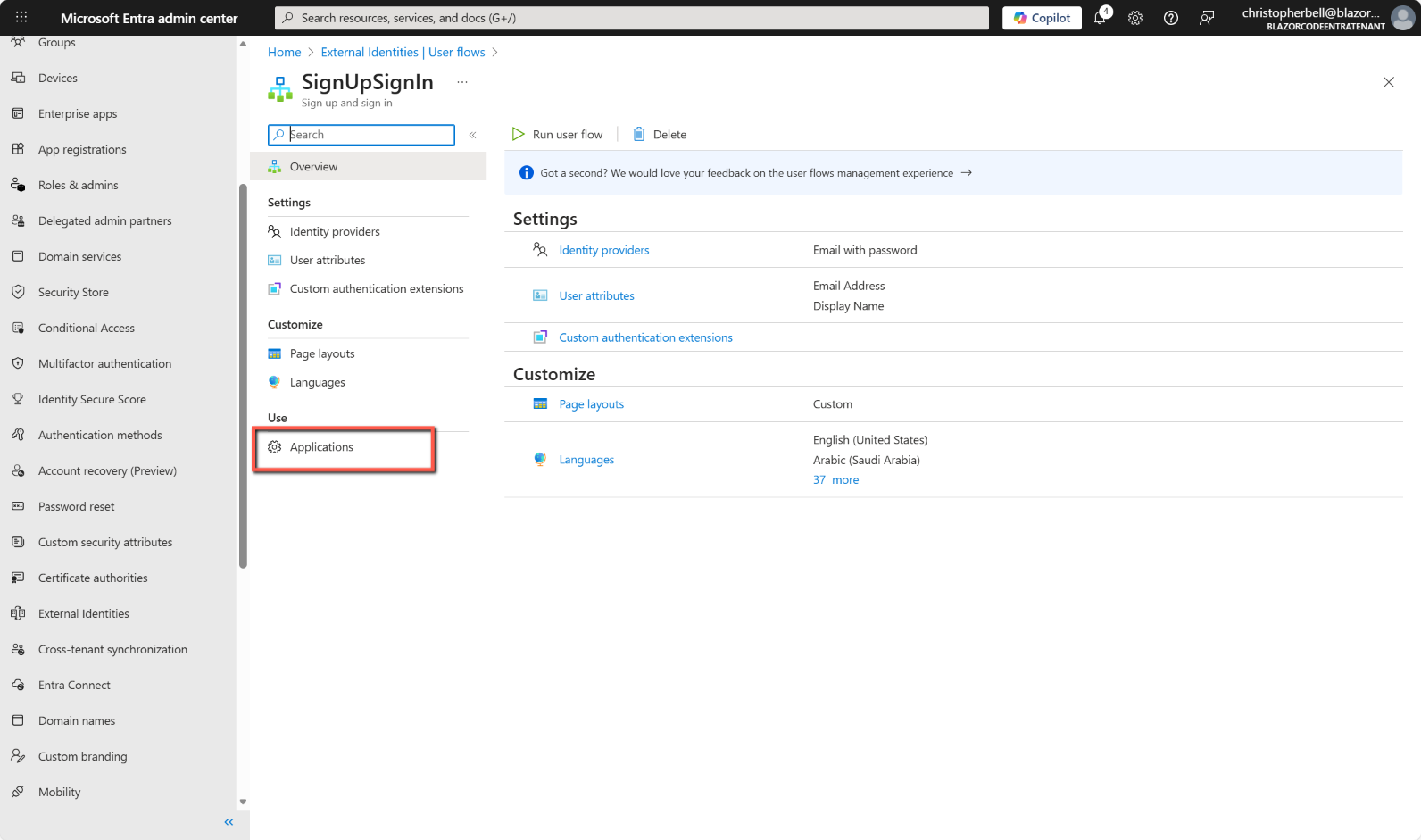
- Select the user flow by clicking on it
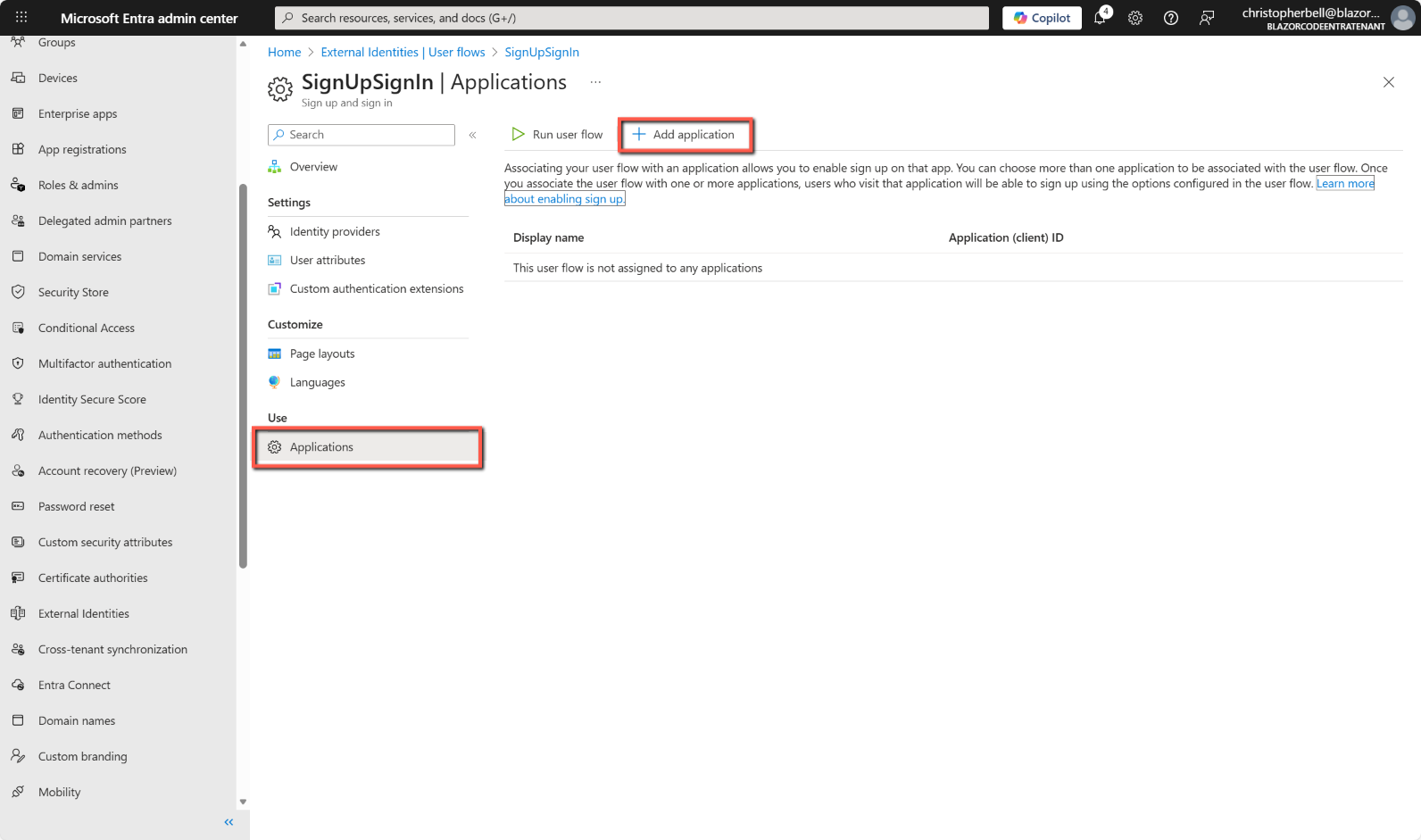
- Select Applications
- Select Add Application
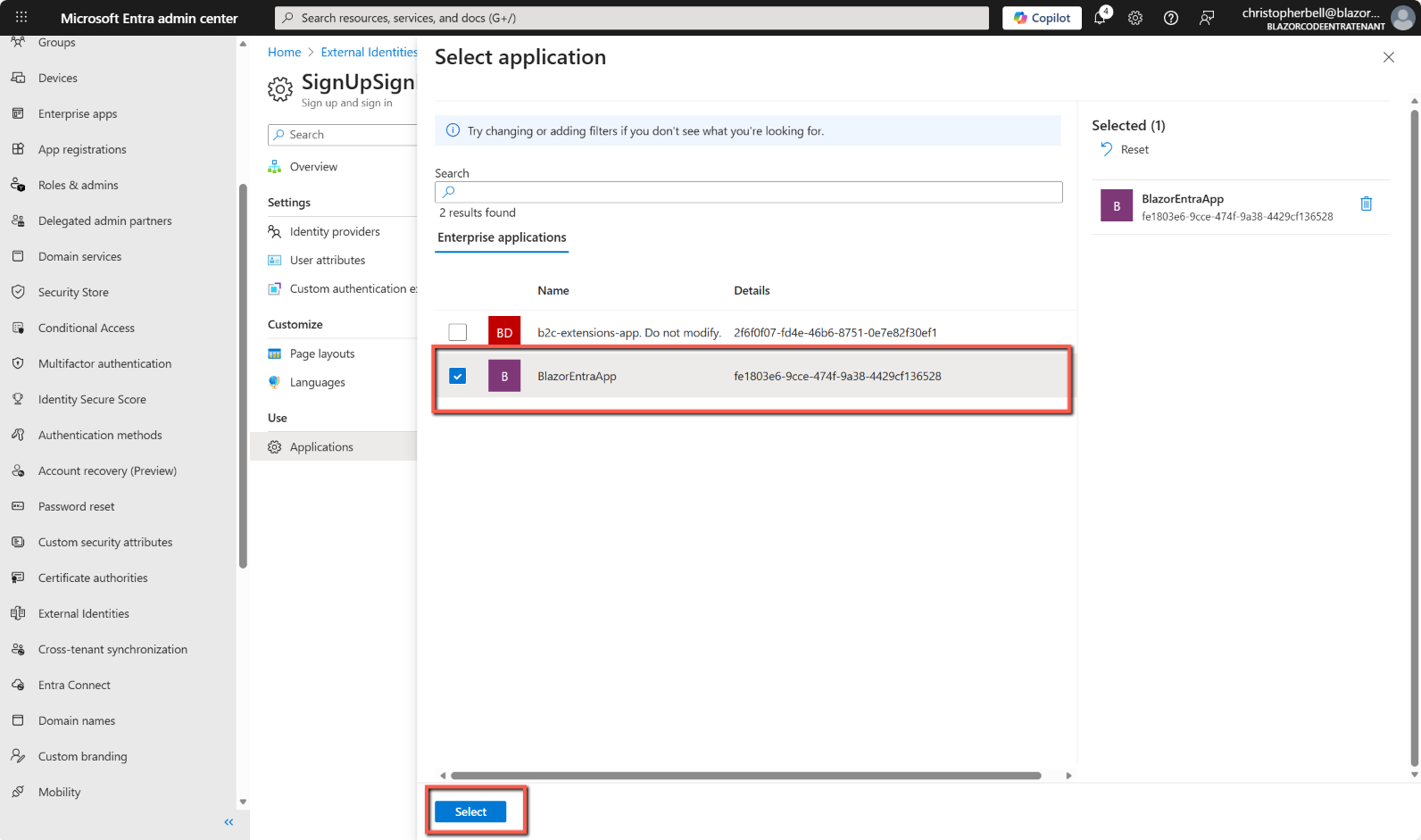
- A list of applications will be displayed. Select the application registered in the previous step (BlazorEntraApp) by checking the box to the left of the name.
- Select Select
Create a Client Secret
Eventually our Blazor Server app will be treated as a confidential client and as such it will have to provide a client secret (or certificate). The simplest approach is a client secret, so we need to add one to the Entra External ID app registration. To do this:
- In Entra ID
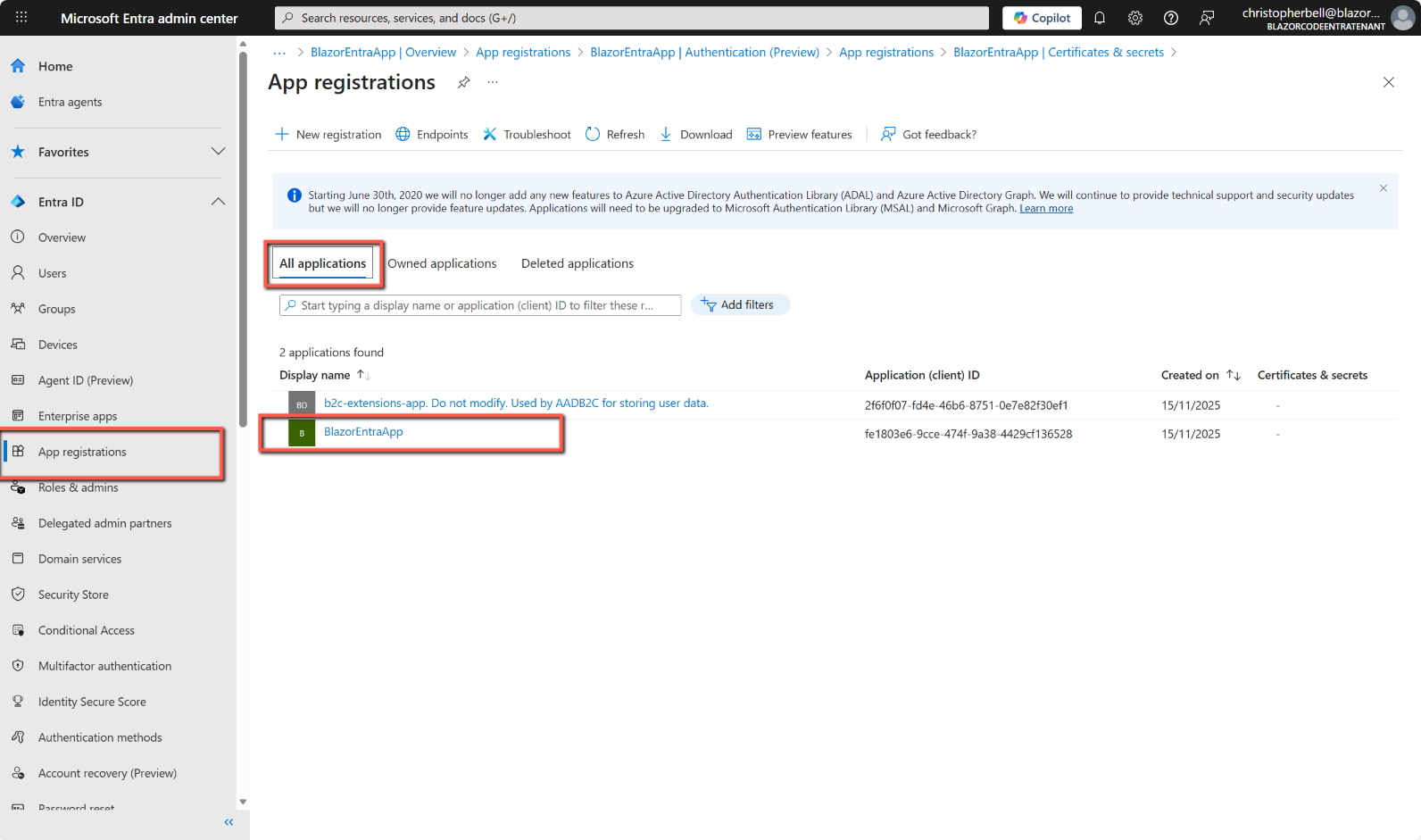
- Select App registrations from the left-hand menu
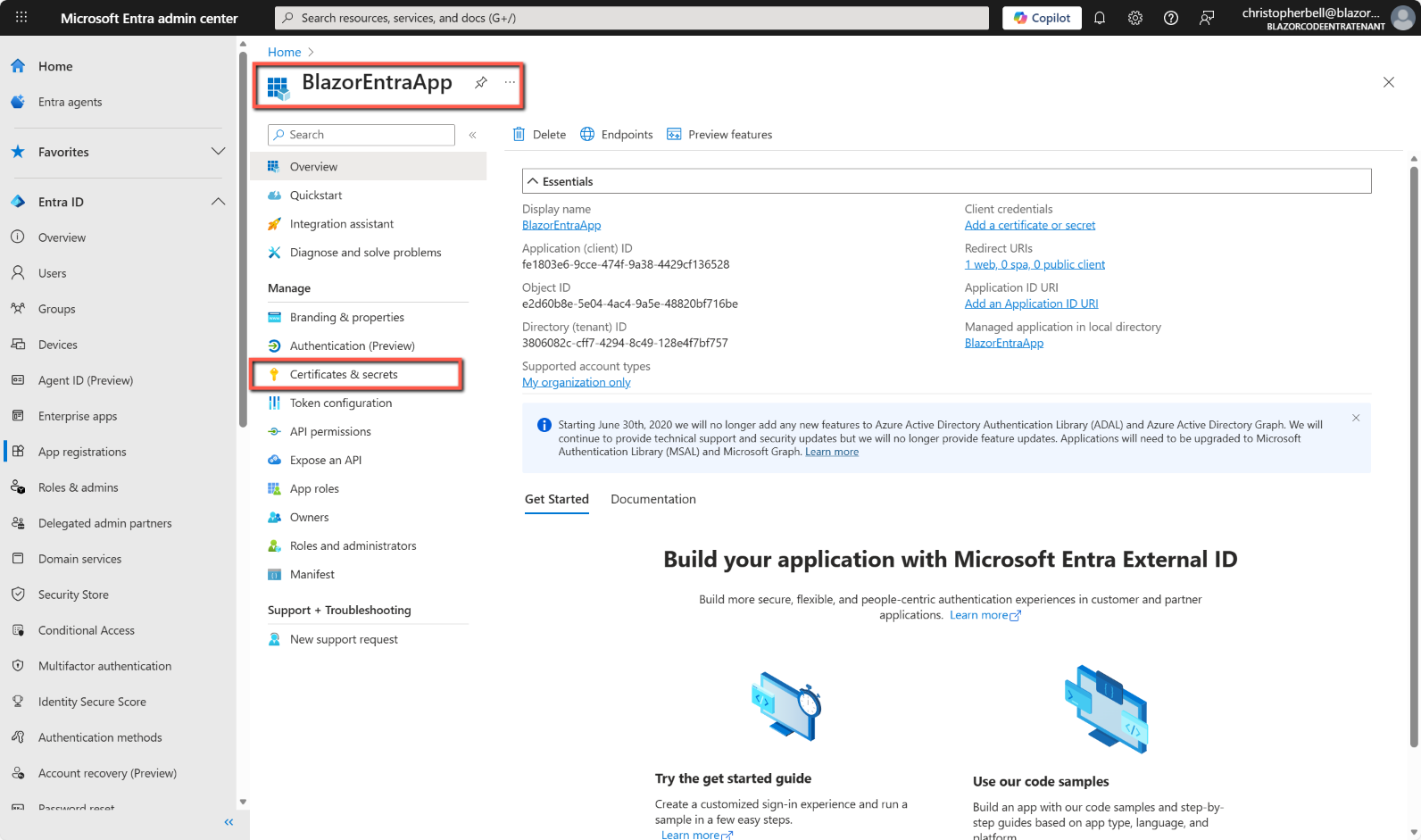
- Select App applications and click the relevant App registration
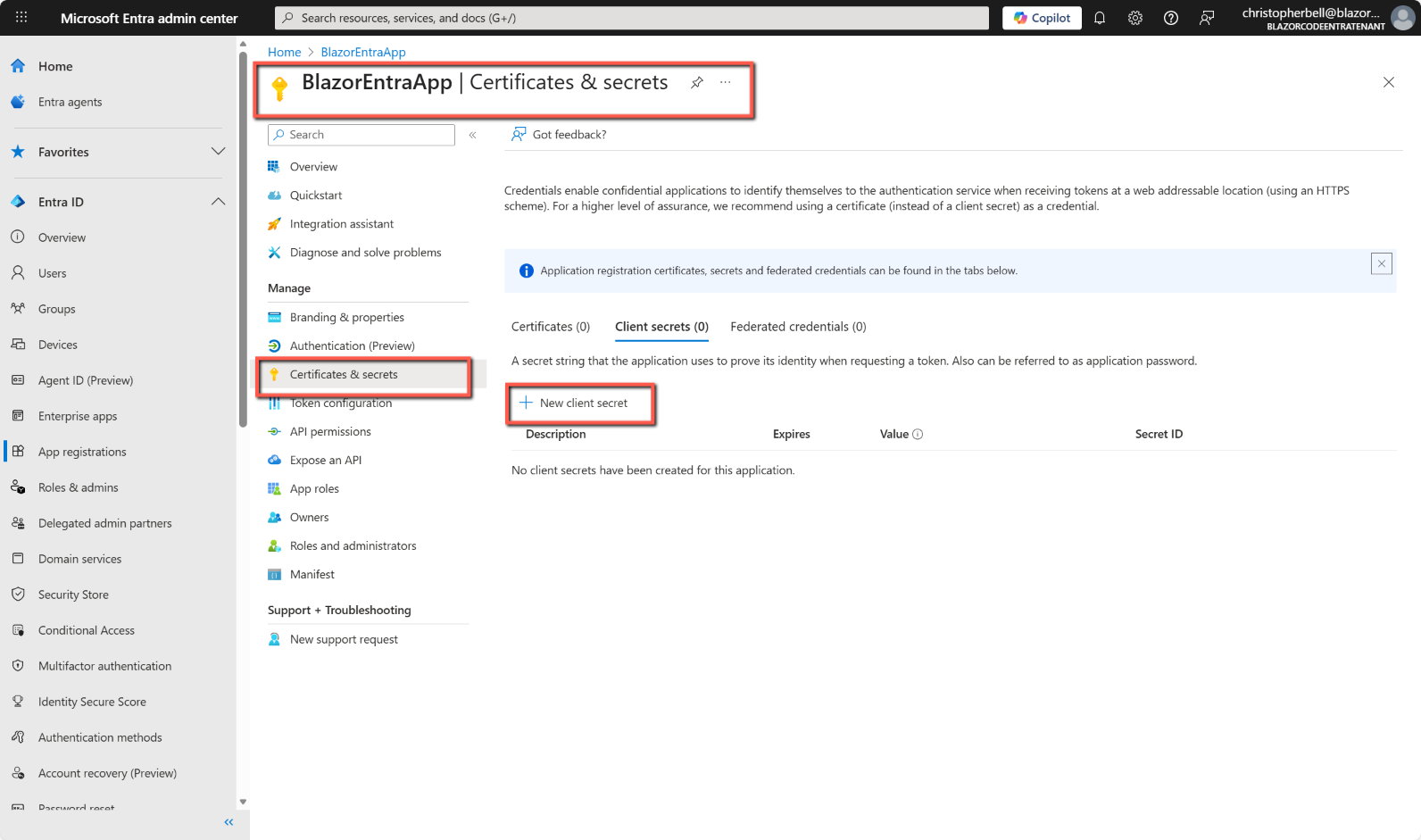
- Select Certificates and secrets
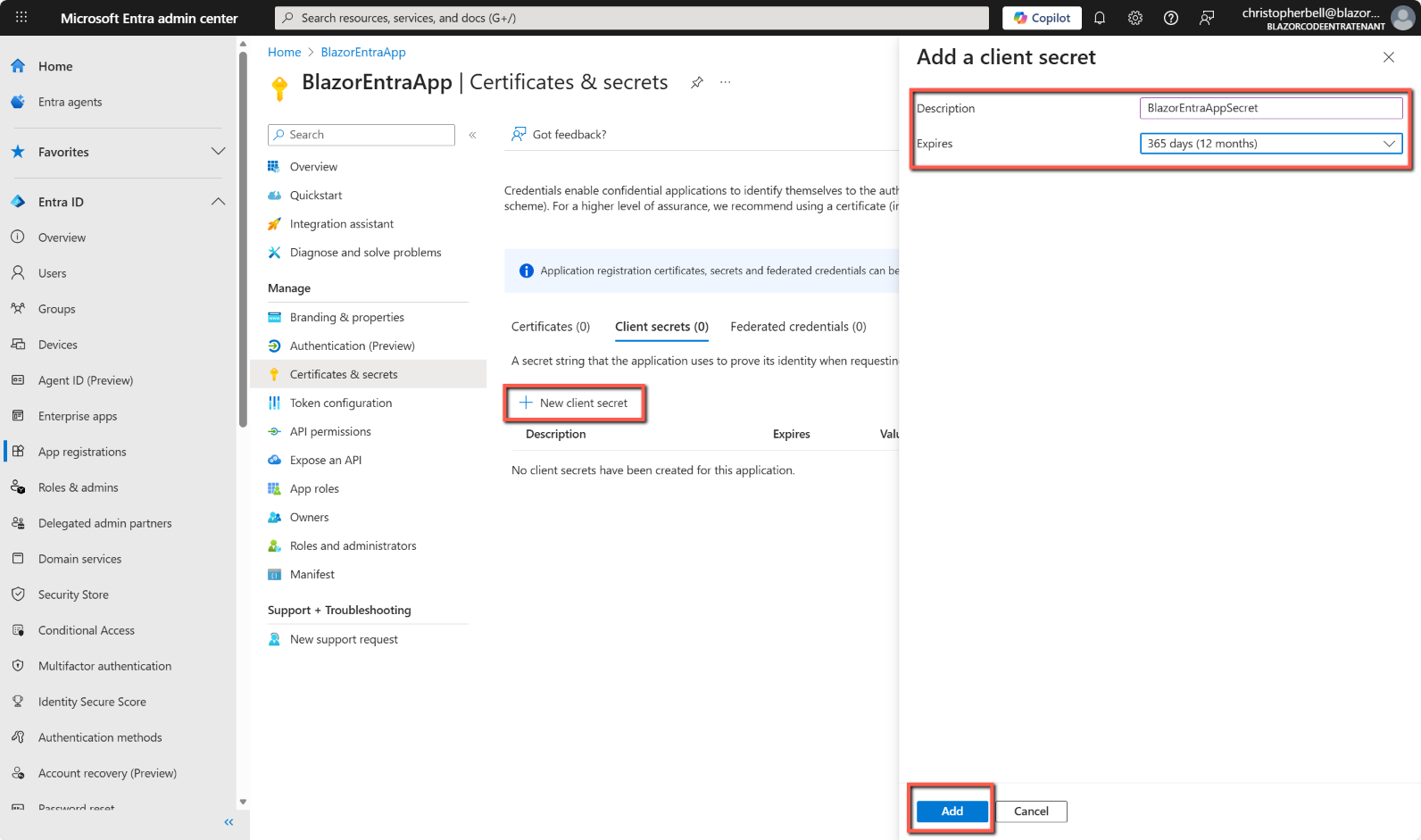
- Select New client secret
- Enter
- a Description for the secret (any suitable name)
- select a value from Expires drop-down list (I selected 12 months)
- Click Add
- Some documentation states that one should immediately copy and paste the secret to keep it in a safe place because this is the only opportunity to do so. I found this to be incorrect, but it may be better to ere on the side of caution in case my situation was a one-off.
Why is this required? Because a Blazor server app runs on the server, not the browser, it is considered to be a confidential client in OAuth terms. Confidential clients must prove their identity to Entra External ID by presenting a client credential. In our case we are using a client secret, but a certificate could be an alternative.
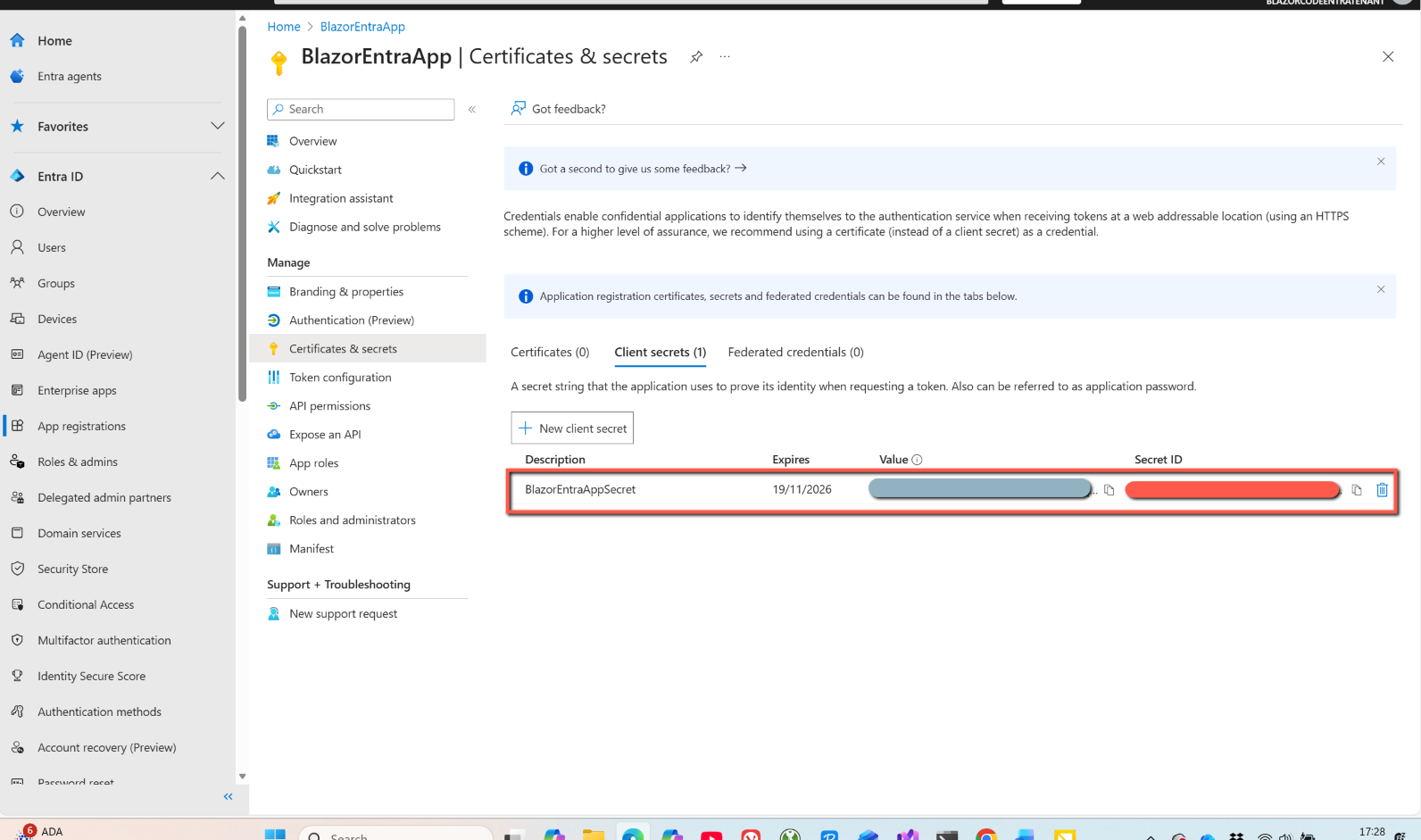
Warning: Secrets expire - if an error along the lines of "Msal Client Exception: One client credential type required..." check the expiry date of the client secret.
Resources
Code with Anjuli - Microsoft Entra External ID for customers
Microsoft Learn - Create a sign-up and sign-in user flow for an external tenant app
Microsoft Learn - Add your application to the user flow