Basic CRUD
CRUD
We need a method of adding and maintaining Project records and we will take this as an example of CRUD operations Crud is shorthand for Create Read Update & Delete.
We will be using Dapper to perform the database operations. Entity Framework is the 'conventional' tool for achieving database operations in .Net and C#, but is seems un-necessarily complicated and more difficult to understand.
YouTube Video
Services and Interfaces
Using Dapper we will create a 'Service' and 'Interface' for each of our model classes (where each model class represents one of our database tables). The pattern we establish for our project class can then be used as an example or template for the other model classes (although some classes will be slightly more complex than others).
Service
Each 'service' comprises some 'using' statements at the top to enable the use of Dapper and SQLite libraries followed by a public class that, by convention, is named with the table name plus the suffix 'Service'. e.g. 'ProjectService'. Within the service class there is some code to read the configuration (i.e. appsettings.json) to enable the connection string to be determined.
Following the configuration code there follows some general declaration of variables used throughout the service class and then a method for each of the CRUD operations.
In turn, each method for CRUD operations will (normally) consist of
- declaration of any variables used in the method
- declaration of any parameters used in the method
- a SQL statement used for the data operation
- a command to connect to the database, pass the SQL statement, and handle the response.
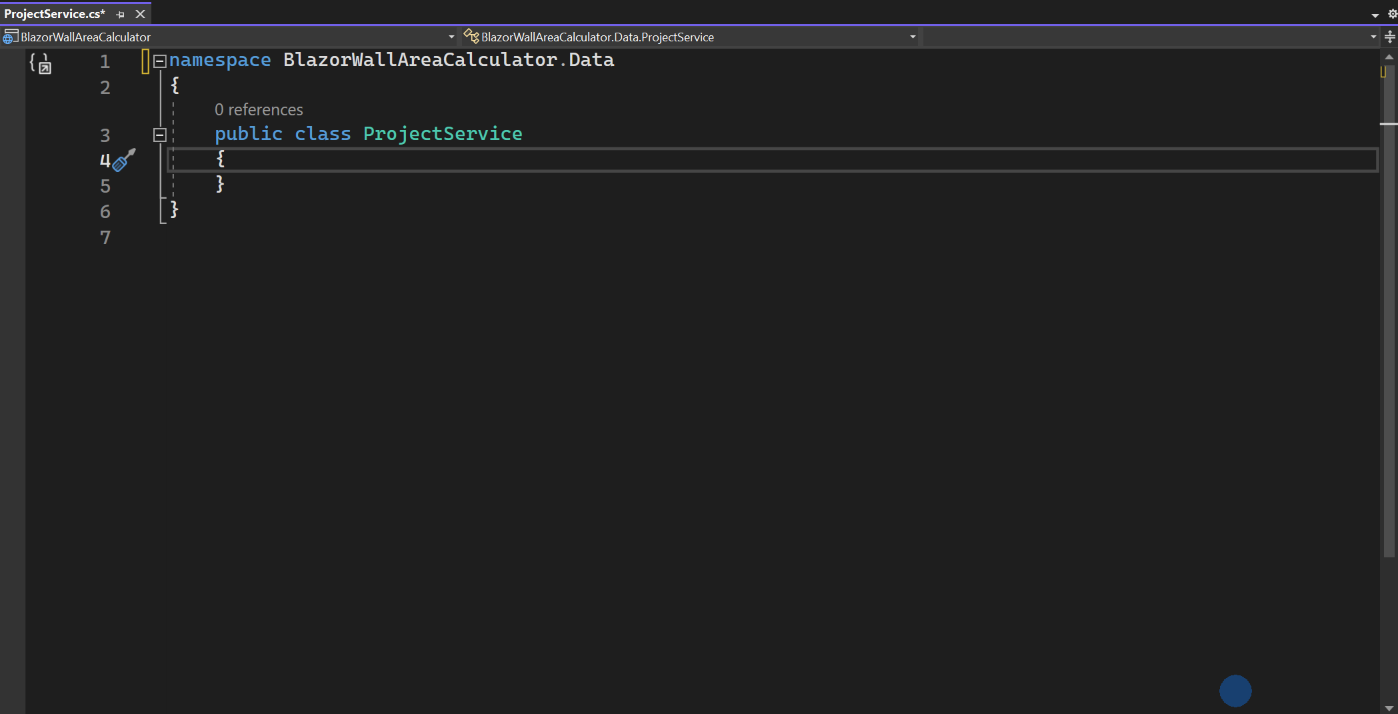
We'll start be adding an empty file and build it out from there:
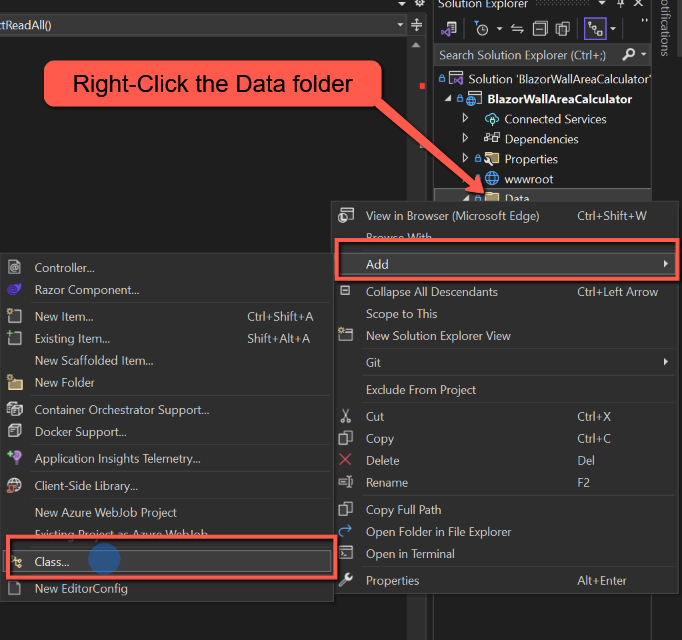
- Right-click the Data folder and select 'Add Class'
- Name it 'ProjectService.cs' and click 'Add'
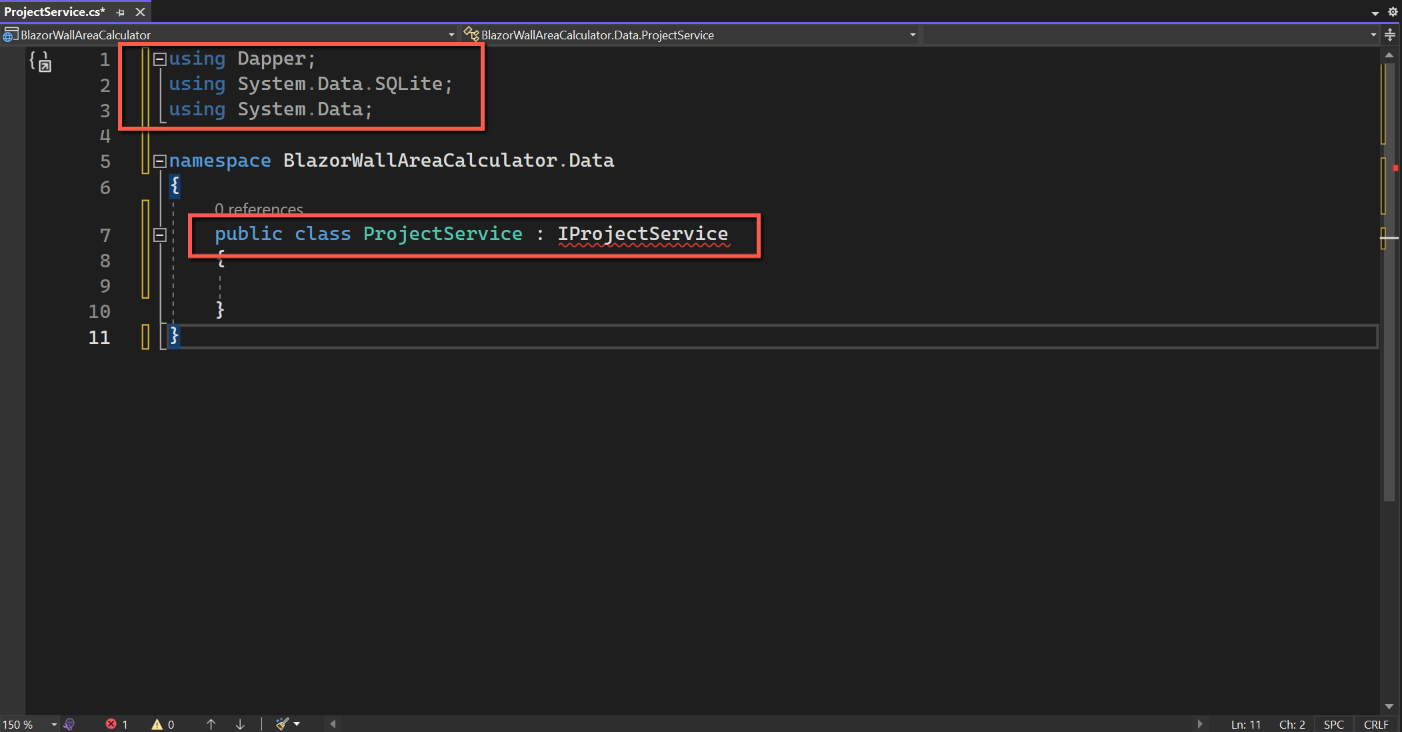
- Add the following 'using' statements to the very top of the file:
using Dapper;
using System.Data.SQLite;
using System.Data;
Amend the public class name as shown below. This adds a reference a separate 'interface' file which we will add later. In the meantime it will display an error...
public class ProjectService : IProjectService
Add the following code of the ProjectService class. This is code required to read the appsettings file to obtain the connection string:
        // Database connection
        private readonly IConfiguration _configuration;
        public ProjectService(IConfiguration configuration)
        {
            _configuration = configuration;
        }
Now add the code to declare the variables we will need throughout the service:
        public string connectionId = "Default";
        public string sqlCommand = "";
        private Project? project;
We can now add the methods for the various CRUD operations. To start we'll add some placeholders with the names. I'm going to name them with 'Project' plus the CRUD operation as a suffix, i.e.
- //ProjectCreate
- //ProjectRead
- //ProjectUpdate
- //ProjectDelete


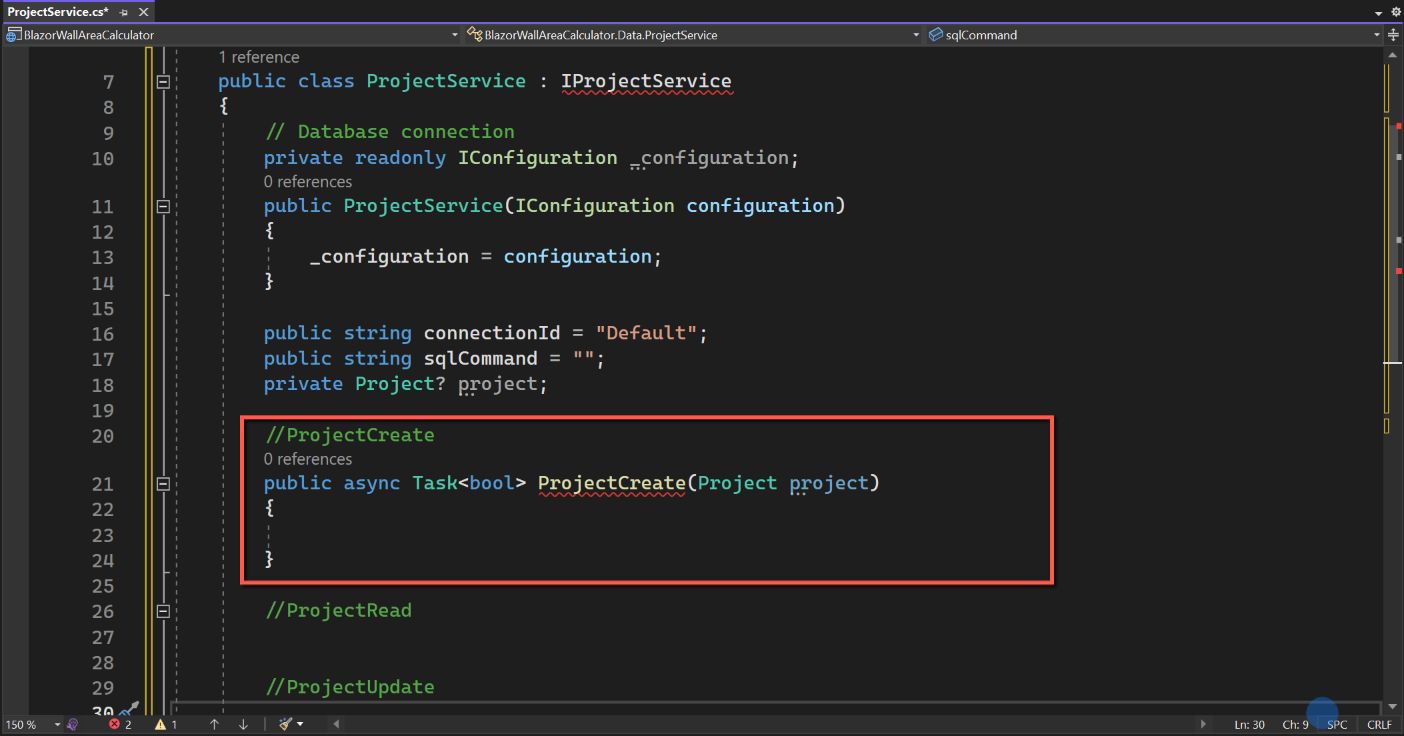
Under //ProjectCreate add the following empty method. (Ignore the error under 'ProjectCreate' for the moment.) It is an asynchronous task and as we are not expecting any data to be returned it is a 'bool' (boolean) type. (Either it will succeed or fail.) The name of the method is 'ProjectCreate' and we will be passing in an object of type 'Project' that we call 'project'.
        public async Task<bool> ProjectCreate(Project project)
        {

        }
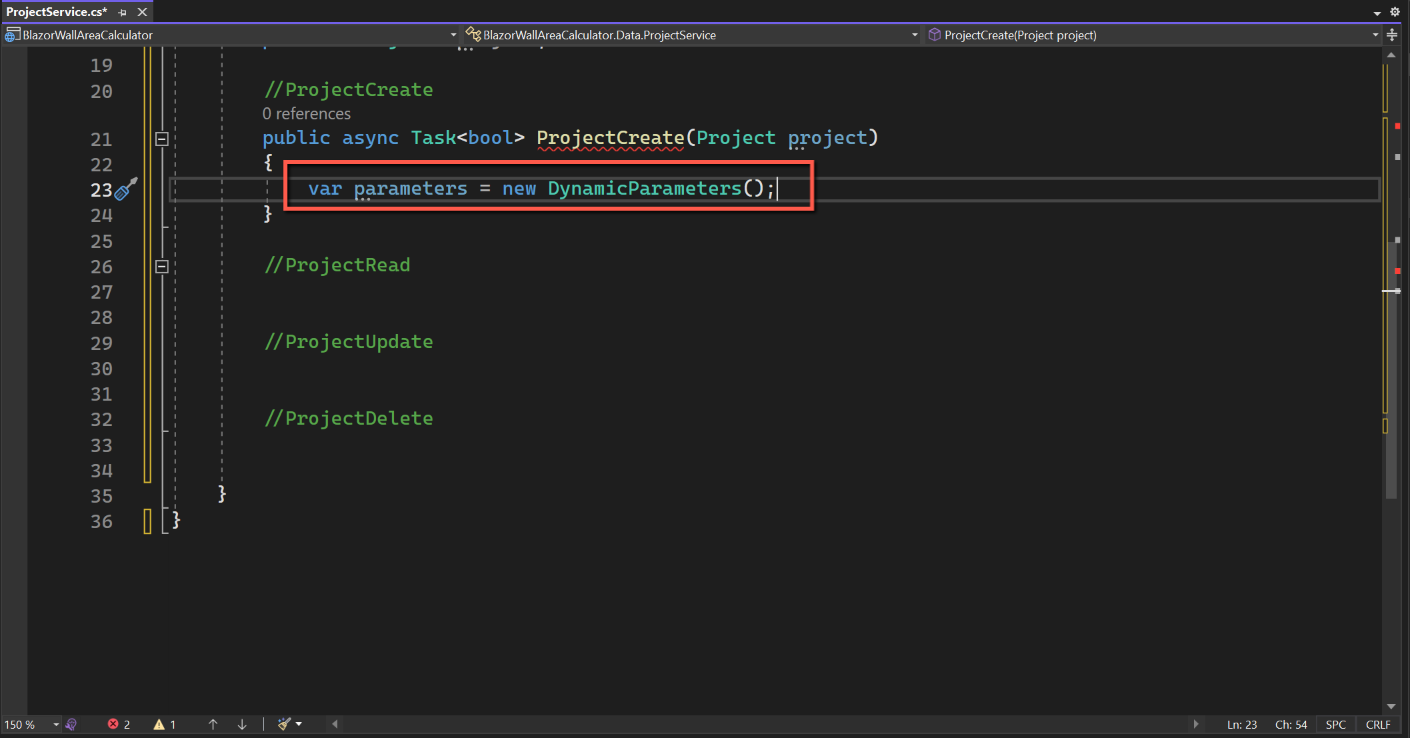
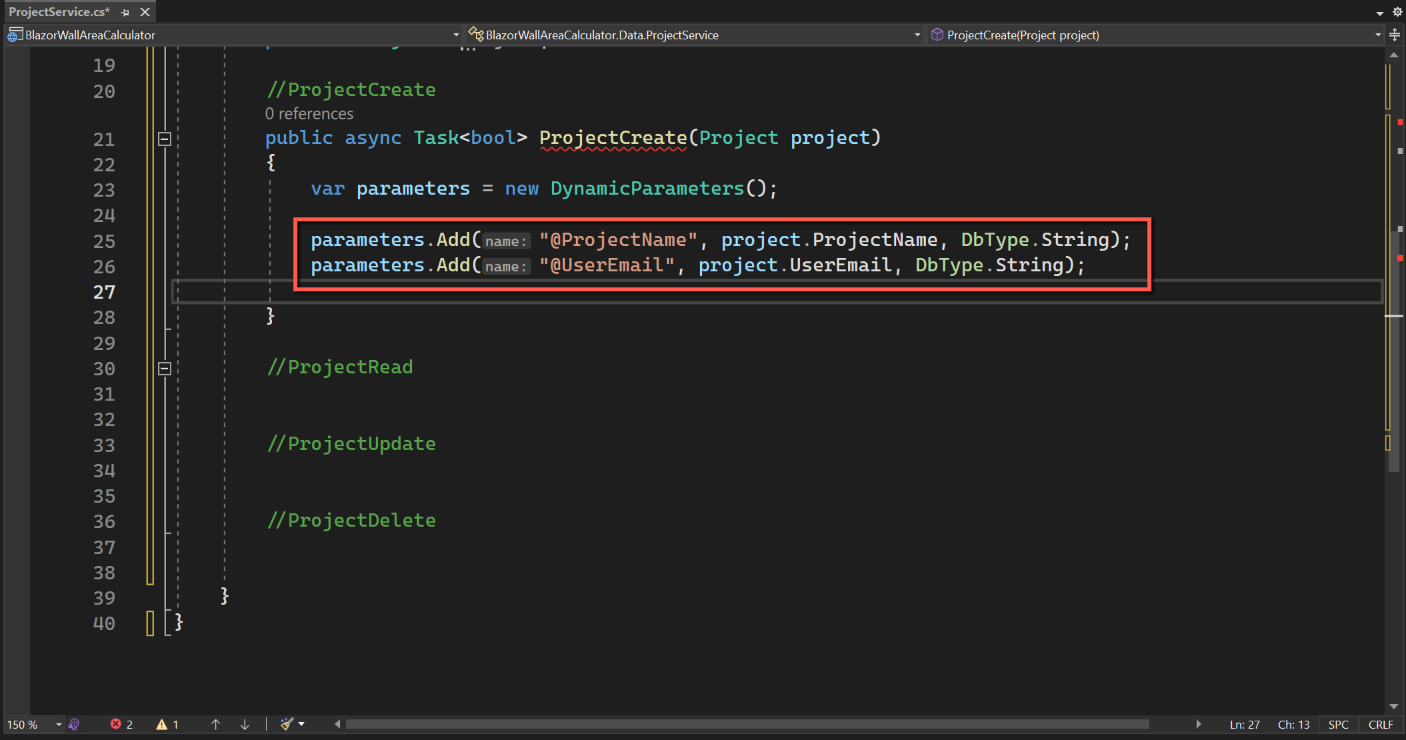
We will be passing some parameters to the SQL statement used later in this method, e.g. the name of the project, so next we declare a var type variable which we will call 'parameters' of special type 'DynamicParameters'. Dynamic Parameters allows us to pass any number of parameters and with types that will be defined later. Add this line into the method:
var parameters = new DynamicParameters();We can now add the parameters we need to add a new project. Each parameter definition requires a parameter name (prefixed with '@'), the name of the object being passed in, e.g. project.ProjectName, and its type.
            parameters.Add("@ProjectName", project.ProjectName, DbType.String);
            parameters.Add("@UserEmail", project.UserEmail, DbType.String);
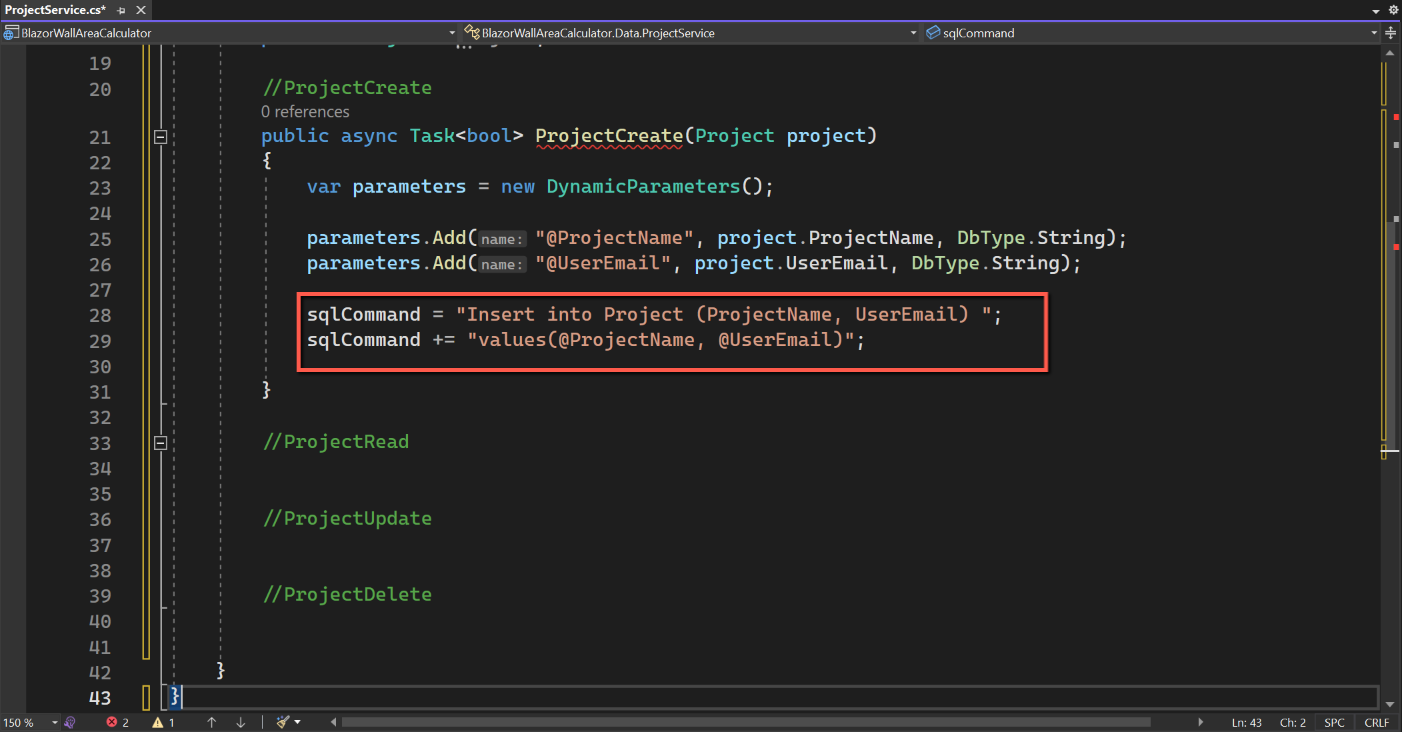
Next we will assign a value to 'sqlCommand'. As the name suggests this is the SQL command we want to send to the database. This is a straightforward SQL command to insert a record. As part of this we will be passing the DynamicParameters previously declared. The text for sqlCommand is shown below:
            sqlCommand = "Insert into Project (ProjectName, UserEmail) ";
            sqlCommand += "values(@ProjectName, @UserEmail)";
Having declared all variables required we can now make the connection to the database and execute the SQL command. The code we use is:
using IDbConnection conn = new SQLiteConnection(_configuration.GetConnectionString(connectionId));
{
    await conn.ExecuteAsync(sqlCommand, parameters);
}
return true;
The 'using' line gets the connection string and opens the connection to the database. Using the 'using' statement ensures that the connection is closed once the command on the next line has been executed.
The 'ExecuteAsync' line is the one that does the work executing the 'sqlCommand' with the dynamic parameters variables (in this case for Project Name and User Email).
Finally it returns 'True' once the command has been executed.

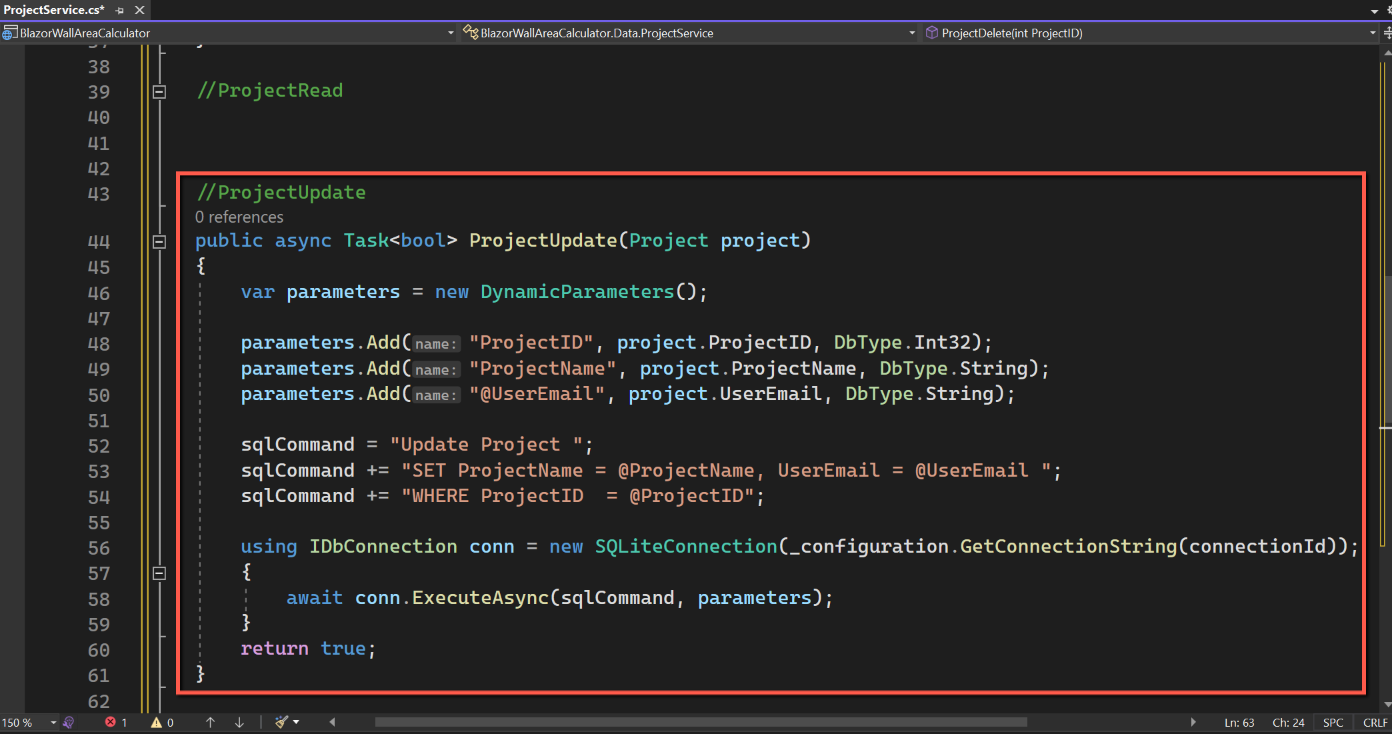
The methods for Update and Delete follow the same pattern, as shown below. However, there is one difference to note in the case of Delete; in this case we do not need to pass in the whole Project object because we can identify the project by its ProjectID, so that is passed in instead.

The code for the Read method is slightly different. This is because instead of creating, updating or deleting a single record we want, in this case. to read all records. I have therefore called the method 'ServiceReadAll' (later we will want to read a single, specific record). To enable us to retrieve multiple records
- the task type is 'IEnumerable' instead of 'bool'
- we declare an IEnumerable of type 'Project' called 'projects'
- there are no Dynamic Parameters
- within the 'using' statement we run a 'QueryAsync' command and set the result to the variable 'projects'. (QueryAsync is a Dapper command used to query and retrieve (multiple) results asynchronously.)
- instead of returning 'true' we return the 'projects' - essentially a list of all records retrieved by the SQL statement.

In summary, the code for the basic CRUD operations for the Project class is:
using Dapper;
using System.Data.SQLite;
using System.Data;

namespace BlazorWallAreaCalculator.Data
{
    public class ProjectService : IProjectService
    {
        // Database connection
        private readonly IConfiguration _configuration;
        public ProjectService(IConfiguration configuration)
        {
            _configuration = configuration;
        }

        public string connectionId = "Default";
        public string sqlCommand = "";
        private Project? project;

        public async Task<bool> ProjectCreate(Project project)
        {
            var parameters = new DynamicParameters();
            parameters.Add("@ProjectName", project.ProjectName, DbType.String);
            parameters.Add("@UserEmail", project.UserEmail, DbType.String);

            sqlCommand = "Insert into Project (ProjectName, UserEmail) ";
            sqlCommand += "values(@ProjectName, @UserEmail)";

            using IDbConnection conn = new SQLiteConnection(_configuration.GetConnectionString(connectionId));
            {
                await conn.ExecuteAsync(sqlCommand, parameters);
            }
            return true;
        }

        public async Task<IEnumerable<Project>> ProjectReadAll()
        {
            IEnumerable<Project> projects;

            sqlCommand = "Select * from Project ORDER BY ProjectName";

            using IDbConnection conn = new SQLiteConnection(_configuration.GetConnectionString(connectionId));
            {
                projects = await conn.QueryAsync<Project>(sqlCommand);
            }
            return projects;
        }

        public async Task<bool> ProjectUpdate(Project project)
        {
            var parameters = new DynamicParameters();

            parameters.Add("ProjectID", project.ProjectID, DbType.Int32);
            parameters.Add("ProjectName", project.ProjectName, DbType.String);
            parameters.Add("@UserEmail", project.UserEmail, DbType.String);

            sqlCommand = "Update Project ";
            sqlCommand += "SET ProjectName = @ProjectName, UserEmail = @UserEmail ";
            sqlCommand += "WHERE ProjectID  = @ProjectID";

            using IDbConnection conn = new SQLiteConnection(_configuration.GetConnectionString(connectionId));
            {
                await conn.ExecuteAsync(sqlCommand, parameters);
            }
            return true;
        }

        public async Task<bool> ProjectDelete(Int32 ProjectID)
        {
            var parameters = new DynamicParameters();
            parameters.Add("@ProjectID", ProjectID, DbType.Int32);

            //PRAGMA is specific to SQLite and this command is required for DELETE CASCADE to work
            sqlCommand = "PRAGMA foreign_keys = ON;";
            sqlCommand += "Delete from Project ";
            sqlCommand += "WHERE ProjectID  = @ProjectID";

            using IDbConnection conn = new SQLiteConnection(_configuration.GetConnectionString(connectionId));
            {
                await conn.ExecuteAsync(sqlCommand, parameters);
            }
            return true;
        }
    }
}
But we haven't finished yet. We need to add the interface to make the service work.
Interface
I thought of trying to explain what an interface is, but I've given up. I have just accepted that they are needed and follow a particular pattern. Luckily they seem fairly simple, just one line of code for each method in the service class - so I'm leaving it at that!
Conventionally, the name of an interface is the name of the service class prefixed with an uppercase 'I'.
To add the interface for the Projects service:
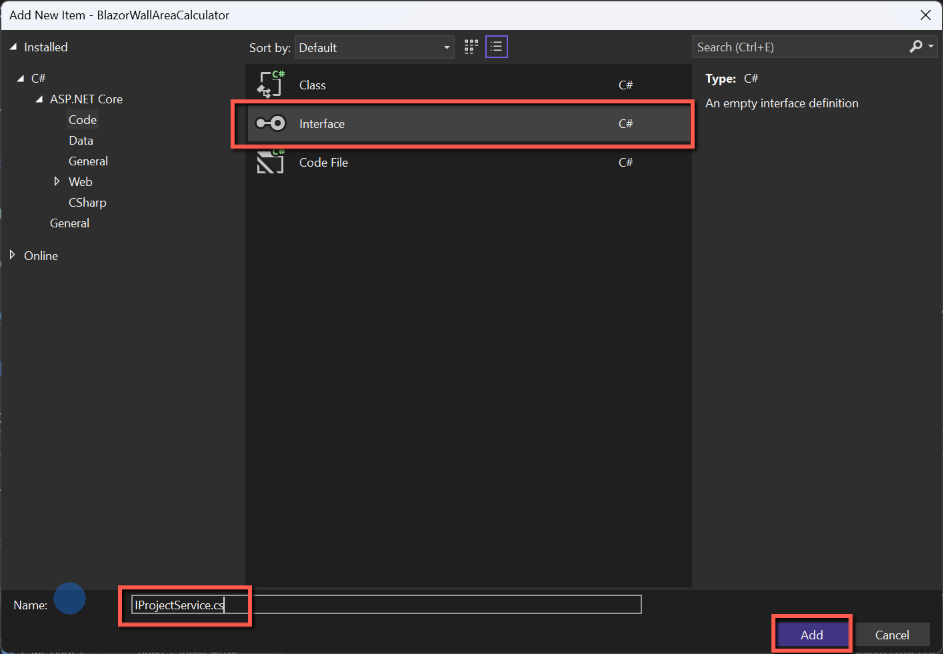
- Right-click on the Data folder and select Add
- Select Interface from the list of class types
- Enter the name, i.e. IProjectService.cs
- Click 'Add'
An empty template file will open.
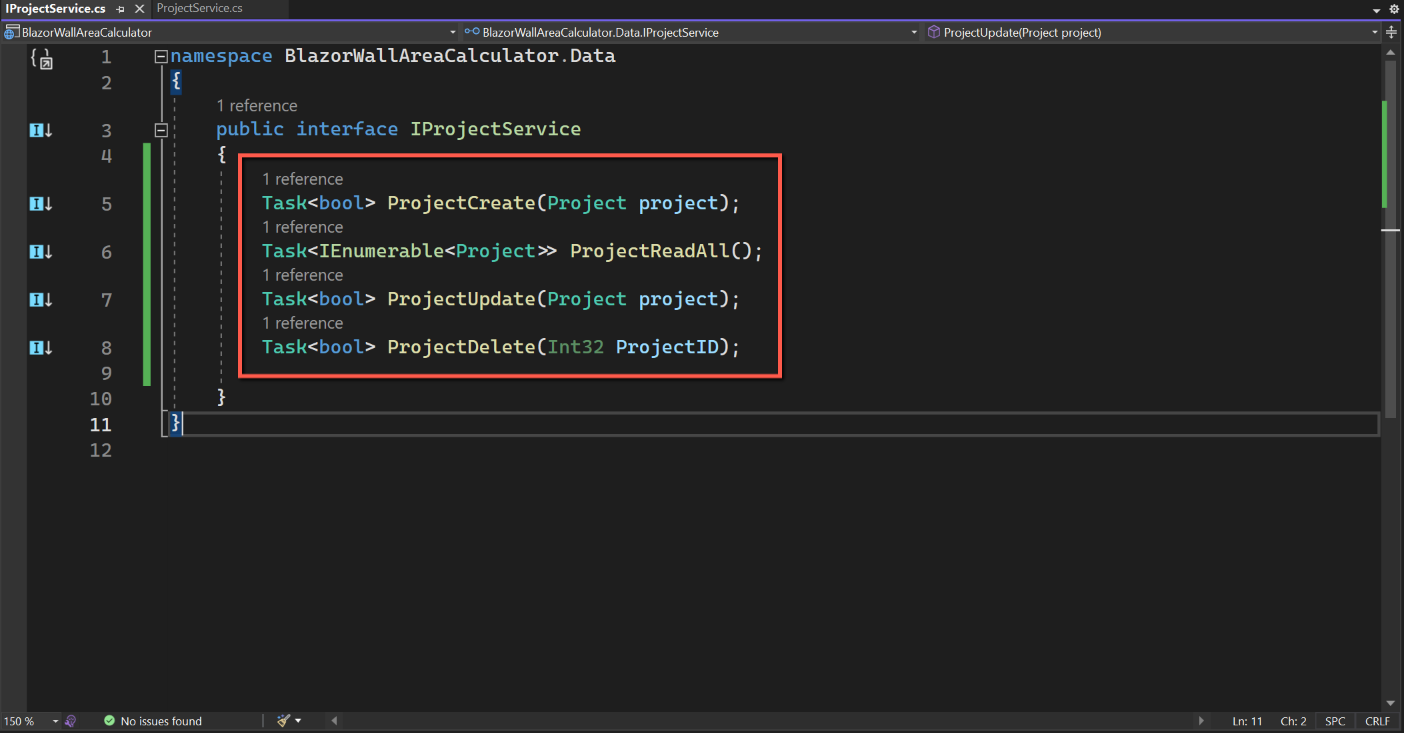
We need one line per method in the ProjectService class; it is the same as the method name without the 'public async' part. In our case the code for IProjectService is shown below:
namespace BlazorWallAreaCalculator.Data
{
    public interface IProjectService
    {
        Task<bool> ProjectCreate(Project project);
        Task<IEnumerable<Project>> ProjectReadAll();
        Task<bool> ProjectUpdate(Project project);
        Task<bool> ProjectDelete(Int32 ProjectID);

    }
}
But we still haven't finished. The last step is to register the service in Program.cs.
Register the Service & Interface
Open Program.cs and insert the following in the 'Builder' section:
builder.Services.AddScoped<IProjectService, ProjectService>();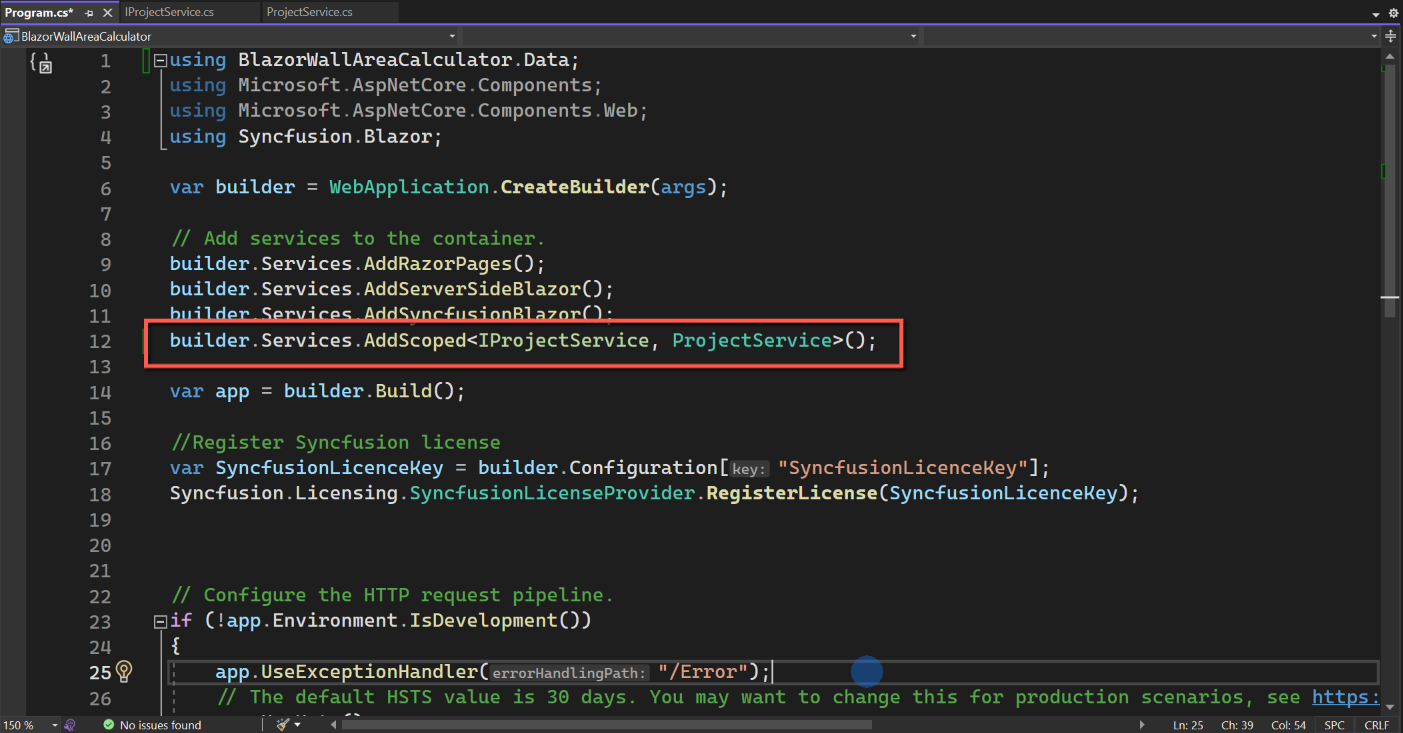
As an aside, instead of 'AddScoped' the other options are 'AddTransient' and 'AddSingleton'. I don't think it makes much/any difference here and I tend to use 'AddScoped' as the default. (For a discussion see this link.)
That sets up the basic CRUD operations for the Project data model and database table.
Next we will look at creating the page to allow the user to maintain Project records.