Database
Introduction
The data we need to record is, from a database perspective, pretty simple. Just a few tables linked by 'one to many' relationships, as shown below.

We will be taking a 'database first' approach in this project. This means that we will create the database outside Visual Studio and the C# code. The tool I have selected to do this is DB Browser for SQLite, but before we add the database we must determine the folder location within our Visual Studio project to add the database.
Once we have added the database and added the tables we need, we return to Visual Studio to include the database within the project.
The tasks to be undertaken are therefore:
- Install DB Browser for SQLite
- In Visual Studio get the path to the Data folder
- Using DB Browser for SQLite
- Add the database
- Add the tables
- Return to Visual Studio to include the database in the project
YouTube Video
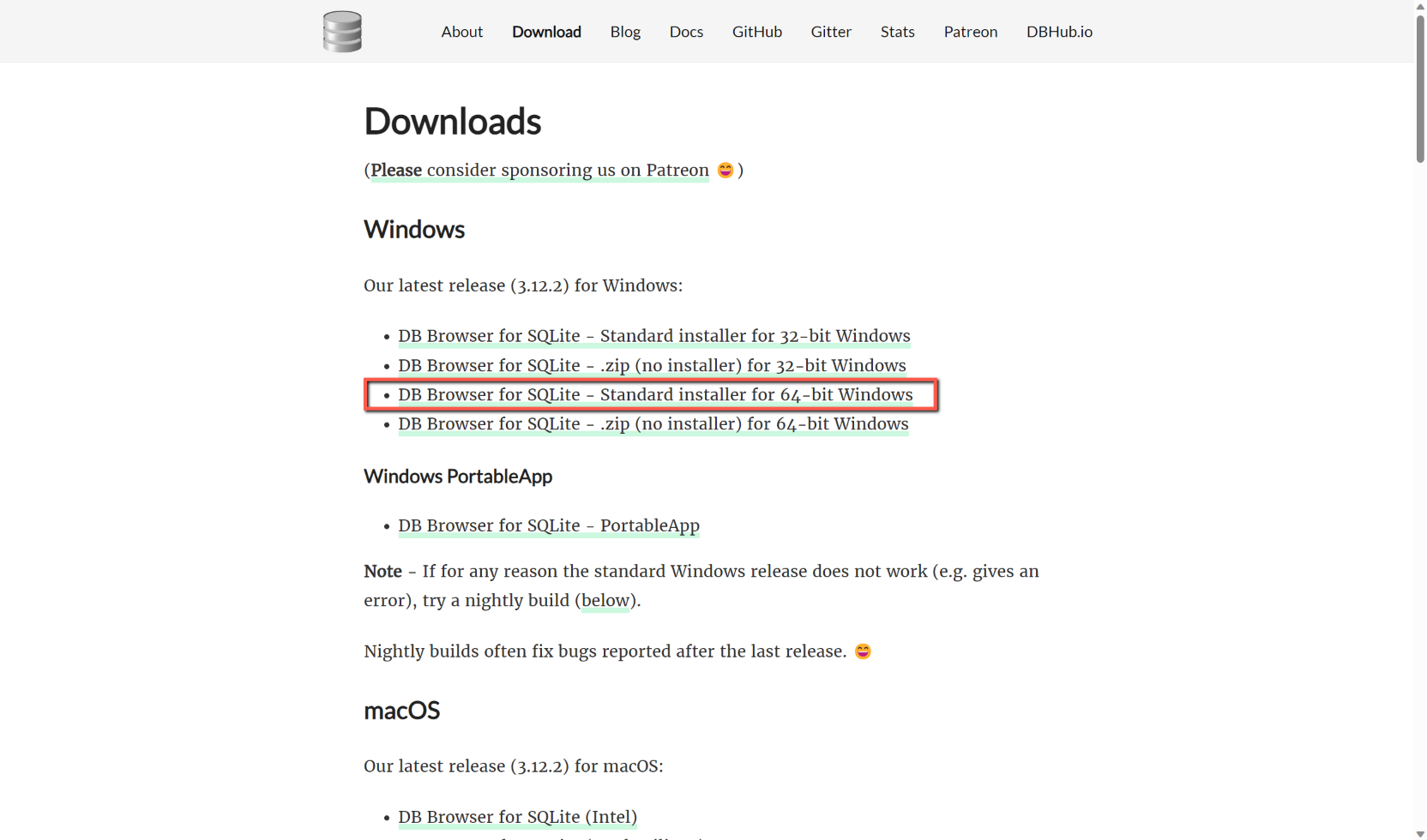
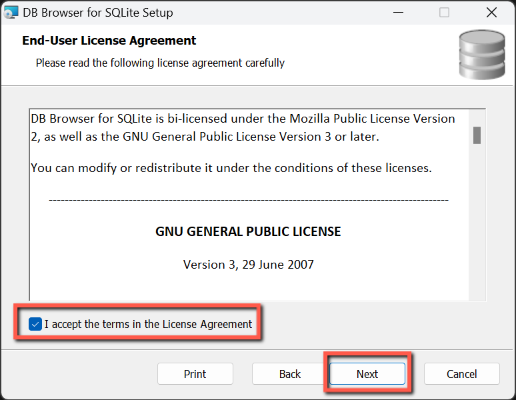
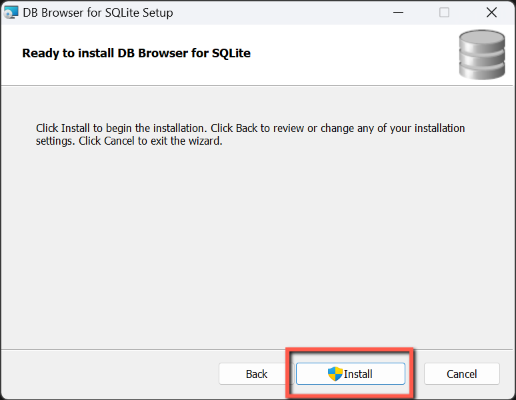
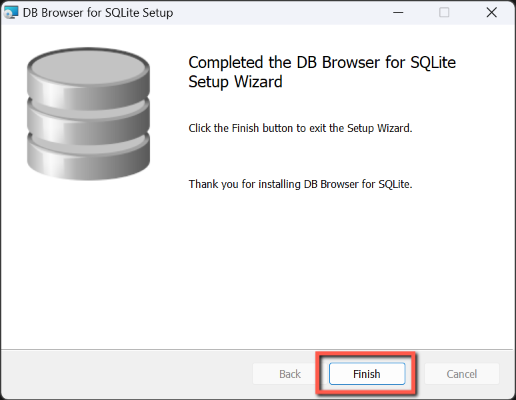
Install DB Browser for SQLite
If you don't already have it installed, install DB Browser for SQLite from https://sqlitebrowser.org




Get the path to the Data folder
Open Visual Studio and the project if not already open.
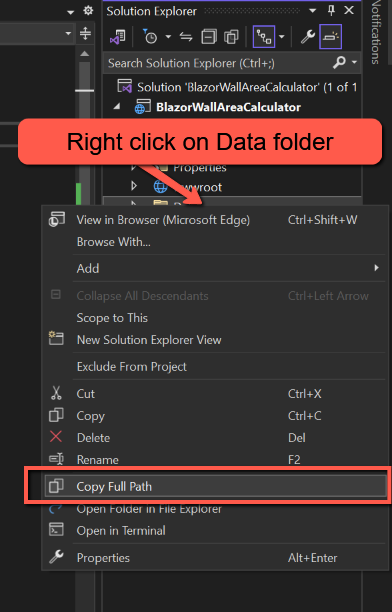
In Solution Explorer, right-click the Data folder and select 'Copy Full Path'. This will copy the path to the clipboard.
Add the Database
Open DB Browser for SQLite
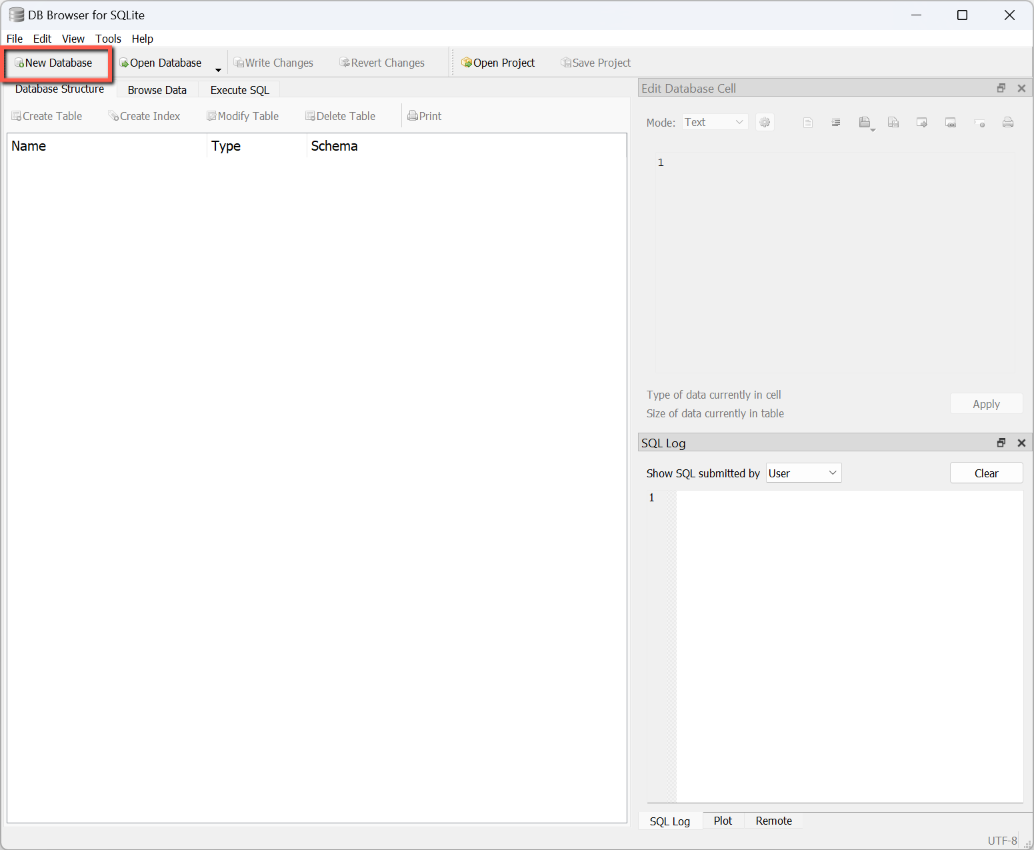
- Click 'New Database' button on the toolbar
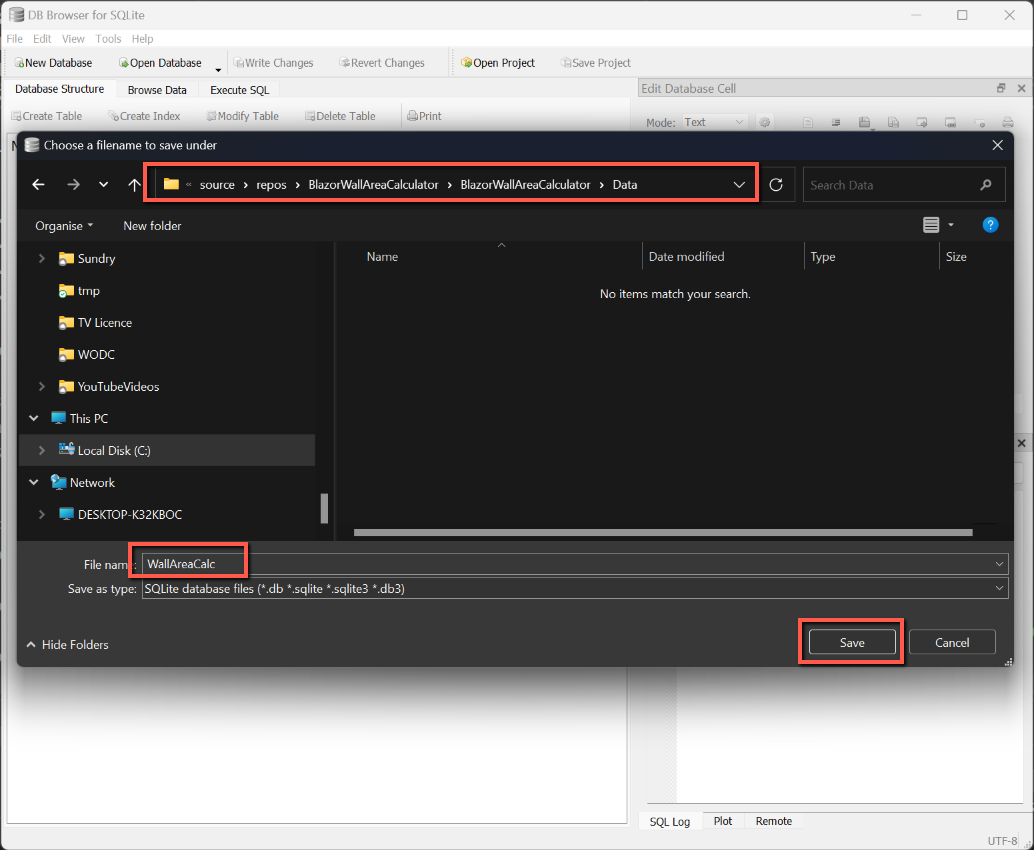
- Paste the path copied from Visual Studio into the 'address bar' of the form that opens and press carriage return.
- Enter a name for the database, e.g. 'WallAreaCalc', in the File name box and click 'Save'.
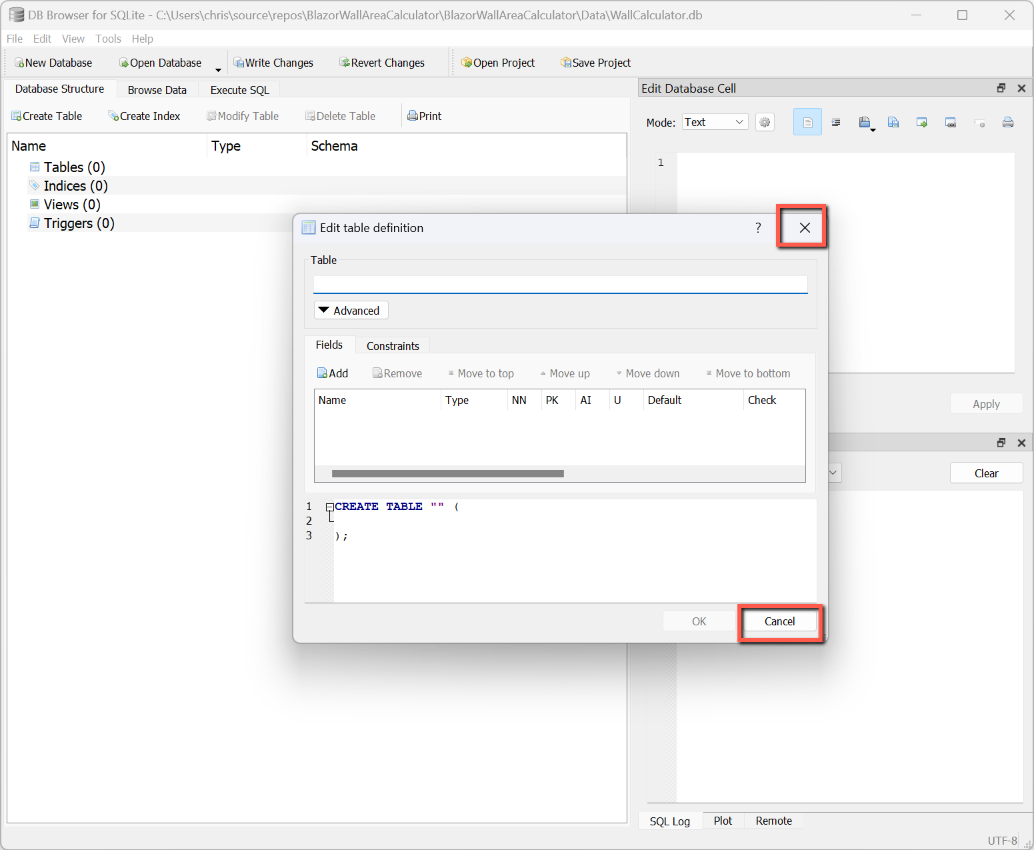
- Close the 'New Table' dialog box, or select 'Cancel.
Add the Tables
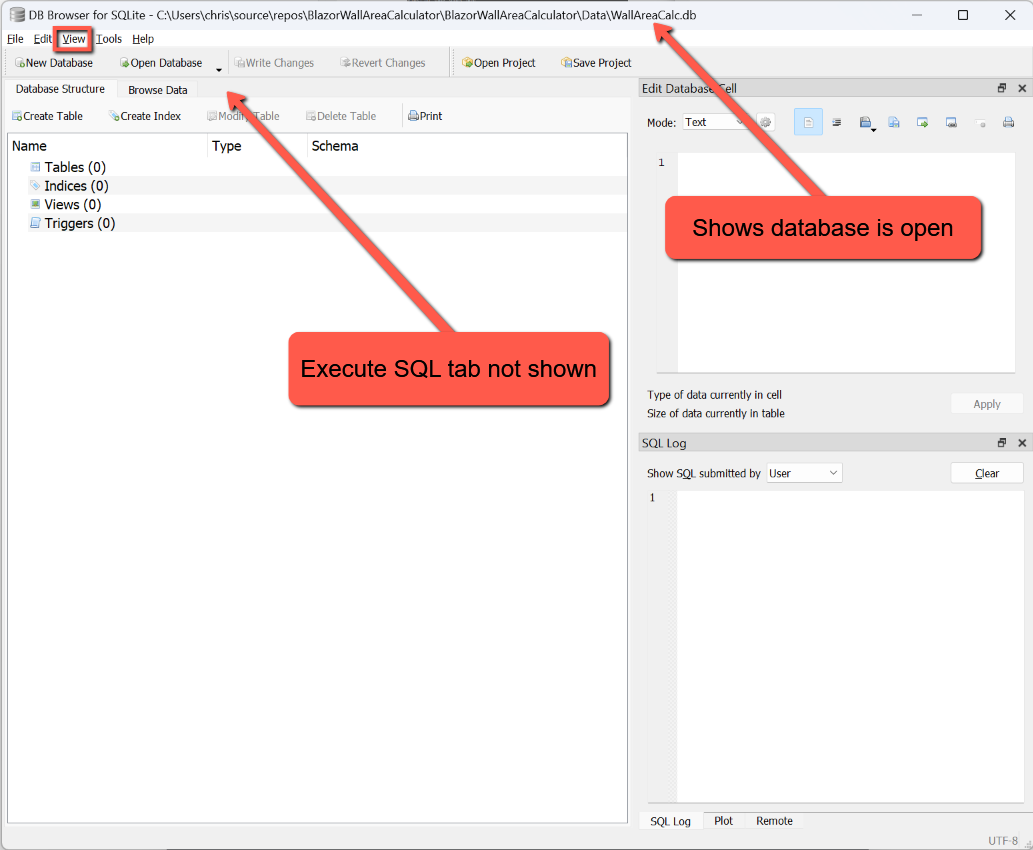
If you have just added the database, it should be open. If you have since closed DB Browser for SQLite you will need to re-open the database by clicking 'Open Database' and browsing to the correct location and selecting the database.
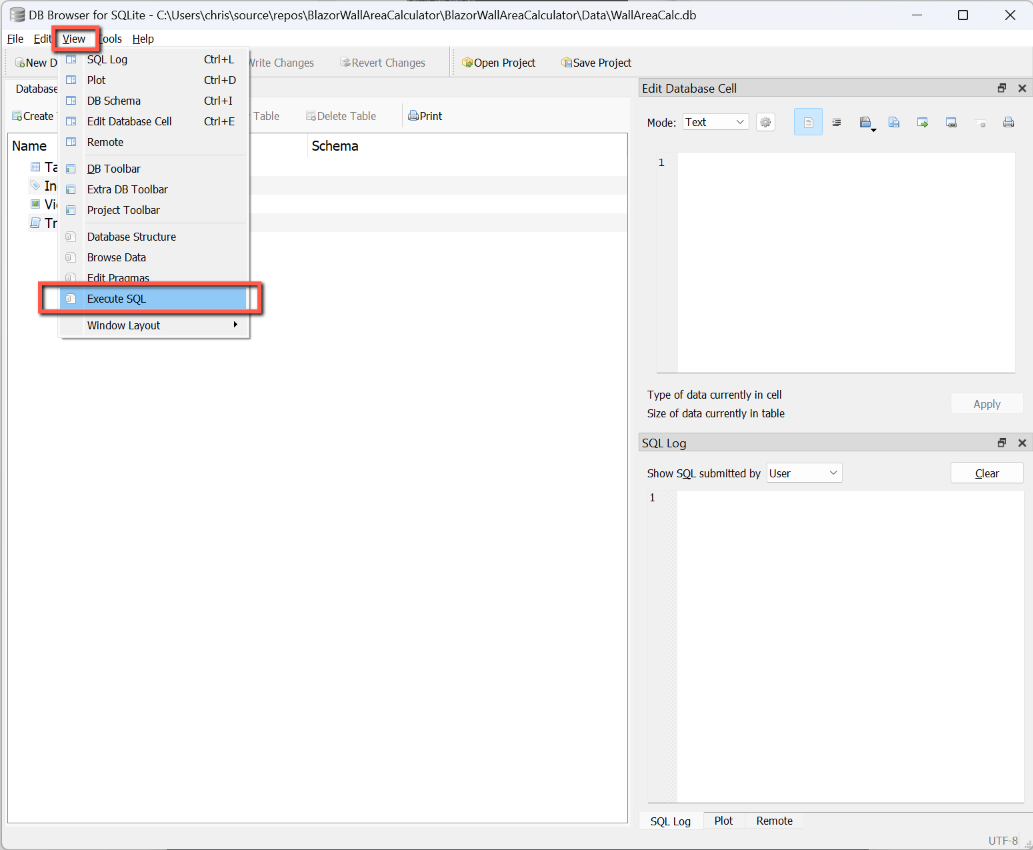
Rather than entering the database tables using the 'Create Table' interface I am going to use SQL scripts to add the tables. If the 'Execute SQL' tab is not displayed, select 'View > Execute SQL'.
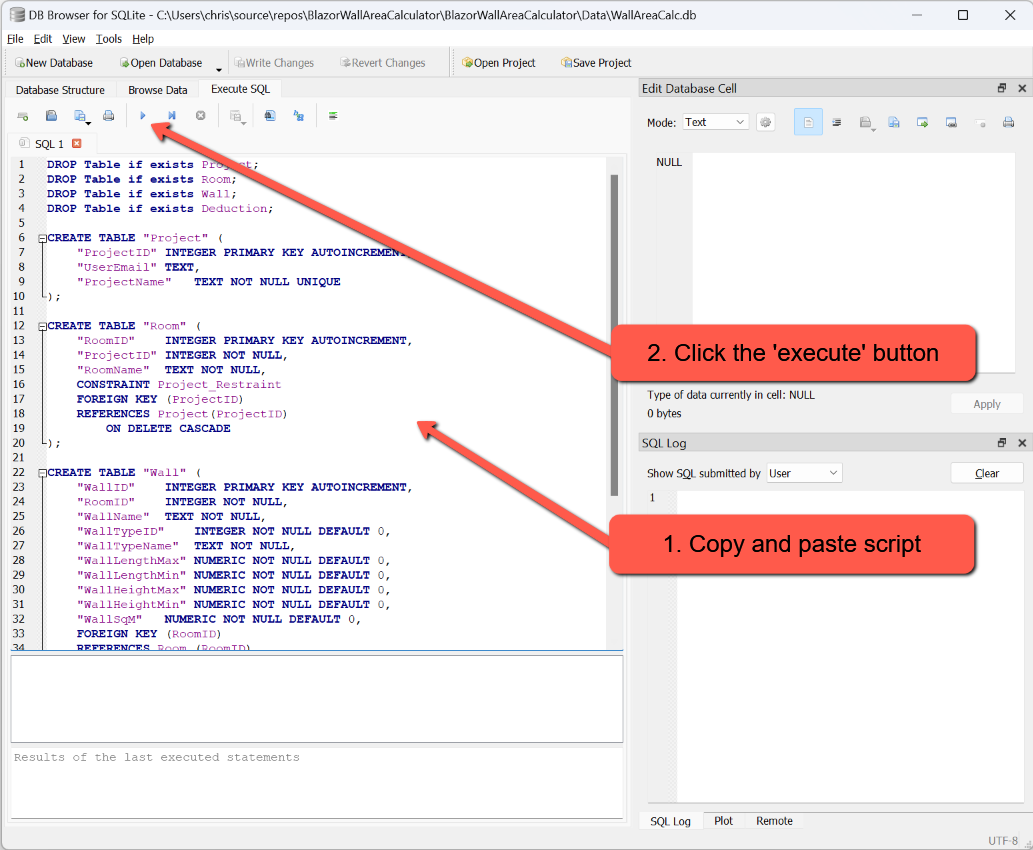
The following script checks to see if the tables already exist, and if so drops them, before adding them. Note the foreign keys and the code to permit cascade deletes. This will remove 'child' records if a 'parent' record is deleted.
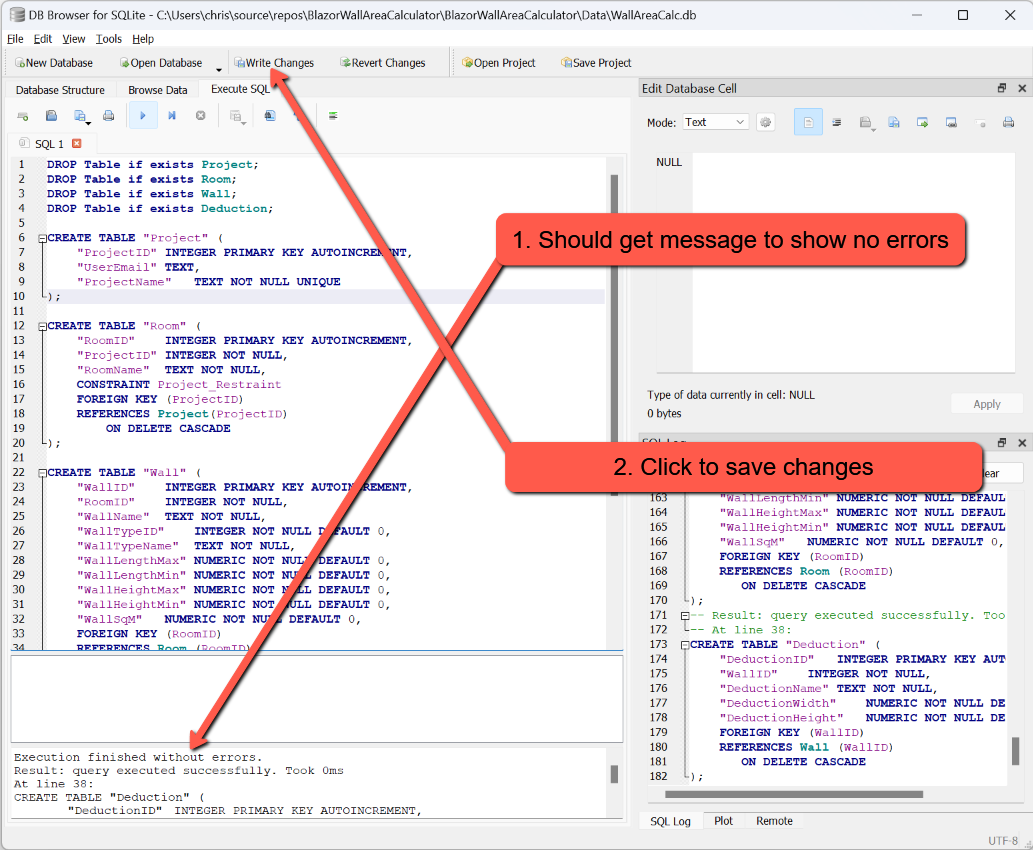
Copy and paste the script into the Execute SQL tab and click the 'Execute' (play) button. The script should run and the Results window display a message indicating that no errors we encountered.
Click the 'Write Changes' button to ensure the tables have been saved.
DROP Table if exists Project;
DROP Table if exists Room;
DROP Table if exists Wall;
DROP Table if exists Deduction;

CREATE TABLE "Project" (
	"ProjectID"	INTEGER PRIMARY KEY AUTOINCREMENT,
	"UserEmail"	TEXT,
	"ProjectName"	TEXT NOT NULL UNIQUE
);

CREATE TABLE "Room" (
	"RoomID"	INTEGER PRIMARY KEY AUTOINCREMENT,
	"ProjectID"	INTEGER NOT NULL,
	"RoomName"	TEXT NOT NULL,
    FOREIGN KEY (ProjectID)
    REFERENCES Project(ProjectID)
		ON DELETE CASCADE
);

CREATE TABLE "Wall" (
	"WallID"	INTEGER PRIMARY KEY AUTOINCREMENT,
	"RoomID"	INTEGER NOT NULL,
	"WallName"	TEXT NOT NULL,
	"WallTypeID"	INTEGER NOT NULL DEFAULT 0,
	"WallTypeName"	TEXT NOT NULL,
	"WallLengthMax"	NUMERIC NOT NULL DEFAULT 0,
	"WallLengthMin"	NUMERIC NOT NULL DEFAULT 0,
	"WallHeightMax"	NUMERIC NOT NULL DEFAULT 0,
	"WallHeightMin"	NUMERIC NOT NULL DEFAULT 0,
	"WallSqM"	NUMERIC NOT NULL DEFAULT 0,
	FOREIGN KEY (RoomID)
    REFERENCES Room (RoomID)
       ON DELETE CASCADE
);

CREATE TABLE "Deduction" (
	"DeductionID"	INTEGER PRIMARY KEY AUTOINCREMENT,
	"WallID"	INTEGER NOT NULL,
	"DeductionName"	TEXT NOT NULL,
	"DeductionWidth"	NUMERIC NOT NULL DEFAULT 0,
	"DeductionHeight"	NUMERIC NOT NULL DEFAULT 0,
	FOREIGN KEY (WallID)
    REFERENCES Wall (WallID)
       ON DELETE CASCADE
);
Close DB Browser for SQLite.

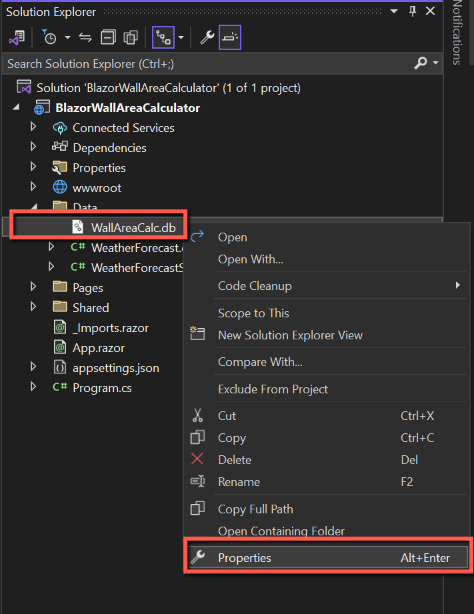
Return to Visual Studio and in the Solution Explorer open the Data folder; WallAreaCalc.db should be visible.
We can set one of the properties of the database so that when we publish the application the database is included in the package.
- Right-click the database and select 'Properties'
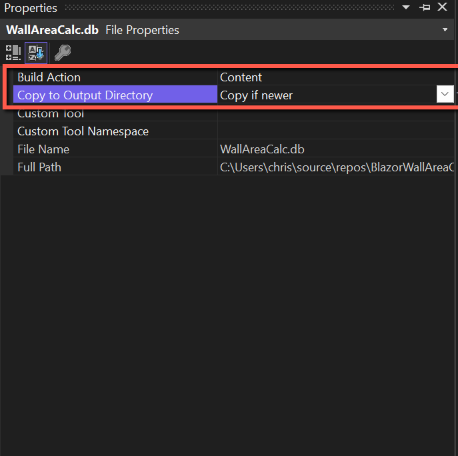
- Select 'Content' for 'Build Action'
- Select 'Copy if newer' for 'Copy to Output Directory'
These setting can be changed later if a different behaviour is required, but selecting this to start with will ensure that the database is published as part of the project.
Define Connection String
To link the application to the database we need to add a 'ConnectionString' to 'appsettings.json'. Open appsettings.json and add (or edit) the following (you will probably have to add a comma to the line above where this is to be inserted):
  "ConnectionStrings": {
    "Default": "Data Source=.\\Data\\WallAreaCalc.db;Version=3;"
  }
Data Models
We need to add 'data models' to our C# project that reflects the tables in the SQLite database.
To do this:
- Right-click on the Data folder and select Add > Class
- Name the class the same as the database table, e.g. Project.cs
- Copy and paste the following code for each table/class and save the file.
Project.cs
using System.ComponentModel.DataAnnotations;

namespace BlazorWallAreaCalculator.Data
{
    public class Project
    {
        [Required]
        public int ProjectID { get; set; }

        [Required(ErrorMessage = "User Email is required")]
        [EmailAddress(ErrorMessage = "Invalid Email Address format.")]
        [StringLength(50, ErrorMessage = "'User Email' has a maximum length of 50 characters.")]
        public string UserEmail { get; set; } = String.Empty;

        [Required(ErrorMessage = "Project Name is required")]
        [StringLength(50, ErrorMessage = "'Project Name' has a maximum length of 50 characters.")]
        public string ProjectName { get; set; } = String.Empty;
    }
}
Note that the Project model is the only model I have added data annotation error messages to, but should act as a template for adding error messages to other model files.
I have added a column for 'UserEmail'. This is in anticipation that I might want to add AzureB2C authentication and then limit data to the logged-in user. But that is for another day.
Room.cs
using System.ComponentModel.DataAnnotations;

namespace BlazorWallAreaCalculator.Data
{
    public class Room
    {
        [Required]
        public int RoomID { get; set; }
        [Required]
        public int ProjectID { get; set; }
        [Required]
        [StringLength(50)]
        public string RoomName { get; set; } = String.Empty;
    }
}
Wall.cs
using System.ComponentModel.DataAnnotations;

namespace BlazorWallAreaCalculator.Data
{
    public class Wall
    {
        [Required]
        public int WallID { get; set; }
        [Required]
        public int RoomID { get; set; }
        [Required]
        [StringLength(50)]
        public string WallName { get; set; } = String.Empty;
        public int WallTypeID { get; set; } = 0;
        [Required]
        public string WallTypeName { get; set; } = string.Empty;
        [Required]
        public int WallLengthMax { get; set; } = 0;
        [Required]
        public int WallLengthMin { get; set; } = 0;
        [Required]
        public int WallHeightMax { get; set; } = 0;
        [Required]
        public int WallHeightMin { get; set; } = 0;
        [StringLength(50)]
        public decimal WallSqM { get; set; } = decimal.Zero;
    }
}
I have added WallTypeID and WallTypeName to this file; probably bad practice and unnecessary, but I found it helpful for handling the dialog to add/edit walls. Wall Type is not recorded in a table, but 'Local Data'. See Index.razor later for details.
In theory I shouldn't include 'WallSqM' as that could be calculated whenever it's needed; again I am taking a pragmatic approach rather than necessarily best practice.
Deduction.cs
using System.ComponentModel.DataAnnotations;

namespace BlazorWallAreaCalculator.Data
{
    public class Deduction
    {
        [Required]
        public int DeductionID { get; set; }
        [Required]
        public int WallID { get; set; }
        [Required]
        [StringLength(50)]
        public string DeductionName { get; set; } = String.Empty;
        [Required]
        public int DeductionWidth { get; set; } = 0;
        [Required]
        public int DeductionHeight { get; set; } = 0;
        public decimal SqM { get; set; } = decimal.Zero;
    }
}
Housekeeping
Delete the files we won't need:
- Data/Weatherforecast.cs
- Data/WeatherforecastService.cs
- Pages/Counter.razor
- Pages/FetchData.razor
- Shared/SurveyPrompt.razor
And update these files:
- Pages/Index.razor
- Delete the SurveyPrompt line
- Shared/NavMenu.razor
- Comment out the links to Counter and FetchData
- Amend the title to 'Wall Area Calculator'
- Program.cs
- Delete "using BlazorWallAreaCalculator.Data;" (it's unnecessary)
- Delete "builder.Services.AddSingleton
,<WeatherForecastService>();